> For the complete documentation index, see [llms.txt](https://docs.krystal.app/llms.txt). Markdown versions of documentation pages are available by appending `.md` to page URLs; this page is available as [Markdown](https://docs.krystal.app/deprecated/mobile-wallet/connect-multiple-wallets-on-krystal-android-app.md).
# Connect multiple wallets on Krystal Android app
Effectively managing crypto assets across different wallets is essential for your seamless DeFi experience. With the Krystal Android App, you can easily connect multiple wallets, enabling more flexibility and control over your liquidity provision and asset management.
Follow the steps below to securely connect your preferred wallets and begin leveraging the power of Krystal’s DeFi ecosystem.
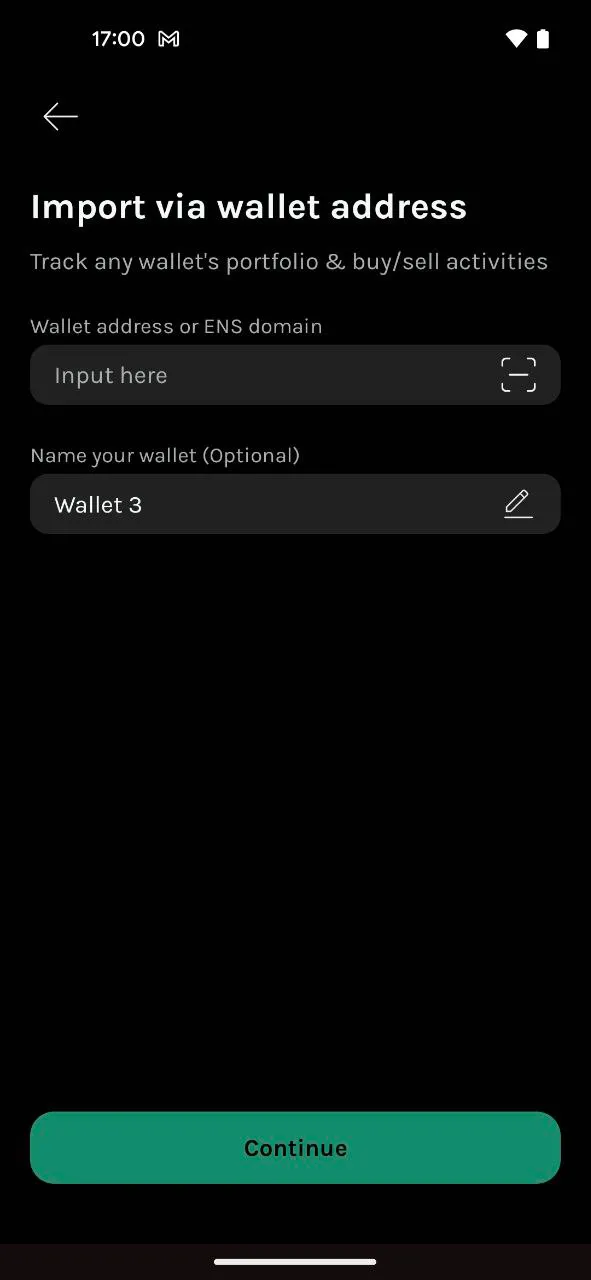
### Step 1: Add a wallet using an Address
To get started, navigate to the "Add Wallet" section within the app and input the public address of the wallet you wish to connect.
### Step 2: Initiate a Transaction
Before creating a transaction, make sure your external wallet (e.g., MetaMask or Trust Wallet) is active and set to the appropriate blockchain network.
If there is no active session, your session has expired, or the selected blockchain differs from the one required for your transaction, you will need to reconnect your wallet.
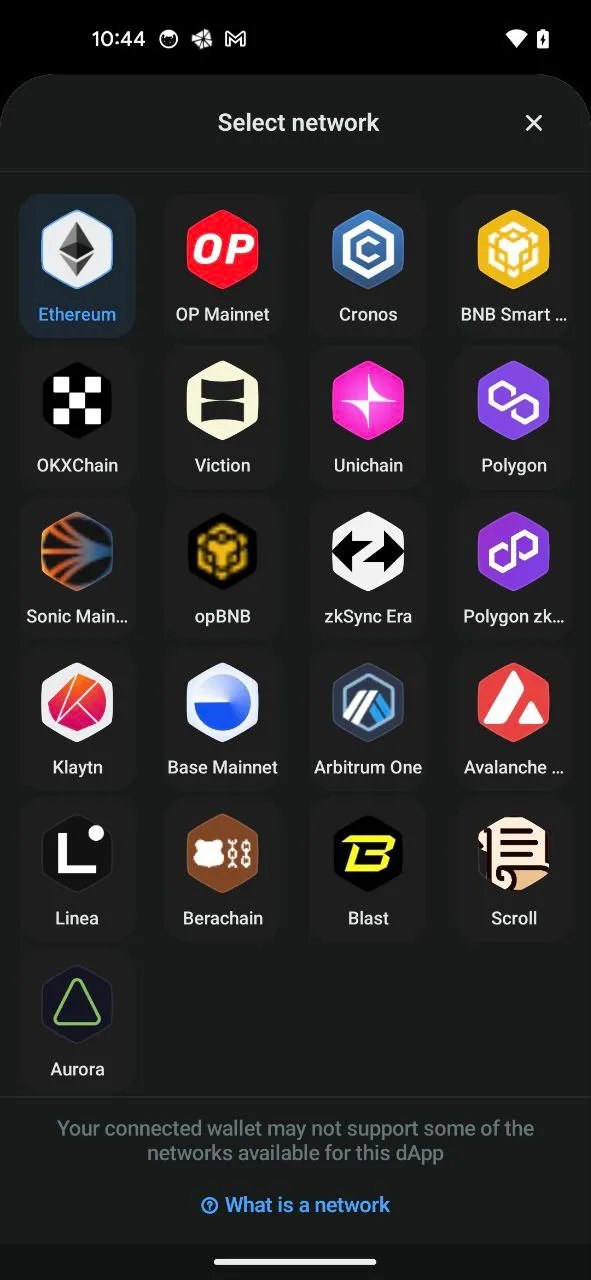
#### 2.1 Select the Network
Choose the appropriate blockchain network for your transaction. This ensures compatibility with the wallet and the assets you intend to use.
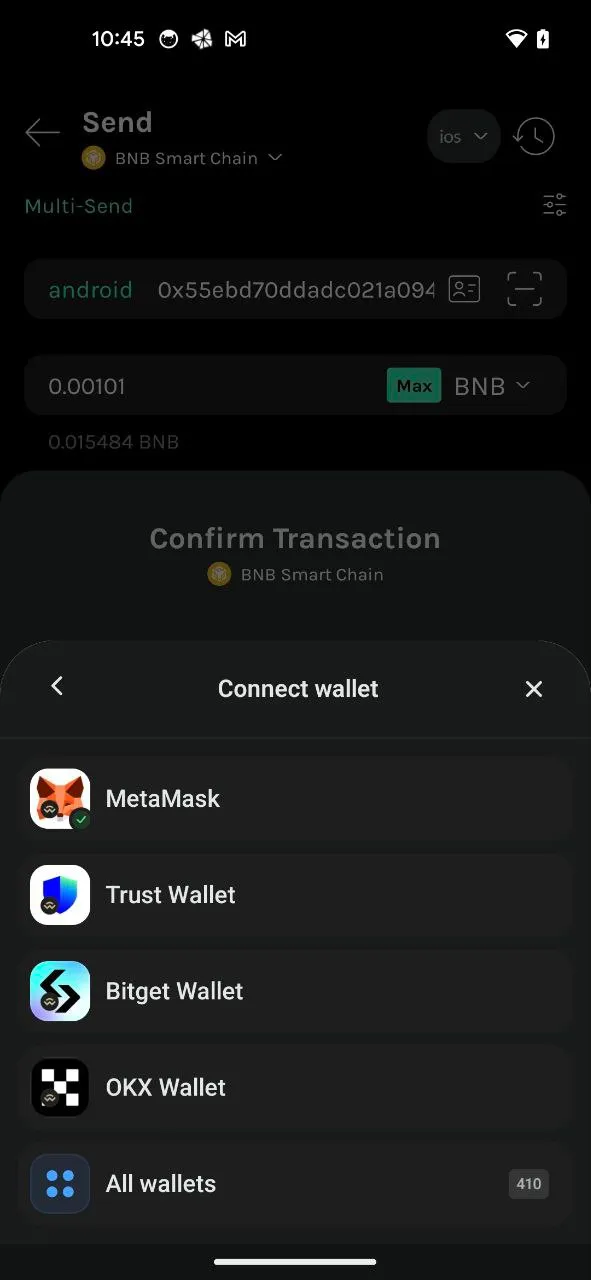
#### 2.2 Select Your Wallet
Krystal supports integration with popular wallets such as MetaMask, Trust Wallet, and others. Choose the wallet you wish to connect from the list.
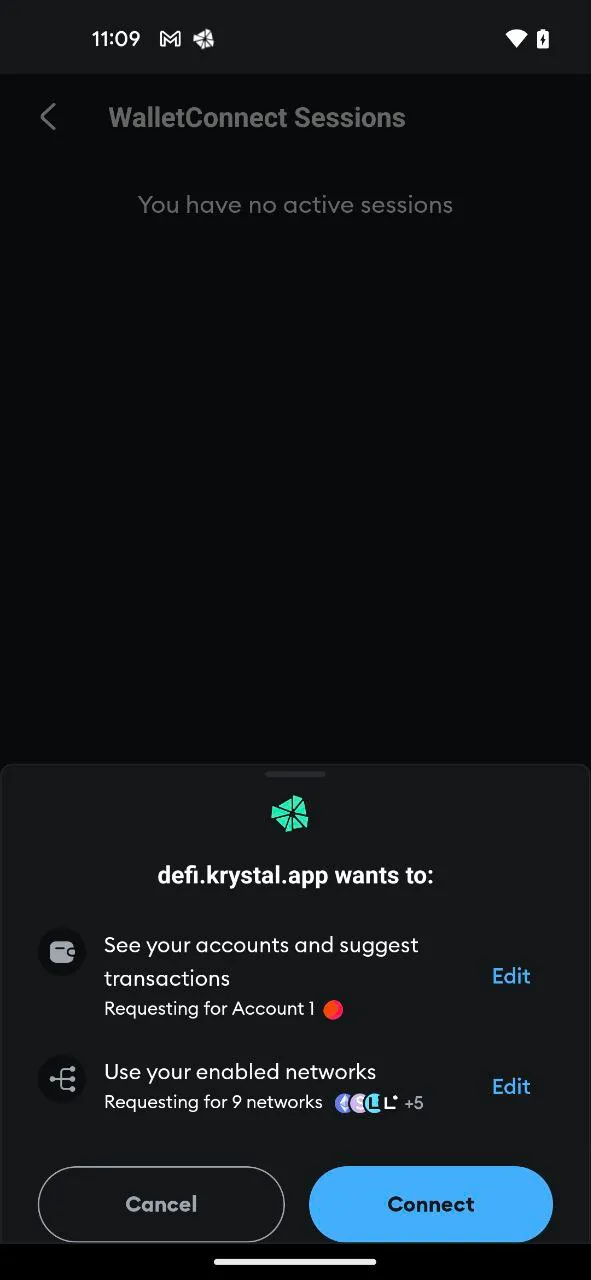
#### 2.3 Validate the Connection
After choosing your wallet, an authorization prompt will pop up in the external wallet application.
To securely establish the connection between your wallet and Krystal Mobile, authorize the connection request.
#### 2.4 Authorize the Transaction
After approving the wallet connection, confirm the transaction details and authorize it within your wallet app.
#### Note:
* In some cases, wallet apps like MetaMask may experience slight delays in displaying connection requests. If no prompt appears, please retry the process.
* If the wallet does not automatically redirect back to the Krystal app after confirming the connection or authorizing the transaction, kindly navigate back man
---
# Agent Instructions
This documentation is published with GitBook. GitBook is the documentation platform designed so that both humans and AI agents can read, navigate, and reason over technical content effectively. Learn more at gitbook.com.
## Querying This Documentation
If you need additional information that is not directly available in this page, you can query the documentation by asking a question.
Perform an HTTP GET request on the following URL with the `ask` and `goal` query parameters:
```
GET https://docs.krystal.app/deprecated/mobile-wallet/connect-multiple-wallets-on-krystal-android-app.md?ask=&goal=
```
`ask` is the immediate question: it should be specific, self-contained, and written in natural language.
`goal` is what the user is ultimately trying to achieve, the reason they need the answer. Sharing it helps GitBook give you a better, more relevant answer. A goal is most helpful when it describes the outcome the user wants rather than restating the question. For example, with `ask=how do I create an API token`, a goal like `automate deployments from our CI pipeline` lets GitBook tailor the answer to that use case.
The response will contain a direct answer to the question and relevant excerpts and sources from the documentation.
Use this mechanism when the answer is not explicitly present in the current page, you need clarification or additional context, or you want to retrieve related documentation sections.