# Agent Instructions
This documentation is published with GitBook. GitBook is the documentation platform designed so that both humans and AI agents can read, navigate, and reason over technical content effectively. Learn more at gitbook.com.

## Querying This Documentation
This site has an agentic ask interface you may use to query the documentation dynamically by asking a question.

Perform an HTTP GET request on the following URL with the `ask` and `goal` query parameters:

```
GET https://docs.krystal.app/index.md?ask=<question>&goal=<user_goal>
```

`ask` is the immediate question: it should be specific, self-contained, and written in natural language.
`goal` is what the user is ultimately trying to achieve, the reason they need the answer. Sharing it helps GitBook give you a better, more relevant answer. A goal is most helpful when it describes the outcome the user wants rather than restating the question. For example, with `ask=how do I create an API token`, a goal like `automate deployments from our CI pipeline` lets GitBook tailor the answer to that use case.

The response will contain a direct answer to the question and relevant excerpts and sources from the documentation.

---

# Overview

## What is Liquidity Farming?

Liquidity Farming, or [Liquidity Mining](https://www.coinbase.com/learn/your-crypto/what-is-liquidity-mining) is one of the first groundbreaking innovations to empower DeFi, enabling everyone (known as Liquidity Providers) to supply cryptocurrencies into liquidity pools and receive compensation based on their share.

Understanding Liquidity Farming and Providing Liquidity requires a grasp of decentralized exchanges ([DEXs](https://academy.binance.com/en/articles/what-is-a-decentralized-exchange-dex)) and automated market makers ([AMMs](https://academy.binance.com/en/articles/what-is-an-automated-market-maker-amm)), which facilitate the process.&#x20;

Liquidity Providers earn compensation through transaction fees and token rewards, which can reach unparalleled highs during periods of market volatility. On the downside, they may face risks such as [impermanent loss](https://academy.binance.com/en/articles/impermanent-loss-explained), where the value of their deposited assets decreases compared to holding them outside the pool. Therefore, Liquidity Farming remains mostly overlooked due to its complexity and potential risks.

## What is Krystal?

> Our mission is **to revolutionize the blockchain industry by making liquidity farming not only accessible but also profitable for everyone**.

<figure><img src="https://1670507844-files.gitbook.io/~/files/v0/b/gitbook-x-prod.appspot.com/o/spaces%2FAmo4vXpjHKQh32RAZ0AA%2Fuploads%2FpdfPZqn9UNUJ2we4dXVU%2FTwitter_Header_Banner_2024_1500x500px.png?alt=media&amp;token=30be0738-7479-45cd-9347-9316fc518ae4" alt=""><figcaption></figcaption></figure>

Krystal is a **Decentralized, Multichain Liquidity Farming Agent** that enables users to earn yield by providing liquidity across various DEXs and blockchains.&#x20;

Leveraging AI agents, Krystal continuously scans for the highest yields, does in-depth analyses of liquidity flow and farming performance, and automates the entire process through optimized strategies and vaults. This ensures users maximize their farming rewards with a seamless and secure experience.


# Getting Started

#### **🧑‍🌾 Start an auto-farm vault with an activated agent**

Quickly create an auto-farm vault based on your intent!

{% columns %}
{% column %}
{% content-ref url="/pages/WAVVoGnBqDnCx6IEM7L0" %}
[Auto-Farm Vault](/products/vaults/auto-farm)
{% endcontent-ref %}
{% endcolumn %}

{% column %}
{% content-ref url="/pages/3zahk2lj7C7ngqBzJVrJ" %}
[Create an Auto Farm Vault](/products/vaults/auto-farm/create-an-auto-farm-vault)
{% endcontent-ref %}

{% content-ref url="/pages/sKtHvF0E4M4Myn22SoXX" %}
[Manage an Auto Farm Vault](/products/vaults/auto-farm/manage-an-auto-farm-vault)
{% endcontent-ref %}
{% endcolumn %}
{% endcolumns %}

#### ⚙️ **Manage LP like a pro**

If you already have liquidity positions on DEXs (e.g., Uniswap, PancakeSwap), Krystal gives you a complete, detailed overview of those positions. You can also leverage powerful tools such as automation, convenient zap-in, and zap-out to manage them more efficiently.

{% columns %}
{% column %}
{% content-ref url="/pages/UXci4oeBGcdk5IJyBILn" %}
[Profile Dashboard](/products/liquidity-management/profile-dashboard)
{% endcontent-ref %}

{% content-ref url="/pages/190UayB6OlcvlqpWZdKf" %}
[Explore Hot Pools](/products/liquidity-management/hot-pools)
{% endcontent-ref %}
{% endcolumn %}

{% column %}
{% content-ref url="/pages/irvIOvjLlZSRtJ2Pg1q2" %}
[Manage Liquidity Position](/products/liquidity-management/lp-transactions)
{% endcontent-ref %}
{% endcolumn %}
{% endcolumns %}

#### **🧠 Publish your own farming strategies**

Create a shared vault; let people deposit in your vault and take a cut on the earnings.

{% content-ref url="/pages/kHrM6fkA61a5aP8Mu0Kx" %}
[Create a Community Vault](/products/vaults/community-vault-v2/start-a-vault)
{% endcontent-ref %}

{% content-ref url="/pages/XVdyPfMQ5w4nyPe8Ltxz" %}
[Broken mention](broken://pages/XVdyPfMQ5w4nyPe8Ltxz)
{% endcontent-ref %}

{% content-ref url="/pages/ymq9lXP7KpCzCi41pkdu" %}
[Join a Community Vault](/products/vaults/community-vault-v2/join-a-vault)
{% endcontent-ref %}

#### **📚 Learn more about Liquidity Farming and Liquidity Vault**

{% content-ref url="/pages/lq2yMWEluoHkR4dgrpNl" %}
[What is A Liquidity Vault](/products/vaults/what-is-liquidity-vault)
{% endcontent-ref %}

{% content-ref url="/pages/luVKLBe6t6NFmcFQxDdI" %}
[Vault vs Strategy](/products/vaults/vault-vs-strategy)
{% endcontent-ref %}

{% content-ref url="/pages/M0bXvywJESwaXWI2pr2u" %}
[FAQ](/faq)
{% endcontent-ref %}


# FAQ

<details>

<summary><strong>What is providing liquidity?</strong></summary>

Providing liquidity means depositing cryptocurrency assets into a liquidity pool on a decentralized exchange (DEX). These pools facilitate trading between crypto pairs without traditional market makers.

As a liquidity provider (LP), you receive liquidity tokens representing your share of the pool. These tokens can be redeemed for your original investment. Your contribution helps facilitate trading, and in return, you earn a portion of the trading fees generated from transactions within the pool.

</details>

<details>

<summary><strong>What to consider when providing liquidity on a DEX?</strong></summary>

* **Impermanent Loss:** Be aware of impermanent loss, which occurs when the value of your deposited assets changes compared to their value at deposit. Greater price divergence can lead to higher impermanent loss.
* **Pool Composition:** Evaluate the assets in the pool. Pools with volatile assets may offer higher returns but come with increased risk.
* **Transaction Fees:** Consider the DEX’s fee structure. Higher fees could lead to greater rewards but might also reduce trading volume and overall profitability.

  Tokenomics: Understand the liquidity tokens' economic model and how changes in asset supply and demand might affect them.
* **Smart Contract Risk:** Assess the security of the DEX and its smart contracts. Prefer audited and well-established contracts to minimize risk.
* **Liquidity of the Pool:** Check the total value locked (TVL) in the pool. Higher liquidity usually means less slippage and better trade execution.
* **Investment Duration:** Decide whether to provide liquidity as a short-term or long-term investment. Some pools offer incentives for longer staking periods.
* **DEX Reputation and Volume:** Research the DEX’s reputation and trading volume. Established and high-volume exchanges typically offer more stable earning potential.

</details>

<details>

<summary><strong>Why do token prices on Krystal look different vs. in other apps?</strong></summary>

Krystal uses a combination of data sources to determine token prices, which may lead to price differences compared to other apps:

* **Market Price:** Krystal aggregates token prices in USD (e.g., 1 ETH = $4,000) from multiple sources, including centralized exchanges (Binance, OKX, Coinbase) and decentralized exchanges (Uniswap, SushiSwap, PancakeSwap). This data is sourced through Coingecko.
* **Pool Price:** The pool price (e.g., 1 ETH = 4,008 USDC) reflects the current state of the liquidity pool, considering factors like token availability, fee tiers, and liquidity distribution.

Although Krystal integrates both market and pool prices for accuracy, several factors can still impact price precision:

* Network issues or server errors
* Discrepancies between decentralized and centralized exchange prices
* Delays in EVM node updates

</details>

<details>

<summary><strong>How does Krystal estimate a pool APR?</strong></summary>

The formula to calculate pool APR at Krystal is shown below:

`APR = (24h earning * 365) / Current liquidity * 100%`

The APR might vary based on multiple factors

* Uniformly Distributed Liquidity vs. Concentrated Liquidity:
  * For Uniformly Distributed Liquidity (as in UniSwap v2 and other similar protocols), the current liquidity is the total liquidity in that pool at this moment.
  * For Concentrated Liquidity (as in UniSwap v3 and other similar protocols), the current liquidity is the amount of liquidity at a specific price range chosen by users. Therefore, a narrower price range leads to smaller current liquidity, which then leads to higher APR.
* Users’ Activities:

  When a user makes a big deposit or withdraw, the amount of liquidity in the pool at the moment will be different than the amount of liquidity which generated earning in the last 24 hours. Therefore, the APR value will not be 100% accurate.

</details>

<details>

<summary><strong>What is Share Price?</strong></summary>

When you deposit assets into a Vault, you receive **Vault Shares** in return. These shares represent your portion of the Vault.&#x20;

The **Share Price** tells you how much one share is worth in terms of the underlying assets (like ETH, USDC, or other tokens).

> **Share Price = Total Value of Assets in Vault ÷ Total Number of Shares Issued**

</details>

<details>

<summary><strong>What should I do if I can’t withdraw my funds via the Krystal interface? (e.g., data issue, UI bug)</strong></summary>

Don’t worry — **your funds are always safe**.

If the interface isn’t working, you can still withdraw directly from the vault’s smart contract:

#### ✅ How to withdraw manually:

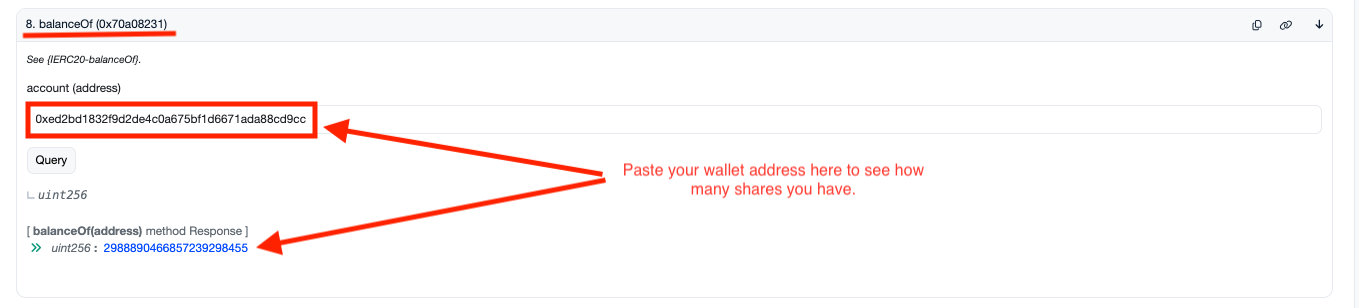
1. Open the vault on Explorer (click the explorer icon next to the vault address).

   <figure><img src="https://1670507844-files.gitbook.io/~/files/v0/b/gitbook-x-prod.appspot.com/o/spaces%2FAmo4vXpjHKQh32RAZ0AA%2Fuploads%2FCAcgFsOKiSp26HkC4Fx3%2FScreenshot%202025-07-01%20at%2015.56.15.png?alt=media&amp;token=4715d276-8286-4d30-9b8b-c5ccf2194983" alt=""><figcaption></figcaption></figure>

2. Go to the **“Read”** tab → find your share balance.

   <figure><img src="https://1670507844-files.gitbook.io/~/files/v0/b/gitbook-x-prod.appspot.com/o/spaces%2FAmo4vXpjHKQh32RAZ0AA%2Fuploads%2FTWbs4OPnfTIS0t3uvFvq%2FScreenshot%202025-07-01%20at%2015.58.57.png?alt=media&amp;token=157397b6-c3e9-49fa-b043-b5f8329a7bc7" alt=""><figcaption></figcaption></figure>

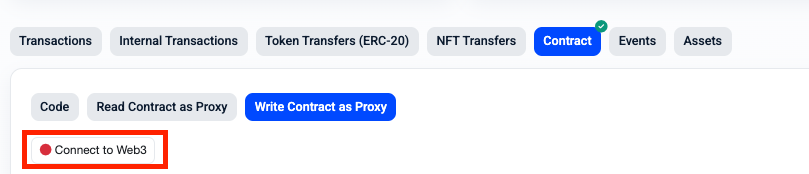
3. Go to the **“Write”** tab → connect your wallet.

   <figure><img src="https://1670507844-files.gitbook.io/~/files/v0/b/gitbook-x-prod.appspot.com/o/spaces%2FAmo4vXpjHKQh32RAZ0AA%2Fuploads%2Feo15nWoN26QAnzesVqPx%2FScreenshot%202025-07-01%20at%2016.15.08.png?alt=media&amp;token=0e6c72de-b105-4925-8959-fdd09e30015b" alt=""><figcaption></figcaption></figure>

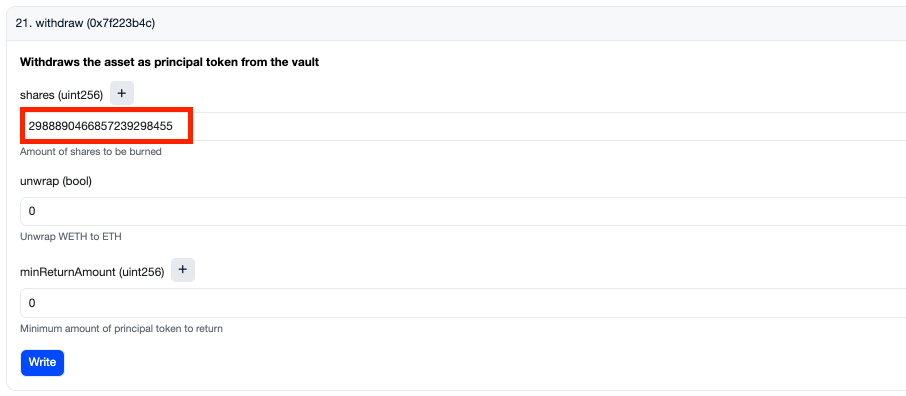
4. Call the `withdraw()` function with your share amount.

   <figure><img src="https://1670507844-files.gitbook.io/~/files/v0/b/gitbook-x-prod.appspot.com/o/spaces%2FAmo4vXpjHKQh32RAZ0AA%2Fuploads%2FaMpnSKjt5ND0Q56tVG9a%2FScreenshot%202025-07-01%20at%2016.30.00.png?alt=media&amp;token=769f647c-332a-450a-9f03-3d06e4fd0048" alt=""><figcaption></figcaption></figure>

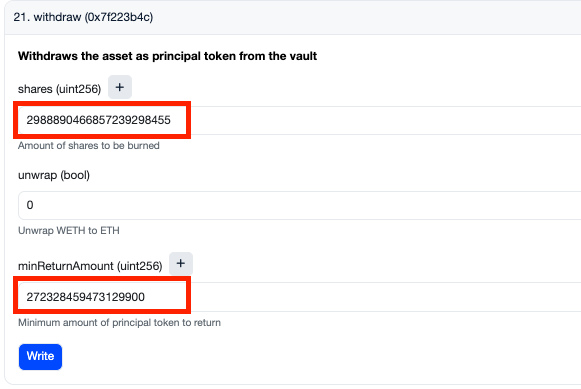
   If you’re doing an emergency withdraw and set `minReturnAmount = 0`, the transaction will **ignore slippage protection**, which is fine for small positions. But what if you're holding a **large value** and want to **avoid high slippage loss**?

   No worries — you can **manually calculate and set your `minReturnAmount`** using the vault’s smart contract. Here’s how:

   **1. Get your share amount**

   Use `balanceOf(address)` → function selector: `0x70a08231`

   **2. Get total share supply**

   Call `totalSupply()` → selector: `0x18160ddd`

   **3. Get total vault value**

   Use `getTotalValue()` → selector: `0xcaa648b4`

   **4. Estimate your withdrawal value**

   `principalValue = (yourShare / totalSupply) * totalVaultValue`

   **5. Apply your slippage tolerance**

   For 10% slippage: `minReturnAmount = principalValue * 0.9`

   **Example Calculation**

   <pre data-overflow="wrap" data-full-width="true"><code>yourShare = 2988890466857239298455
   totalSupply = 22672705752623181671029
   totalVaultVaule = 2295323334552647861
   slippage 10%
   minReturnAmount = (yourShare / totalSupply) * totalVaultValue * 0.9 = 272328459473129900
   </code></pre>

   <div align="center" data-full-width="true"><figure><img src="https://1670507844-files.gitbook.io/~/files/v0/b/gitbook-x-prod.appspot.com/o/spaces%2FAmo4vXpjHKQh32RAZ0AA%2Fuploads%2FjaklnrAcSrFqlXbyqfLi%2FScreenshot%202025-07-01%20at%2017.23.34.png?alt=media&amp;token=c21e5bc8-8013-414a-ab37-68d2eedb22c0" alt=""><figcaption></figcaption></figure></div>

</details>

<details>

<summary><strong>What is slippage?</strong></summary>

**Slippage** is the difference between the price when an order is placed and the price when that order is executed. Slippage can happen when you swap, deposit and withdraw liquidity.

* **Swap Slippage**

  For any Swap transaction at Krystal, you can either choose the pre-selected slippage suggested by Krystal or set up your own slippage. As long as the execution price is within the slippage range, e.g., %1, your order will be executed. Otherwise, the order will fail, which means the swap will not occur.
* **Liquidity Deposit / Liquidity Withdraw Slippage**

  Slippage can also happen when you deposit or remove liquidity. The same logic as swap is applied: If execution price is within the slippage allowance, your order will be executed.

</details>

<details>

<summary><strong>What're the Risks using Krystal Vault?</strong></summary>

Vault holds a collection of working Liquidity Positions, so you are still exposed to the Impermanent Loss.

Private Vault provides efficiency when farming liquidity.

You could also invest in Public Vault by others for simplicity. Public Vaults carry inherent risks as anyone could create a Public Vault. Always understand how the vault works and DYOR carefully [Vault: Risk Evaluation](/products/vaults/risks).

</details>

<details>

<summary><strong>Enable TWAP for a Liquidity Pool</strong></summary>

{% hint style="warning" %}
After enabling, it will take some time for the TWAP price to be ready.
{% endhint %}

TWAP price is required for Vault, for on-chain's validation.

Enabling TWAP (Time-Weighted Average Price) allows a liquidity pool to record historical price data, which is useful for calculating more stable, average prices over time.&#x20;

This is supported on Uniswap V3 or compatible pools (like Algebra, Pancake V3, etc.). Anyone can enable TWAP by calling the `increaseObservationCardinalityNext()` function on the pool. It requires a small gas fee but has no other risks.

</details>

<details>

<summary><strong>How to Solve Gas Exceeds Block Limit on HyperEVM (Rabby Wallet)?</strong></summary>

**Why do I see the error “Fail to create – Gas exceeds block gas limit”?**

This happens because HyperEVM uses a **dual-block architecture**:

* **Small blocks:** 2M gas limit (used for quick transactions)
* **Large blocks:** 30M gas limit (used for complex operations)

Krystal uses **small blocks** by default. If your transaction (after Rabby Wallet adds its gas buffer) exceeds the 2M gas limit, you’ll see this error

<figure><img src="https://1670507844-files.gitbook.io/~/files/v0/b/gitbook-x-prod.appspot.com/o/spaces%2FAmo4vXpjHKQh32RAZ0AA%2Fuploads%2FJeQyTe7HB34p53ys2rzI%2FScreenshot_2025-09-17_at_12.00.40.png?alt=media&amp;token=c6a112b9-8f38-48e5-9718-c710db9701b2" alt=""><figcaption></figcaption></figure>

**Why does this issue often happen with Rabby Wallet?**

Rabby automatically applies a **gas buffer** (typically 1.3x–1.5x the estimated gas).

* For some transactions (e.g., zapping from USDT into a pool like UPUMP/WHYPE), this buffer **pushes the gas above the 2M limit**, which small blocks cannot accept

<figure><img src="https://1670507844-files.gitbook.io/~/files/v0/b/gitbook-x-prod.appspot.com/o/spaces%2FAmo4vXpjHKQh32RAZ0AA%2Fuploads%2FGyuu6oRoL2OQIrycwl1E%2FScreenshot_2025-09-17_at_15.19.17.png?alt=media&amp;token=e0b6e75c-89fa-4669-b239-6846f7781fdc" alt=""><figcaption></figcaption></figure>

#### **How can I fix the gas exceeds block limit error?**

When you’re signing a transaction:

* Look for the **Advanced Settings** option.
* You’ll see fields for **Gas Limit** and **Nonce**.
* Adjust only the **Gas Limit** (<= 2,000,000).

#### **Do I always need to change this setting?**

No.

* You only need to adjust it when your transaction fails with the **“gas exceeds block limit”** error.
* For most standard transactions, Rabby’s default buffer works fine.

***

</details>

<details>

<summary><strong>Failed to simulate the transaction when using Solflare?</strong></summary>

Users using **Solflare** to make transactions with **Krystal** on **Solana** may encounter simulation failure errors. You can continue the transaction by checking `I trust this site.`

* For example, a user joining the WSOL/USDC pool with a single token (SOL) through Zap using the Solflare wallet extension.

<img src="https://github.com/KrystalDeFi/docs-gitbook/blob/main/docs/liquidity-farming/.gitbook/assets/Screenshot%202025-01-20%20at%2015.20.12.png" alt="" data-size="original">

* Confirming that Zap often involves the simulation process in Solflare, which can result in a simulation failure error.

<img src="https://github.com/KrystalDeFi/docs-gitbook/blob/main/docs/liquidity-farming/.gitbook/assets/Screenshot%202025-01-20%20at%2016.01.26.png" alt="" data-size="original">

* This is a limitation of Solflare when simulating complex transactions that involve more intricate processes compared to standard transfers. They provide more details about this issue in the official documentation [here](https://help.solflare.com/en/articles/9263757-why-did-my-transaction-fail).
* You can continue the transaction by checking `I trust this site` and `Approve`

<img src="https://github.com/KrystalDeFi/docs-gitbook/blob/main/docs/liquidity-farming/.gitbook/assets/Screenshot%202025-01-20%20at%2016.01.36.png" alt="" data-size="original">

</details>

<details>

<summary><strong>Compliance with FATF Recommendations</strong></summary>

In accordance with **FATF** (Financial Action Task Force) recommendations, Krystal has implemented measures to restrict distribution to specific countries.

You can find more details here: <https://www.fatf-gafi.org/en/countries/black-and-grey-lists.html>

</details>


# About us

## Team

Our team is a diverse mix of professionals with different backgrounds, bonded by a shared passion for blockchain. We're committed #buidlers at heart, focusing on addressing blockchain users' pain points and driving the evolution of Web3.

<figure><img src="https://1670507844-files.gitbook.io/~/files/v0/b/gitbook-x-prod.appspot.com/o/spaces%2FAmo4vXpjHKQh32RAZ0AA%2Fuploads%2F6f5D8PXmkuJ8Kc04lVJt%2FScreenshot%202025-02-05%20at%2011.12.05.png?alt=media&amp;token=76d35e8b-0b5c-4eba-baae-0cf6b09fe35a" alt=""><figcaption></figcaption></figure>

#### **Core members**

**Jarvis Nguyen**, CEO/Co-founder, [X](https://x.com/jarvis__) | [LinkedIn](https://www.linkedin.com/in/jarvisn/): IOI medalist. Top 10 Vietnam CTO Summit 2022. Co-founded Etheremon, pioneering NFT Games in 2017. A seasoned web3 builder for over 7 years, committed to the long-term vision of Web3 and bringing DeFi accessible to the masses.

**Nam Nguyen**, Engineering Manager, [X](https://twitter.com/namnm1991) | [LinkedIn](https://www.linkedin.com/in/namngm/): 6+ years in building web3 products and scalable backend services. Leads backend team to build and manage 50+TB of blockchain data in our data warehouse.

**Steve Duong**, Engineering Manager, [X](https://twitter.com/toidv) | [LinkedIn](https://www.linkedin.com/in/toidv/): 10+ years building clients in multiple big corps and startups. Leads iOS, Android, and Web App at Krystal.

**Peter Nguyen**, Product Manager, [X](https://twitter.com/0xthebrick) | [LinkedIn](https://www.linkedin.com/in/peter-nguyen-849a8415a/): Crypto native and DeFi degen. Deep understanding of DeFi landscape and pain points. Joins Krystal to bring unique DeFi opportunities to mass users.

.. and many more enthusiastic buidlers :rocket:

#### **Investors**

<figure><img src="https://1670507844-files.gitbook.io/~/files/v0/b/gitbook-x-prod.appspot.com/o/spaces%2FAmo4vXpjHKQh32RAZ0AA%2Fuploads%2F5FaD94WMB9nD2QJaJb5n%2FScreenshot%202024-03-19%20at%2010.37.01.png?alt=media&amp;token=0a8ced15-aa49-481f-83dc-ec725f2ac213" alt=""><figcaption></figcaption></figure>

## Values

We're not just a team building products; we're dedicated to the long-term vision of Web3 and constant value delivery.

❤️ **Embrace Ownership:** We aim for excellence, with each team member taking ownership of their role. We assume full responsibility for our work, willingly stepping out of our comfort zones, taking on additional responsibilities, and continuously growing to achieve our shared goals.

💥 **Make Impact:** We focus on the end outcome. We embrace calculated risks and challenges to differentiate ourselves and deliver the most impactful results.

**🤝 Respect Others**: We value openness and willingness to engage in tough conversations. We give and receive feedback with goodwill, vigorously seeking answers while respecting and committing to final decisions.


# TOKEN

{% hint style="warning" %}
The full tokenomics and TGE timing are to be determined (TBD). Stay tuned for updates.
{% endhint %}

The Krystal Token is designed to foster a sustainably growing ecosystem centered around Liquidity Farming. It serves several key utilities:

1. **Incentivize Liquidity**: Distributed as farming rewards to encourage deep liquidity across various decentralized exchanges (DEXs) and blockchain networks.
2. **Governance Participation**: Token holders can stake their tokens to participate in governance decisions, contributing to the platform's continuous development and revenue-sharing mechanisms.
3. **Access Premium Features and Run Agents**: Used as a payment method for add-ons and premium features within the platform.

To ignite the token flywheel and establish momentum, the team is targeting its first billion dollars in transaction volume. Key performance metrics are shared transparently at [Metrics](/ecosystem/key-metrics).

TGE is expected around Q1/Q2 2025. Stay tuned!


# Roadmap 2025

High-level roadmap on upcoming items.

### Q1'25

* Insight and Support Agent
* Automated strategies for Solana

### Q2'25

* Automated farming VAULTS: Multiple LP assets
* Krystal Token
* Farming Incentives and Governance Activities (.e.g staking, revenue sharing)

### Q3'25

* Extended VAULTS: Automated by agents with advanced rules
* Expansions

### Q4'25

* B2B services; integrations to DEXs and Yield platforms


# Metrics

You can view Krystal's performance metrics using the link below.\
\
MixPanel tracking provides comprehensive data across all chains and volume processed by Krystal, while Dune tracking covers only the chains supported by Dune and volume through Krystal's smart contract.r

**MixPanel:** <https://mixpanel.com/p/GtBj5zBTu5bY3gzwWqa2kx>

**Dune**: <https://dune.com/krystal/dashboard>


# Fees

> We aim to build Krystal into a self-sustaining business that generates enough revenue to fund its own operations, freeing us from reliance on venture capital or token launch. This will enable us to dedicate ourselves entirely to researching and developing the best possible product for our users.

To ensure we can sustain our operations, we are implementing fees for the following features:

<table><thead><tr><th width="212.777587890625">Feature</th><th width="283.0086669921875">Fee</th><th>Note</th></tr></thead><tbody><tr><td><strong>Auto-Farm Vault</strong></td><td><strong>10%</strong></td><td><strong>10%</strong> of any generated rewards<br><br><em><mark style="color:blue;">* No additional fees for automation, zap, or rebalance within a VAULT.</mark></em></td></tr><tr><td><strong>Community Vault</strong></td><td><strong>10% - default</strong><br><strong>5% - for activated sharing</strong></td><td><p><strong>10%</strong> of any generated rewards (e.g., LP Fees, Farming rewards). </p><p></p><p>If the vault has activated sharing, platform fee go down to <strong>5%</strong> and Vault's Participants will be additionally charged a <strong>Commission Fee</strong> set by the Vault Owner.</p><p></p><p><em><mark style="color:blue;">* No additional fees for automation, zap, or rebalance within a VAULT.</mark></em></p></td></tr><tr><td><strong>Zap</strong></td><td>Dynamic: <strong>0.05% | 0.1% | 0.25%</strong></td><td>Based on pool fee tier:<br>• ≤ 0.05% → <strong>0.05%</strong><br>• 0.05–0.3% → <strong>0.1%</strong><br>• > 0.3% → <strong>0.25%</strong> of zap amount</td></tr><tr><td><strong>Manual Rebalance</strong></td><td>Dynamic: <strong>0.05% | 0.1% | 0.25%</strong></td><td>Based on pool fee tier:<br>• ≤ 0.05% → <strong>0.05%</strong><br>• 0.05–0.3% → <strong>0.1%</strong><br>• > 0.3% → <strong>0.25%</strong> of position value</td></tr><tr><td><strong>Manual Compound</strong></td><td>Dynamic: <strong>0.05% | 0.1% | 0.25%</strong></td><td>Based on pool fee tier:<br>• ≤ 0.05% → <strong>0.05%</strong><br>• 0.05–0.3% → <strong>0.1%</strong><br>• > 0.3% → <strong>0.25%</strong> of compound amount</td></tr><tr><td><strong>Auto Rebalance</strong></td><td>Dynamic: <strong>0.01% | 0.03% | 0.05%</strong></td><td><p>Based on pool fee tier:</p><ul><li>≤0.05% fee-tier → <strong>0.01%</strong> LP position.</li><li>≤0.3% fee-tier → <strong>0.03%</strong> LP position</li><li>Others → <strong>0.05%</strong> LP position.</li></ul></td></tr><tr><td><strong>Auto Exit</strong> </td><td>Dynamic: <strong>0.01% | 0.03% | 0.05%</strong></td><td><p>Based on pool fee tier:</p><ul><li>≤0.05% fee-tier → <strong>0.01%</strong> LP position.</li><li>≤0.3% fee-tier → <strong>0.03%</strong> LP position</li><li>Others → <strong>0.05%</strong> LP position.</li></ul></td></tr><tr><td><strong>Auto Compound</strong></td><td><strong>2%</strong></td><td><strong>2%</strong> of the generated LP fees, collecting at the compound time</td></tr><tr><td><strong>Auto Harvest</strong></td><td><strong>2%</strong></td><td><strong>2%</strong> of the generated LP fees, collecting at the harvest time</td></tr><tr><td></td><td></td><td></td></tr><tr><td><strong>Swap</strong></td><td><strong>0.1%</strong></td><td><strong>0.1%</strong> of the swap volume</td></tr></tbody></table>


# \[Coming soon] Manage an Auto-Farm Vault

This feature is coming soon..


# Referral & Affiliate

Grow with your community. Earn from your influence.

*For enquiries regarding the referral & affiliate program, please contact* [*http://t.me/johnnyCP*](http://t.me/johnnyCP)*.*&#x20;

### 📌 1. Introduction

Krystal’s Referral & Affiliate Program is designed to reward users, creators, and liquidity providers for driving real usage and liquidity into Krystal.

By sharing your referral link, you can earn passive income generated from your network’s trading yield — including LP fees and reward incentives.

> Your network’s yield = Your passive income

***

### 🧩 2. Key Definitions

| Term                  | Description                                                                                         |
| --------------------- | --------------------------------------------------------------------------------------------------- |
| **Referral User**     | Any user who invites others to use Krystal and earns basic rewards.                                 |
| **Affiliate Partner** | Verified users who can build a 3-tier sub-affiliate network and share profit with their downstream. |
| **Elite LP Member**   | Hand-picked top LPers who enjoy higher profit-sharing rates and exclusive access.                   |
| **Profit Sharing**    | % of Krystal platform revenue shared back to users and affiliates.                                  |
| **Commission**        | The share of profit an affiliate receives from their network.                                       |
| **Cashback**          | A portion of commission paid directly to invited users to incentivize trades/LP actions.            |

***

### 🔁 4. Referral Program

#### 🎯 Objective

Boost initial user growth, incentivize trading & LP activities.

#### ❗ Key Rules

* Anyone can become a referrer
* Simple 1-level reward flow
* No sub-affiliate structure yet

#### 🧠 Flow

1. User generates referral link
2. Friend joins Krystal using link
3. Friend performs actions (trade / LP)
4. Referrer earns cashback from friend’s yields

> Designed for first-time users & mass campaigns

***

### 🧱 5. Affiliate Program

#### 🎯 Purpose

Enable professional influencers, communities, and LPers to **earn from their own network** with **3 levels of sub-affiliates**.

#### Key Characteristics

* Controlled onboarding (approved by Ops)
* Each affiliate manages who to share commission with
* Commission always flows **Top → Bottom**

#### 💡 Commission Logic

Example: Affiliate A receives **50% platform revenue**

→ This 50% is treated as **100% commission**

A adds A1 → shares 80%

→ A1 receives 40% profit share

A1 adds A2 → shares 50%

→ A2 receives 20% profit share

Commission distribution = **A → A1 → A2**

Only **first valid parent** owns the new wallet permanently

***

### 🧮 6. Commission & Cashback Mechanics

* Affiliate decides % cashback to give sub-affiliates
* Cashback is always taken from **their own commission pool**
* Platform revenue never changes — only **distribution** changes

***

### ❓ 7. Case Studies & FAQs

**Case 1**

Wallet A has 20% rate, invites Wallet B (10% rate).

💬 Wallet B will use **its own code**

→ But commission still flows **A → B** according to defined split

**Case 2**

Wallet B is invited by both A1 & A2

💬 The **first inviter** becomes the valid parent.

Invites after that are **ignored**.

**Case 3**

Can any user join Affiliate Program?

💬 No — must be approved by Ops/Admin

(based on performance & community value)

***

### 👑 8. Elite LP Group (Invitation-Only)

A special community of **top-active LPers on Krystal**.

#### 🔥 Exclusive Benefits

* Higher profit-share rate from Day 1
* Access to premium LP alpha & strategies
* Dedicated referral code for community expansion
* They are **the only entry gate** for new Elite members

> To join the Elite Circle →
>
> You must be invited by an existing Elite LP member

This creates a **growth flywheel** driven by the strongest players.

***

### 💰 9. Revenue Model Breakdown

Krystal earns **a percentage of any yield generated** on the platform:

* LP trading fees
* Reward incentives (e.g., Merkl rewards, boosted APR)
* Other platform yield sources

From that revenue:

* A portion is allocated to **profit-sharing pool**
* Distributed to affiliates & users based on hierarchy

📎 A visual one-pager and revenue projection model will be included in appendix.

***

### 🛡 10. Anti-Abuse & Controls

* Affiliate access is **permissioned**
* Wallet linking is one-time & irreversible
* Transparent reporting dashboard (future)
* Ops verify partners before approving upgrades:
  * Performance
  * Community influence
  * Quality of growth


# Krystal's Managed Vaults

While Krystal empowers anyone to create and manage their own vaults, we also operate **Krystal-managed vaults** — curated strategies run directly by our team.

These vaults are designed to serve a range of risk profiles and yield goals. Users can easily browse and select a strategy that aligns with their preferences.

🔒 **Krystal’s Safe Address** (on most EVM chains): `0xed2bd1832f9d2de4c0a675bf1d6671ada88cd9cc`

* Explore Krystal’s Vaults: [View Vault List](https://defi.krystal.app/account/0xed2bd1832f9d2de4c0a675bf1d6671ada88cd9cc/positions)
* Or you can search for Krystal on the [home page](https://defi.krystal.app/)

<figure><img src="https://1670507844-files.gitbook.io/~/files/v0/b/gitbook-x-prod.appspot.com/o/spaces%2FAmo4vXpjHKQh32RAZ0AA%2Fuploads%2FXbnZEikXhVC1roRBMkQe%2FScreenshot%202025-05-30%20at%2013.59.32.png?alt=media&amp;token=bfde6090-88e1-4069-bef6-5ae28e045607" alt=""><figcaption></figcaption></figure>

### Farming on Ronin

{% hint style="success" %}
Getting started is simple — just **deposit the principal token**, and the vault will handle the rest.&#x20;

[Join a Community Vault](/products/vaults/community-vault-v2/join-a-vault)
{% endhint %}

On **Ronin**, Krystal uses a dedicated manager address: `0x41c9e9e168da1e2c7f267d243f1196e2aab285c4`&#x20;

* Krystal vaults on Ronin are optimized to farm [**Ronin Blitz**](https://ronin.merkl.xyz/) rewards seamlessly.
* Currently, there are [**2 active vaults**](https://defi.krystal.app/account/0x41c9e9e168da1e2c7f267d243f1196e2aab285c4/positions), accepting **RON** or **WETH**.&#x20;
* All **Blitz (Merkl) rewards** earned are automatically converted back into the vault; just deposit and let your money work.&#x20;

<figure><img src="https://1670507844-files.gitbook.io/~/files/v0/b/gitbook-x-prod.appspot.com/o/spaces%2FAmo4vXpjHKQh32RAZ0AA%2Fuploads%2FFd7gk0NgjqpKpVxUUzok%2FScreenshot%202025-05-30%20at%2014.07.55.png?alt=media&amp;token=509e2572-1d3f-4fd6-a8e9-f6e63ef4c133" alt=""><figcaption></figcaption></figure>


# Liquidity Vaults

Krystal’s Liquidity Vault is a powerful new tool that lets users manage, automate, and optimize liquidity provisioning across DeFi protocols through a Vault Interface.&#x20;

It’s a dynamic evolution from static liquidity strategies, giving users more flexibility, automation, and performance opportunities.

{% content-ref url="/pages/lq2yMWEluoHkR4dgrpNl" %}
[What is A Liquidity Vault](/products/vaults/what-is-liquidity-vault)
{% endcontent-ref %}

{% content-ref url="/pages/WAVVoGnBqDnCx6IEM7L0" %}
[Auto-Farm Vault](/products/vaults/auto-farm)
{% endcontent-ref %}

{% content-ref url="/pages/kHrM6fkA61a5aP8Mu0Kx" %}
[Create a Community Vault](/products/vaults/community-vault-v2/start-a-vault)
{% endcontent-ref %}

{% content-ref url="/pages/XVdyPfMQ5w4nyPe8Ltxz" %}
[Broken mention](broken://pages/XVdyPfMQ5w4nyPe8Ltxz)
{% endcontent-ref %}

{% content-ref url="/pages/luVKLBe6t6NFmcFQxDdI" %}
[Vault vs Strategy](/products/vaults/vault-vs-strategy)
{% endcontent-ref %}


# What is A Liquidity Vault

Vaults are a common feature in Web3 and DeFi, designed to simplify the user experience. But many existing vault providers underperform and offer limited exposure — often restricted to standard pairs like ETH-USD or pegged ETH variants.

Krystal’s Liquidity Vault is different. It’s a smart contract that functions as a dynamic portfolio manager. It holds and actively manages **multiple LP assets**, runs automated strategies, collects fees, adjusts positions, exits, and optionally vault can support external deposits in exchange for vault shares.

**Core Capabilities:**

* Manages multiple LP assets
* Auto collect and convert fees
* Enables auto-compounding, rebalancing, exiting, and more
* Auto-farm with enabled AI Agent

### **Why use a Vault?**

* **Fewer Transactions, Less Gas:** Bundle multiple LP actions (e.g. migrate, rebalance) into fewer txs
* **Safer and More Secure:** Vault permissions are scoped to the Vault only—unlike LP Strategies/Positions, which require permission across the entire NFT asset
* **Simplified UX:** Great for both normies and experienced users
* **Unlock More Opportunities:** Go beyond basic ETH pairs. Tap into niche markets, long-tail tokens, and custom strategies to maximize your edge in DeFi.
* **Passive Earning:** Let others deposit into your Vault and take a cut from performance fees

### Types of Liquidity Vault

There are 2 types of Liquidity Vault at Krystal:

* **Auto-Farm Vault**: Liquidity Farming through a Vault interface with enhanced management tools and **AI Agent**.
* &#x20;**Community Vault**: Allow public users to deposit into a vault; the vault owner takes a cut of the performance fee.


# Auto-Farm Vault

{% embed url="<https://www.youtube.com/watch?v=uXRPLoBSiLM>" %}

**Auto-Farm Vault** is Krystal’s next-generation liquidity farming vault that combines a flexible vault interface, advanced automation, and an AI Agent to help users farm yield across DeFi with zero manual effort.

Instead of managing pools, ranges, rebalances, and reward compounding by hand, users simply define their farming goals — and the vault, powered by Krystal’s AI Agent, takes care of everything.

Auto-Farm Vault is built for users who want to maximize yield while staying hands-free.

***

#### 🚀 A New Kind of Vault

Auto-Farm Vault enhances the traditional vault model with greater flexibility and control:

* **Private by design**\
  Each Auto-Farm Vault is owned by a single user. Other users cannot deposit into it, giving the owner full freedom to customize strategies, risk levels, and assets without being affected by shared liquidity.
* **No principal token restriction**\
  Unlike traditional shared vaults that are tied to a fixed principal token, Auto-Farm Vault removes this limitation. Users can farm **any pool or pair** within the vault, enabling true multi-asset and cross-pool strategies under one vault.

This turns the vault into a personal farming engine rather than a one-size-fits-all product.

***

#### 🤖 AI Agent at the Core

At the heart of Auto-Farm Vault is Krystal’s **AI Farming Agent** — the star of the system.

The AI Agent:

* Understands liquidity pools, APRs, rewards, and risks
* Monitors market conditions and pool performance in real time
* Executes actions such as providing liquidity, rebalancing, harvesting, compounding, and exiting when needed

Users simply give the Agent instructions about what they want, for example:

> “Farm stable pools with low IL.”\
> “Maximize APR on ETH pairs.”\
> “Move funds if yield drops below 15%.”

From there, the AI Agent:

* Selects suitable pools
* Deploys capital
* Manages LP positions end-to-end — **completely hands-free**

***

#### 🌟 In Short

Auto-Farm Vault brings together:

* A **private, flexible vault** structure
* **Multi-pool, multi-asset** farming without principal token limits
* An **AI Agent** that plans and executes LP strategies automatically

All in one place — so users can focus on outcomes, while Krystal handles the complexity.


# Create an Auto Farm Vault

{% embed url="<https://www.youtube.com/watch?v=32BOl20jr0I>" %}
AutoFarm Demo
{% endembed %}

Creating an **Auto Farm Vault** is simple. Just click the **Create Auto Farm Vault** button and follow these steps to set your preferences. Krystal’s AI Agent will take care of the rest.

{% hint style="info" %}
**Note:** In this step, you provide your basic farming preferences. The AI Agent will use them to design a detailed strategy tailored to your goals. We strongly recommend reviewing the generated strategy carefully before turning on the Agent to start farming.
{% endhint %}

<figure><img src="https://1670507844-files.gitbook.io/~/files/v0/b/gitbook-x-prod.appspot.com/o/spaces%2FAmo4vXpjHKQh32RAZ0AA%2Fuploads%2FT4FGwpGHho8QulPi7K7X%2Fimage.png?alt=media&amp;token=034ef2a3-ceae-41db-b572-05d27594a34b" alt=""><figcaption></figcaption></figure>

### Step 1: Set up **Preferences**&#x20;

#### 1.1 Tell Us Your Farming Goals

You can type your own instructions, describe what you want to farm and your objectives.

Example goals:

* *“Build a conservative strategy on blue-chip DeFi pools with stable yields.”*
* *“Maximize APR on ETH pairs while managing IL.”*
* *“Farm trending pools but exit quickly when yields drop.”*

The more specific your goal is, the better the AI Agent can tailor a strategy for your vault.

> **Tip:** Focus on intent and constraints (safety, assets, chains, protocols, yield target), not on exact steps — the Agent will design the details.

***

#### 1.2 Choose Risk Level

Select your preferred risk profile:

* 🔴 **High Risk** – Memes, trending tokens, riskier bets with higher volatility.
* 🟡 **Balanced** – High-cap, established DeFi tokens with moderate risk.
* 🟢 **Safe** – Stablecoin pairs and low-volatility strategies.

The AI Agent will align pool selection and strategy behavior with your risk tolerance.

***

#### 1.3 Set Expected Return

Pick your target return mode:

* 🚀 **Max Gain** – Chase top-performing pools for maximum upside.
* 📈 **Growth Mode** – Target \~15–30% APR with balanced optimization.
* 💧 **Steady Yield** – Target \~5–15% APR with more stable strategies.

This guides how aggressively the Agent rotates and reallocates capital.

***

#### 1.4 Select Farming Style

Choose how actively you want the vault to be managed:

* 💤 **Passive** – Relaxed strategy with weekly or less frequent adjustments.
* ⚙️ **Smart** – Dynamically adjusts based on volatility and fees.
* ⚡ **Active** – Rebalances frequently to maximize yield.

More active styles may achieve higher returns but involve more frequent actions and gas usage.

***

### Step 2: Create Your Vault

After setting your preferences, click **Continue** to proceed to the **Create Vault** step, where you will:

* Name your vault
* Deposit funds (optional at creation)
* Confirm and create your Auto Farm Vault

Once created, the AI Agent will start managing your liquidity automatically based on your instructions.

***

#### ✨ That’s It!

With just a few choices, your **Auto Farm Vault** becomes a personal, AI-powered farming engine — monitoring pools, rebalancing positions, harvesting rewards, and compounding yield for you, 24/7.


# Manage an Auto Farm Vault

Once your Auto Farm Vault is created, you can manage and fine-tune its behavior in the **Agent Config** tab. Inside you will see the following sector:

* **Agent Config**: High-level goal & strategy of this particular vault
* **Auto-Farm Config**: Give your agent permissions to manage the vault’s LP assets

## Agent Config

These are the settings you have selected in the Create menu, they will shape how the AI Agent selects pools, allocates funds, and performs actions like rebalancing, harvesting, and exiting.

<figure><img src="https://1670507844-files.gitbook.io/~/files/v0/b/gitbook-x-prod.appspot.com/o/spaces%2FAmo4vXpjHKQh32RAZ0AA%2Fuploads%2FglAxFnbRg39os9Jj4ezt%2Fimage.png?alt=media&amp;token=ecf431fe-d307-4c99-ba16-f0e65e969bd9" alt=""><figcaption></figcaption></figure>

## Auto-Farm Config

The **Auto-Farm Config** section lets you fine-tune how the AI Agent is allowed to operate and under what conditions it can farm on your behalf. This is where you turn your strategy into concrete, executable rules.

It’s designed to balance **automation, control, and safety**.

{% hint style="info" %}
By default, **Auto-Farm Config** is not activated when a vault is created. Make sure to turn it on if you want the AI Agent to operate.

To activate the AI Agent, verify your wallet, click **Activate**, and remember to save the configuration.
{% endhint %}

### Permissions

<figure><img src="https://1670507844-files.gitbook.io/~/files/v0/b/gitbook-x-prod.appspot.com/o/spaces%2FAmo4vXpjHKQh32RAZ0AA%2Fuploads%2FO1BkHEv4zAMesJGf8uOo%2Fimage.png?alt=media&amp;token=930cee57-21f0-4284-bba8-bf70f11078a1" alt=""><figcaption></figcaption></figure>

**Permissions** define *what actions* the AI Agent is allowed to perform.

Here, you decide whether the Agent can:

* Run transactions automatically
* Add or remove liquidity
* Rebalance positions
* Harvest and compound rewards

Think of this as giving the Agent a set of tools.\
The more permissions you enable, the more autonomous and powerful the Agent becomes.

> **Tip:** Start with essential actions (add, rebalance, harvest) and expand as you gain confidence.

#### Action Mapping Reference

The Action Mapping Reference helps you understand how actions in the interface translate into what the Agent actually does behind the scenes.

Each **User-Facing Action** maps to an internal action key used by the Agent. You can see these action keys in the **Agent Terminal**, where every step the Agent takes is shown.

You can also use these same action keys in **Agent Instructions** to clearly tell the Agent how you want it to behave.

| User-Facing Action     | Internal Action Key |
| ---------------------- | ------------------- |
| **Add Liquidity**      | `swap_and_mint`     |
| **Remove Liquidity**   | `withdraw_and_swap` |
| **Increase Liquidity** | `swap_and_increase` |
| **Rebalance**          | `adjust_range`      |
| **Compound**           | `compound`          |
| **Harvest**            | `harvest`           |

### Scopes

<figure><img src="https://1670507844-files.gitbook.io/~/files/v0/b/gitbook-x-prod.appspot.com/o/spaces%2FAmo4vXpjHKQh32RAZ0AA%2Fuploads%2Fzp1fLlbnaJ1GlzZrUMDh%2Fimage.png?alt=media&amp;token=c05491fc-6cbb-4395-a302-bccdfee91dfa" alt=""><figcaption></figcaption></figure>

**Scopes** limit *where* and *how broadly* the Agent can farm.

You can use scopes to:

* Restrict pools by minimum TVL or liquidity depth
* Enforce minimum price range widths
* Whitelist specific pools or protocols

Scopes act as guardrails, ensuring the Agent only operates within environments you consider safe and acceptable.

> **Tip:** Tighter scopes = more control and safety. Broader scopes = more opportunities and flexibility.

### Instructions

<figure><img src="https://1670507844-files.gitbook.io/~/files/v0/b/gitbook-x-prod.appspot.com/o/spaces%2FAmo4vXpjHKQh32RAZ0AA%2Fuploads%2FvXlGU5M8LD4Qr4mcwcOD%2Fimage.png?alt=media&amp;token=3585b1ec-e5a3-44a9-9eee-e993e966679c" alt=""><figcaption></figcaption></figure>

**Instructions** are the brain of your Auto-Farm strategy.

This is where you describe:

* How to select pools
* When to enter or exit positions
* How often to check performance
* When to redeploy or compound

You can write them manually for full control, or use **Generate with AI** to let Krystal suggest a strategy based on your goals and preferences.

The Agent will follow these instructions continuously while farming.

> **Tip:** Focus on logic and conditions (e.g. yield thresholds, price movements), not on individual transactions.

### Execution Config

<figure><img src="https://1670507844-files.gitbook.io/~/files/v0/b/gitbook-x-prod.appspot.com/o/spaces%2FAmo4vXpjHKQh32RAZ0AA%2Fuploads%2F02GUouvKcjn5CHf1V3YV%2Fimage.png?alt=media&amp;token=d8f1761c-8cca-493a-8bfe-4872e6e957cc" alt=""><figcaption></figcaption></figure>

**Execution Config** controls *how* the Agent executes actions on-chain.

Here you define limits such as:

* Acceptable slippage for swaps and liquidity actions
* Cool-down time between operations
* Gas fee ceilings
* Maximum value allocated per strategy

These settings protect you from excessive costs and overly aggressive behavior, even when the Agent is fully automated.

> **Tip:** Conservative execution settings help avoid surprises during volatile or congested network conditions.


# Agent Interface

The Agent interface provides multiple ways to understand, interact with, and monitor how an agent manages a vault.

The interface is composed of four main sections:

* **Agent Overview**
* **Chat**
* **Action Logs**
* **Terminal**

Each section answers a different class of questions about the agent and the vault it manages.

***

### Agent Overview

The **Agent Overview** presents a high-level snapshot of the agent’s current state and configuration.

It allows you to quickly understand:

* Whether the auto-farm agent is enabled and allowed to run transactions
* The agent’s current goal and risk profile
* What the agent is actively managing
* When the agent is expected to run next

This view is intended for **quick monitoring** and **status checks**, without requiring deeper inspection of logic or execution details.

<figure><img src="https://1670507844-files.gitbook.io/~/files/v0/b/gitbook-x-prod.appspot.com/o/spaces%2FAmo4vXpjHKQh32RAZ0AA%2Fuploads%2FwaoEEoSEim45zZNtQjyR%2FScreenshot%202026-01-07%20at%2017.48.04.png?alt=media&amp;token=2d2d9754-96fd-4bc8-8438-4834c1d1cfc6" alt=""><figcaption></figcaption></figure>

***

### Chat

The **Chat** tab provides a conversational interface for interacting with the agent using natural language.

The Chat interface is context-aware and uses the current vault and agent state to provide relevant responses.\
\
It allows you to ask questions and issue requests related to:

* **Vault assets, positions, and performance**
* **Vault-related data and metrics**
* **Transaction-related actions**
* **Liquidity pool data**
* **Liquidity provisioning (LP) strategies**

Depending on the request, the agent may explain information, prepare an action for execution, or guide you through the next steps.

Chat is designed for **exploration, understanding, and interaction**, making it easier to work with vaults without navigating complex settings or documentation.

<figure><img src="https://1670507844-files.gitbook.io/~/files/v0/b/gitbook-x-prod.appspot.com/o/spaces%2FAmo4vXpjHKQh32RAZ0AA%2Fuploads%2FUMP40gHYMXXO7wOUd5Rh%2FScreenshot%202026-01-07%20at%2017.54.25.png?alt=media&amp;token=2185b31d-dfd6-4953-93b7-d58014e4c6a9" alt=""><figcaption></figcaption></figure>

***

### Action Logs

**Action Logs** record the actions the agent attempts to perform while managing a vault.

When the agent determines that an action is required, it creates an action plan and attempts to execute it.\
Action Logs capture the outcome of those attempts.

Each Action Log reflects:

* The **action the agent attempted**
* The **execution process**
* The **final result**, such as&#x20;
  * **Success:** all actions in the plan were executed successfully
  * **Partial Success:** the action plan contains multiple steps, and some of them failed while others succeeded
  * **Failed:** the action could not be executed, with error details provided

Action Logs provide visibility into what the agent tried to do and what ultimately happened, supporting transparency and auditability.

<figure><img src="https://1670507844-files.gitbook.io/~/files/v0/b/gitbook-x-prod.appspot.com/o/spaces%2FAmo4vXpjHKQh32RAZ0AA%2Fuploads%2Fa0turZ8TPldWyDOpXoQp%2FScreenshot%202026-01-07%20at%2017.59.24.png?alt=media&amp;token=402d8f54-2e6a-4efb-ac43-3e3b297cd280" alt=""><figcaption></figcaption></figure>

***

### Terminal

The **Terminal** provides a low-level view into the agent’s internal decision context.

It exposes the structured information the agent uses when forming decisions, including:

* The decision prompt and inputs
* The vault state and assumptions at the time of evaluation
* The context used to generate an action plan

The Terminal is intended for **advanced users**, **strategy designers**, and **debugging workflows** where deeper inspection is required.

<figure><img src="https://1670507844-files.gitbook.io/~/files/v0/b/gitbook-x-prod.appspot.com/o/spaces%2FAmo4vXpjHKQh32RAZ0AA%2Fuploads%2FOJXrfB8wr2sWQe2VhDUr%2FScreenshot%202026-01-07%20at%2018.00.12.png?alt=media&amp;token=0ad697eb-81fa-4231-8370-d5b9e23dba1d" alt=""><figcaption></figcaption></figure>

***

### How These Sections Work Together

Each section of the Agent interface answers a different question:

* **Agent Overview** — *What is the agent doing right now?*
* **Chat** — *How can I interact with or understand the agent using natural language?*
* **Action Logs** — *What actions were attempted and what were the outcomes?*
* **Terminal** — *How did the agent arrive at its decisions?*

Together, they provide a complete and transparent view of the agent lifecycle—from configuration and reasoning to execution and results.

***

### Summary

The Agent interface is designed to make automated vault management:

* **Understandable** through natural language
* **Observable** through structured logs
* **Auditable** through execution records
* **Flexible** for both simple and advanced use cases

By combining overview, interaction, logging, and diagnostics, users gain confidence and control over how agents manage their vaults.


# Community Vault V2

Community Vault allows public users to deposit into a vault; the vault owner takes a cut of the performance fee.


# Create a Community Vault

A **Community Vault** lets you launch a public LP vault where users can deposit funds and participate in your selected farming setup.

#### Step 1: Open Community Vault V2

From the top navigation, click **Auto-Farm**, then select **Community Vault V2** from the dropdown.

This opens the **Community Vault** creation page.

<figure><img src="https://1670507844-files.gitbook.io/~/files/v0/b/gitbook-x-prod.appspot.com/o/spaces%2FAmo4vXpjHKQh32RAZ0AA%2Fuploads%2FsGlcbgxfigfMrwfxJFLM%2FScreenshot%202026-06-01%20at%2017.05.55.png?alt=media&amp;token=088b1545-69ee-4b95-ba79-212819ab05b9" alt=""><figcaption></figcaption></figure>

#### Step 2: Configure Your Vault

#### 1. Set Vault Name

Enter a clear, self-descriptive name for your vault.

Example:

> My Community Vault

A good name helps users understand the vault’s purpose, strategy, or community focus at a glance.

***

#### 2. Select Network

Choose the blockchain network where your vault will operate.

Example:

> **Base Mainnet**

The selected network determines which tokens and LP pools are available for the vault.

***

#### 3. Choose Asset Composition

Select **2–4 tokens** for your vault.

These tokens define the LP pools your vault can farm. Each token pair can form one LP pool.

Example: if you select **ETH**, **USDC**, and **cbBTC**, the vault can farm:

> * ETH / USDC
> * ETH / cbBTC
> * USDC / cbBTC

You can add an optional fourth token to create more possible LP pool combinations.

***

#### 4. Set Commission Fee

Set the commission fee you want to earn from fees generated by participants in your vault.

Example:

> **5%**

This commission rewards the vault creator for building, managing, and maintaining the community vault strategy.

***

#### 5. Add Initial Deposit Optional

You may seed your vault with one or more supported tokens during creation.

This step is optional. You can create the vault first and deposit funds later from the **Vault Detail** page.

***

#### 6. Create Vault

Review your settings, then click **Create Vault**.

Once created, your vault will be available for configuration, funding, and sharing with users.

***

<figure><img src="https://1670507844-files.gitbook.io/~/files/v0/b/gitbook-x-prod.appspot.com/o/spaces%2FAmo4vXpjHKQh32RAZ0AA%2Fuploads%2F0fYf1Fx9zvc6A1MWicFs%2FScreenshot%202026-05-15%20at%2015.22.00.png?alt=media&amp;token=649432eb-05fe-4c2e-b70e-560a80f9a8fc" alt=""><figcaption></figcaption></figure>

### Understanding Asset Composition

Community Vault V2 uses **Asset Composition** instead of the old single **Principal Token** model.

Instead of choosing one base token for all vault activity, you select **2–4 assets**. These assets define the vault’s LP farming scope.

For example, selecting **ETH**, **USDC**, and **cbBTC** creates possible LP pools between those assets, such as **ETH/USDC**, **ETH/cbBTC**, and **USDC/cbBTC**.

#### Key points

* The vault can support multiple LP pools from the selected token set.
* LP farming is limited to pools formed by the selected assets.
* Asset Composition is set during vault creation.
* Adding more tokens creates more possible LP pool combinations.

This gives vault creators more flexibility than the old Principal Token model while keeping the vault’s strategy scope clear and transparent for users.


# Manage a Community Vault

After creating a Community Vault, open the Vault Detail page to monitor performance, handle deposits and withdrawals, and manage LP strategies.

#### 1. Review Vault Summary

At the top of the page, you can check key vault metrics:

* **TVL**: total value in the vault
* **Daily Yield**: recent yield generated
* **APR-7d**: 7-day annualized return
* **Your Share**: your ownership percentage
* **PnL**: your profit or loss
* **Revenue**: commission earned by the vault owner

You can also view the vault status, chain, owner address, participant count, and last update time.

#### 2. Monitor Performance

Use the **Overview** tab to track vault performance over time.

You can switch between **APY** and **TVL**, and filter by time ranges such as **24h, 7D, 30D, 90D, and 1Y**.

This helps you review performance before adding funds or adjusting strategies.

#### 3. Deposit or Withdraw

Use the right-side panel to manage your funds.

* **Deposit**: add more assets to the vault
* **Withdraw**: remove your share from the vault

The panel shows your wallet balance, estimated vault share, total deposit value, and commission fee.

<figure><img src="https://1670507844-files.gitbook.io/~/files/v0/b/gitbook-x-prod.appspot.com/o/spaces%2FAmo4vXpjHKQh32RAZ0AA%2Fuploads%2FhHBYu4sHmWo5KKUVzgCS%2FScreenshot%202026-05-15%20at%2015.44.36.png?alt=media&amp;token=dfb157a2-1623-4354-a337-8611a7fa2ffe" alt=""><figcaption></figcaption></figure>

#### 4. Manage Assets and LP Positions

Open the **Assets** tab to view open and closed LP positions.

For each position, you can check liquidity value, PnL, unclaimed rewards, APR, price range, age, and range status.

Use the action menu to **Add liquidity**, **Remove liquidity**, **Claim fees**, **Compound**, or **Rebalance**.

<figure><img src="https://1670507844-files.gitbook.io/~/files/v0/b/gitbook-x-prod.appspot.com/o/spaces%2FAmo4vXpjHKQh32RAZ0AA%2Fuploads%2F5EFWWpkV8CJxCd87Qx3T%2FScreenshot%202026-05-15%20at%2015.47.40.png?alt=media&amp;token=0a5bbad1-5644-4e62-9ee6-f9a01e505eb0" alt=""><figcaption></figcaption></figure>

#### 5. Add New Strategy

Click **Add New Strategy** to create another LP strategy for the vault.

Available strategies are limited to the supported tokens and pools selected during vault creation.

<figure><img src="https://1670507844-files.gitbook.io/~/files/v0/b/gitbook-x-prod.appspot.com/o/spaces%2FAmo4vXpjHKQh32RAZ0AA%2Fuploads%2FQNtHBXhiKdP0YUELcXFU%2FScreenshot%202026-05-15%20at%2015.48.33.png?alt=media&amp;token=2838b538-72b6-4809-b1d9-1b88f35fc850" alt=""><figcaption></figcaption></figure>

#### 6. Comments and Participants

The vault page also includes a community section where users can:

* Leave comments
* View participants
* Read pinned owner comments

Vault owners can use comments to share updates, explain strategy changes, or provide context for participants.

<figure><img src="https://1670507844-files.gitbook.io/~/files/v0/b/gitbook-x-prod.appspot.com/o/spaces%2FAmo4vXpjHKQh32RAZ0AA%2Fuploads%2F64dEDxwn5OTwoGKuHjWg%2FScreenshot%202026-05-15%20at%2015.50.42.png?alt=media&amp;token=18ced1bf-be6c-45bd-bd46-6a8deefb934e" alt=""><figcaption></figcaption></figure>


# Join a Community Vault

Joining a Community Vault is simple: deposit any token assets into the vault.

#### 1. Review the Vault

Before depositing, review the **Vault Detail** page:

* **TVL**: total value in the vault
* **Daily Yield**: recent yield generated
* **APR-7d**: recent annualized return
* **PnL**: vault performance
* **Supported tokens and pools**
* **Evaluation**: system-generated risk signals for reference

Always review the vault owner, supported assets, strategy setup, and risks before joining.

#### 2. Deposit into the Vault

Use the **Deposit** panel on the right side of the page.

Select a supported token, enter the amount, and confirm the deposit.

The panel shows your wallet balance, estimated vault share, total deposit value, and commission fee.

<figure><img src="https://1670507844-files.gitbook.io/~/files/v0/b/gitbook-x-prod.appspot.com/o/spaces%2FAmo4vXpjHKQh32RAZ0AA%2Fuploads%2FLLyhIDVHEKqfKmIOQCsZ%2FScreenshot%202026-05-15%20at%2015.55.33.png?alt=media&amp;token=c6f21ee9-cbf6-410e-88b7-130d138a97e0" alt=""><figcaption></figcaption></figure>

#### 3. Receive Vault Shares

After depositing, you receive an **ERC-20 vault share token**.

This token represents your ownership share in the Community Vault. Your share changes based on your deposit amount and the vault’s total value.

#### 4. Track Performance

After joining, you can monitor your position from the Vault Detail page:

* **Your Share**: your ownership percentage
* **PnL**: your profit or loss
* **Vault performance chart**
* **Asset allocation**
* **Open LP positions**

#### 5. Withdraw from the Vault

To exit, open the **Withdraw** tab.

Choose a withdrawal mode:

* **Zap out**: withdraw into a single token, such as WETH.
* **Manual**: withdraw assets based on the vault’s current asset composition.

**Zap out** is the simpler option because your withdrawn assets are converted into the selected token.

Next, choose how much of your vault share to withdraw using **25%**, **50%**, **75%**, **Max**, or the slider.

Review the estimated withdrawal amount and fee, then click **Withdraw**.

Your vault shares will be burned, and you will receive the selected output token based on the vault’s current value and withdrawal settings.

<figure><img src="https://1670507844-files.gitbook.io/~/files/v0/b/gitbook-x-prod.appspot.com/o/spaces%2FAmo4vXpjHKQh32RAZ0AA%2Fuploads%2FdYLla2xSzHaXjB7WhhHn%2FScreenshot%202026-05-15%20at%2015.58.14.png?alt=media&amp;token=a4855afb-62f1-4995-8ff1-46d041f67792" alt=""><figcaption></figcaption></figure>


# Vault vs Strategy

WTH is Liquidity Position, Liquidity Strategy, and now Liquidity Vault?

You might be confused by all the different terms on Krystal:

* A **Liquidity Position** is a single position on a DEX (e.g., Uniswap V3), typically represented by an NFT issued by the protocol.
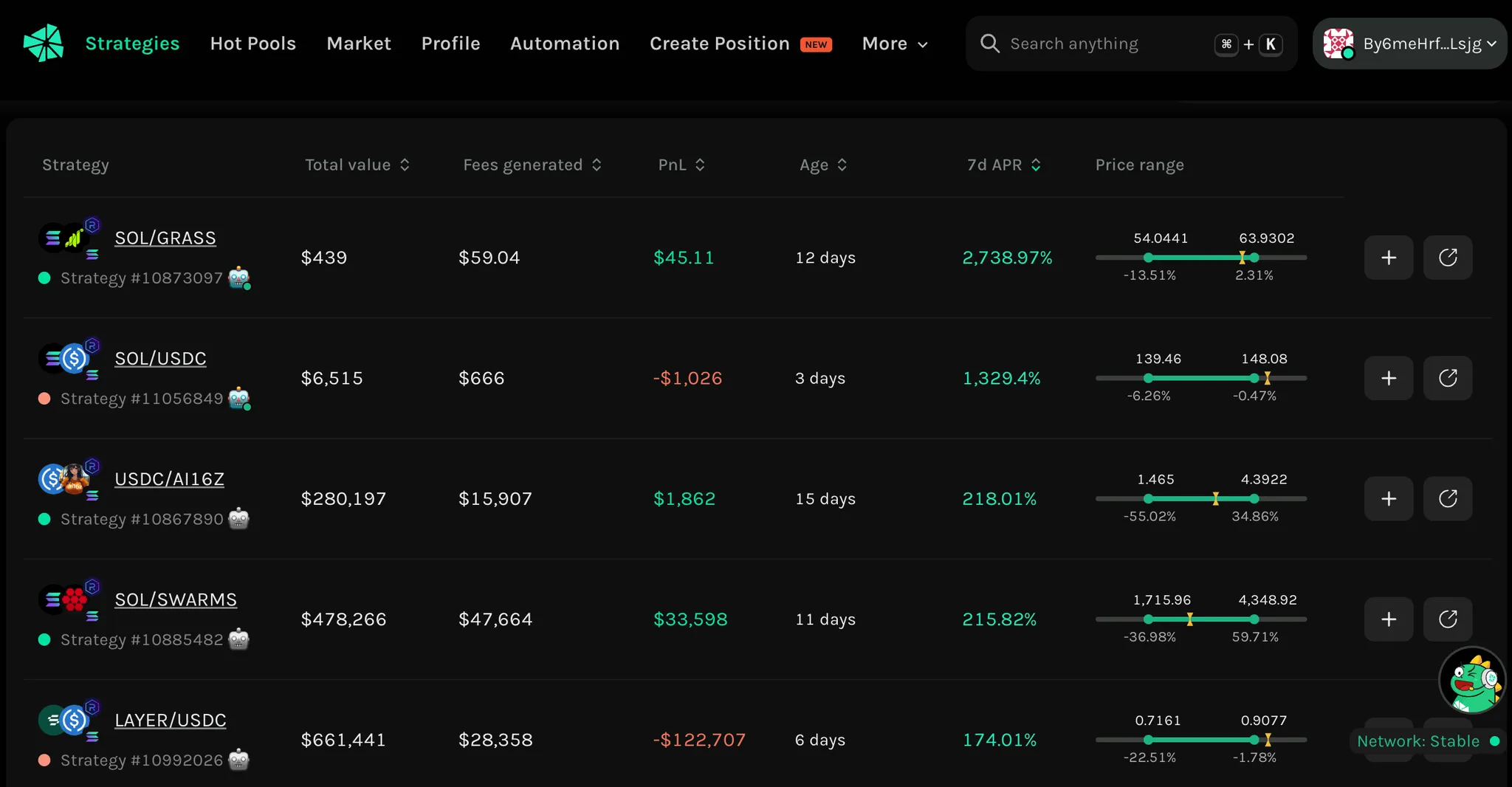
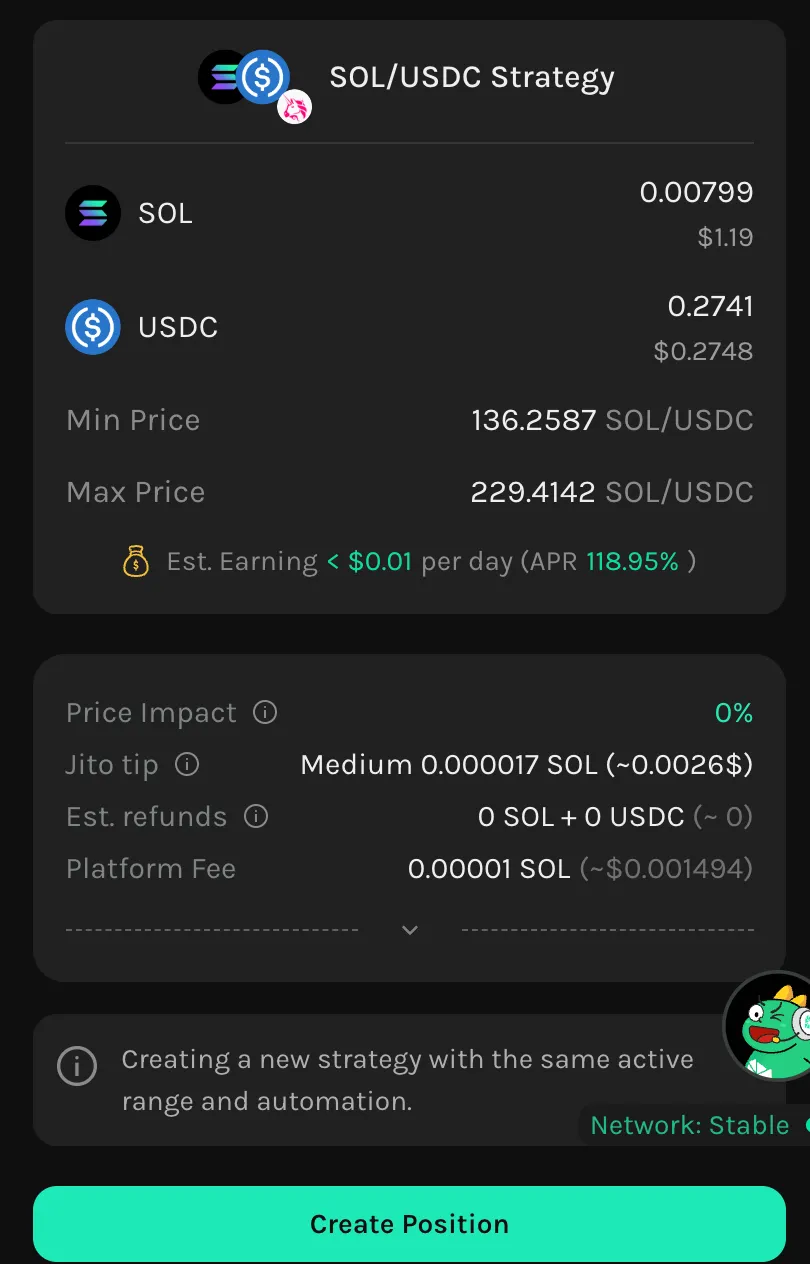
* A **Liquidity Strategy** is a managed approach to a specific trading pair, composed of one or a series of positions that are periodically rebalanced. Strategies could include automation tools like auto-rebalance, auto-exit, and fee compounding.
* A **Liquidity** **Vault** takes this further—it can hold **multiple Liquidity Strategies** across different pools and tokens. This allows users to build and share more **customized, advanced strategies** under a single, smart-contract-governed framework.

**Vault = Strategy + Automation + Community Sharing**

Vaults are not just a technical upgrade—they’re a shift in how liquidity farming is experienced on Krystal: **simpler, smarter, and scalable.**

### When to use a Vault?

Some of the Vault's benefits are listed at [What is A Liquidity Vault](/products/vaults/what-is-liquidity-vault#why-use-a-vault)

Technically Vault can cover whatever Strategy can, with improved management capabilities. However, Vault does have a different pricing model and a different list of supported chains, some might still be comfortable with Strategy.&#x20;

Following is a deeper comparison between Vault & Strategy

<table><thead><tr><th width="178.8660888671875">Feature / Aspects</th><th width="230.9781494140625">Strategy</th><th>Vault</th></tr></thead><tbody><tr><td>Holding Asset</td><td>LP Token</td><td>Vault Token</td></tr><tr><td>Accessibility</td><td>Self-managed with Zap and Automation tools</td><td><strong>Participants</strong>: Deposit, withdraw, earn.<br><strong>Vault Onwer</strong>: manages the fund with Zap and Automation tools.</td></tr><tr><td>Sharing</td><td>Copy strategies</td><td>Publish and monetize</td></tr><tr><td>Reward</td><td>LP fees<br>3rd-party farming rewards</td><td>LP fees<br>Integrated farming rewards (.e.g Merkl)<br>Revenue sharing for Vault Owner</td></tr><tr><td>Risk Mitigation</td><td>Self-managed</td><td>Vault risk levels &#x26; rules enforced</td></tr><tr><td>Chain/Protocol Support</td><td>Wider chains and protocols support</td><td>To be expanded gradually </td></tr><tr><td>Fee model</td><td>Fixed Zap and Automation Fees</td><td>Performance fees from generated rewards</td></tr><tr><td>Best-fit for</td><td>Simple strategy with a few liquidity positions<br>Low management effort (little rebalance/reallocate) </td><td><p>Multiple complex LP strategies</p><p>High management effort, regularly reallocates funds between different LPs. <br></p></td></tr></tbody></table>

### Migrate from Strategy to Vault

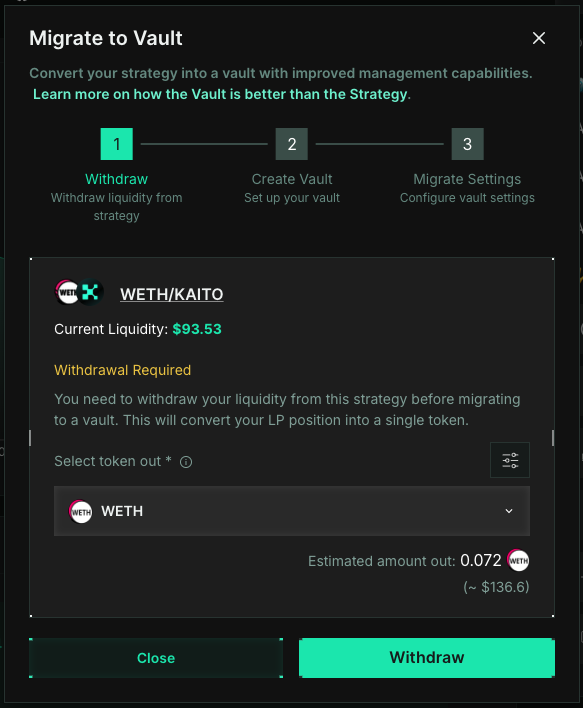
To migrate, click the `Migrate to Vault` button on the strategy detail page, and follow the steps.

<figure><img src="https://1670507844-files.gitbook.io/~/files/v0/b/gitbook-x-prod.appspot.com/o/spaces%2FAmo4vXpjHKQh32RAZ0AA%2Fuploads%2FrODWMCcZCBvdUIBu5JH9%2FScreenshot%202025-05-08%20at%2014.21.27.png?alt=media&amp;token=03119870-6c45-49ee-a1f5-22a20b9845f7" alt=""><figcaption></figcaption></figure>

<figure><img src="https://1670507844-files.gitbook.io/~/files/v0/b/gitbook-x-prod.appspot.com/o/spaces%2FAmo4vXpjHKQh32RAZ0AA%2Fuploads%2FkSPDCuWN6nMLtMA3ynBV%2FScreenshot%202025-05-08%20at%2014.22.49.png?alt=media&amp;token=6e75c5af-4045-4992-843d-3a3c2ab7c2ba" alt="" width="437"><figcaption></figcaption></figure>


# Convert Your LP Strategy into a Vault

#### Why You Should Convert Your LP Strategy into an Auto-Farm Vault

If you’ve been providing liquidity the traditional way, there’s a smarter and more efficient path forward: **turn your LP strategy into an Auto-Farm Vault**.

**At Krystal**, Auto-Farm Vault keeps the flexibility of LP strategies, but makes them easier to run by improving the fee model and adding a more advanced execution layer. Instead of manually managing pools, ranges, rebalances, and compounding, you can define your farming goals and let the vault handle the heavy lifting.

***

#### **🤑 1. Better Fees, Aligned Incentives**

Auto-Farm Vault uses a **performance-based fee model**, meaning:

* **You only pay when the vault generates rewards**
* **No extra fees for automation, zaps, or rebalances within the vault**

Compare that to the current LP flow where actions like zapping, rebalancing, compounding, and automation **can charge fees along the way**, even before outcomes are realized.

**💰 LP Strategy vs Auto-Farm Vault: Fee Comparison**

| **Feature**    | **LP Strategy**         | **Auto-Farm Vault**          |
| -------------- | ----------------------- | ---------------------------- |
| Zap Fee        | 0.05%–0.25% (dynamic)   | **Free**                     |
| Rebalance Fee  | 0.05%–0.25% (manual)    | **Free**                     |
| Compound Fee   | 0.05%–0.25% (manual)    | **Free**                     |
| Auto Rebalance | 0.01%–0.05%             | **Free**                     |
| Auto Exit      | 0.01%–0.05%             | **Free**                     |
| Auto Compound  | 2% of generated LP fees | **Free**                     |
| Auto Harvest   | 2% of generated LP fees | **Free**                     |
| Vault Fee      | –                       | **10% of generated rewards** |

With Auto-Farm Vault, you skip the stack of action-based fees and move to a **performance-based fee model**.

***

#### **🤖 2. Same LP Strategy, with an AI Agent Layer**

When you convert your strategy into an Auto-Farm Vault:

* You keep the flexibility of an LP strategy
* **Plus, the AI Agent can help monitor and execute the strategy**
* The vault can manage **multiple pools and assets** under one vault

It’s still your strategy — but with a more dynamic and hands-free execution layer on top. Auto-Farm Vault is also **private by design**, so only you control the capital in the vault.

***

#### **⚡ 3. More Convenience, Less Overhead**

Auto-Farm Vault gives you everything a manual strategy does — **but with more flexibility and automation**:

* **Private by design** with full control of your own capital
* **No principal token restriction**
* **Manage multiple LP positions** in one vault
* Built-in **AI Agent execution** for more hands-free farming

Less micromanagement, more time for strategy.


# Link Wallet To Your X Account

Connect to your X account to boost the vault's visibility. A vault with a well-known connected X account does generate more trust from the community. There are 3 types of verified tags as of the following.

<figure><img src="https://1670507844-files.gitbook.io/~/files/v0/b/gitbook-x-prod.appspot.com/o/spaces%2FAmo4vXpjHKQh32RAZ0AA%2Fuploads%2FYyeT9F93ws35cC2bivcv%2FScreenshot%202025-05-06%20at%2015.03.46.png?alt=media&amp;token=e73296c2-87f2-40d4-8747-e7b1cc721e39" alt=""><figcaption></figcaption></figure>

Add an X account to your wallet by following the steps:

1. Sign a message using your wallet address
2. Post a Tweet
3. Fill in this form <https://forms.gle/FvSwEy5Wm3ZDXmBp8>
   1. \[Optionally] Submit your KYC/KYB documents to get the verified tags

#### Sign a message using your wallet address

1. Visit <https://etherscan.io/verifiedSignatures>
2. Click the `Sign Messge` button on the top right corner. Following the steps to connect your wallet
3. Then sign this single message: <mark style="color:purple;">**Krystal: Verify Wallet**</mark>

   <figure><img src="https://1670507844-files.gitbook.io/~/files/v0/b/gitbook-x-prod.appspot.com/o/spaces%2FAmo4vXpjHKQh32RAZ0AA%2Fuploads%2FEZq9T6bwdhShlyv4rxHy%2FScreenshot%202025-04-18%20at%2014.48.44.png?alt=media&amp;token=28a474ee-3d5c-448e-9463-c87052a9f866" alt=""><figcaption></figcaption></figure>
4. After signing, you will receive a Signature Hash. Ensure you have signed the correct message (<mark style="color:purple;">**Krystal: Verify Wallet**</mark>). You can verify your signature by clicking the `Verify Signature` option.
5. Submit this hash in the form

<div align="center"><figure><img src="https://1670507844-files.gitbook.io/~/files/v0/b/gitbook-x-prod.appspot.com/o/spaces%2FAmo4vXpjHKQh32RAZ0AA%2Fuploads%2Fm2zQPQQh8tuWpU9wrOEm%2Fimage.png?alt=media&amp;token=9357a651-64f8-4d50-b77c-d826a774c8af" alt="" width="437"><figcaption></figcaption></figure></div>

#### Post a Tweet

A tweet to confirm your ownership of the X account.&#x20;

* \[[CLICK HERE](https://twitter.com/intent/tweet?text=%F0%9F%92%A7%20Checking%20out%20Liquidity%20Vault%20at%20%40KrystalDeFi%0AMy%20wallet%3A%20%7B0xaddress%7D%0A%23KrystalDeFi%20%23KrystalVault%20%23LP%20%23LinkWallet)] to post
* Replace the {0xaddress} with your correct address
* After posting, submit the tweet link in the form

<figure><img src="https://1670507844-files.gitbook.io/~/files/v0/b/gitbook-x-prod.appspot.com/o/spaces%2FAmo4vXpjHKQh32RAZ0AA%2Fuploads%2FlTlSSvIawIgEDceZ3K2O%2FScreenshot%202025-04-18%20at%2015.52.47.png?alt=media&amp;token=d4e16c3c-5326-4733-a8e3-794f44dc11dc" alt=""><figcaption></figcaption></figure>


# Vault: Risk Evaluation

Krystal Vault is designed to make Liquidity Farming smarter, more efficient, and user-friendly. While we prioritize security at every level, it's important to understand that Vaults still carry inherent risks.

We strongly encourage users to **understand how a Vault operates** and to **review the configurations** carefully.

***

## Understand the Risk

#### **🌀 Impermanent Loss**

Although Vaults use a [Principal Token](/products/vaults/community-vault-v2/start-a-vault#principal-token) to simplify the farming experience, they ultimately hold **active Liquidity Positions**. This means **impermanent loss** — the potential reduction in value when token prices diverge — still applies.

#### 🔍 Public Vaults: Understand Before You Join

Public Vaults let users invest passively by depositing Principal Tokens into someone else’s Vault. While Krystal provides **on-chain enforced configurations** (e.g. token pairs, liquidity ranges, pool sizes), **we cannot guarantee the Vault's performance or strategy outcome**.

Vault Owners retain **full operational control within their configured parameters**. For example, a Vault Owner might open a USDC-$X position to boost liquidity before selling their own $X elsewhere — a legitimate action that may not align with your expectations.

Krystal ensures Vault Owners **cannot directly withdraw user funds** and must operate within pre-defined rules. However, as long as actions stay within these limits, **Krystal cannot block potentially misaligned strategies**.

#### ✅ What Can You Do?

* **Review Vault parameters carefully** — Understand the token pairs, [strategy configurations, and allowable actions](broken://pages/XVdyPfMQ5w4nyPe8Ltxz#enforcement-rules)
* **Start small** — Begin with a modest deposit if you're unfamiliar with the Vault strategy
* **Track Vault activity** — Monitor ongoing performance of the vault
* **Evaluate the Vault Owner** — Review their history, transparency, and performance; Krystal also displays their X account, so it's recommended to join well-known owners.

## Risk Evaluation

For convenience, Krystal provides a Risk Evaluation mechanism. The detailed risk factors and the evaluation logic can be found in the following doc. The Risk Score should be used for reference only; always DYOR.

<https://docs.google.com/spreadsheets/d/1sq2DCJg1nZFpzXNcpcOkJslL69w6T4INQyo8_sGnWfo/edit?gid=0#gid=0>

<figure><img src="https://1670507844-files.gitbook.io/~/files/v0/b/gitbook-x-prod.appspot.com/o/spaces%2FAmo4vXpjHKQh32RAZ0AA%2Fuploads%2FAMovng2JUBqMJ65QG1He%2FScreenshot%202025-05-13%20at%2008.15.35.png?alt=media&amp;token=af20f612-502d-4049-831d-2b70ab9e643a" alt=""><figcaption></figcaption></figure>

***

At Krystal, we are committed to building a safe and intelligent DeFi experience. Still, as with any crypto investment, it is essential to remain informed and cautious — always **"Do Your Own Research" (DYOR)**.


# LP Management Tools

{% hint style="success" %}
Krystal is a Decentralized, Multichain Liquidity Farming Agent that enables users to earn yield by providing liquidity across various DEXs and blockchains.&#x20;
{% endhint %}

As a user, you can:

* Explore the unparalleled yields across various DEXs and blockchains.
* Explore best-performing strategies and farming vaults.
* Join an existing farming vault in a few clicks.
* Create and automate your farming strategies seamlessly.
* View impermanent loss and in-depth performance analysis over your farming positions.

The job is not done. We are committed to the long-term Web3 and the future of Decentralized Liquidity. Features are to be added to make sure Liquidity Farming remains accessible and profitable to everyone.


# Explore Hot Pools

> **The "Hot Pools" page features a dashboard with detailed metrics for all available pools, helping you select the best one to invest in. We've built a robust data infrastructure to scan, store, and analyze on-chain data from nine different blockchains and eight different protocols.**

You can access the Hot Pools page via the "Explorer" tab on the Navigation bar. On this page, you can effortlessly explore the best performing pools.

<figure><img src="https://github.com/KrystalDeFi/docs-gitbook/blob/main/docs/liquidity-farming/.gitbook/assets/image%20(93).png" alt=""><figcaption></figcaption></figure>

At the top of the page, you’ll find the top 5 rankings for Best APR, Best Blue-chip, and Best Stable Coin Pairs. Click on any pair to see the available pools and their performance.

<figure><img src="https://github.com/KrystalDeFi/docs-gitbook/blob/main/docs/liquidity-farming/.gitbook/assets/image%20(95).png" alt=""><figcaption></figcaption></figure>

At the bottom of the page, you will see the list of all best performing pools and wallets.

<figure><img src="https://github.com/KrystalDeFi/docs-gitbook/blob/main/docs/liquidity-farming/.gitbook/assets/image%20(96).png" alt=""><figcaption></figcaption></figure>

### All Pools

In the “All Pools” tab, you can filter the pools by chain, protocol, token name/address, or rank them using metrics such as APR, TVL, 24h Vol, 24h Fees, and so on. Provide liquidity instantly with Zap-In or visit the pool detail page by clicking on the icons on the right hand side.

<figure><img src="https://github.com/KrystalDeFi/docs-gitbook/blob/main/docs/liquidity-farming/.gitbook/assets/image%20(97).png" alt=""><figcaption></figcaption></figure>

{% hint style="info" %}
The pool detail page offers comprehensive information on pool performance, allowing you to simulate fee generation based on liquidity provided and price range, as well as simulate impermanent loss based on your expected future prices of the two tokens. This feature is invaluable for devising profitable LP strategies.

<img src="https://github.com/KrystalDeFi/docs-gitbook/blob/main/docs/liquidity-farming/.gitbook/assets/image%20(98).png" alt="" data-size="original">
{% endhint %}

### Top Wallets

The "Top Wallets" tab displays the best performing wallets, which you can filter by performance metrics or preferred chain. Click on these wallets to explore their LP strategies and find helpful insights to devise your own strategies.

<figure><img src="https://github.com/KrystalDeFi/docs-gitbook/blob/main/docs/liquidity-farming/.gitbook/assets/image%20(100).png" alt=""><figcaption></figcaption></figure>


# Discover Existing Strategies

> **The "Strategies" page displays a real-time ranking of the top-performing strategies. To achieve this, we've developed a robust data infrastructure that enables us to scan, store, and analyze on-chain data from six different blockchains and six different protocols**.

You can access the Strategies page via the "Strategies" tab on the Navigation bar. The Strategies page provides an overview of your wallet summary, Krystal’s performance, and highlighted on-chain LP strategies:

<figure><img src="https://github.com/KrystalDeFi/docs-gitbook/blob/main/docs/liquidity-farming/.gitbook/assets/image%20(81).png" alt=""><figcaption></figcaption></figure>

**Your Wallet Summary:** Located at the top left corner, showing your total LP value and earnings in USD across 8 protocols and 9 chains.

<figure><img src="https://github.com/KrystalDeFi/docs-gitbook/blob/main/docs/liquidity-farming/.gitbook/assets/image%20(82).png" alt=""><figcaption></figcaption></figure>

**Krystal’s Performance Summary:** Located at the top right corner, displaying Krystal’s assets under management (AUM), transaction volume through Krystal’s Smart Contract, and fees generated by positions opened on Krystal.

<figure><img src="https://github.com/KrystalDeFi/docs-gitbook/blob/main/docs/liquidity-farming/.gitbook/assets/image%20(83).png" alt=""><figcaption></figcaption></figure>

**Highlighted LP Strategies:** Can be filtered in three ways:

<figure><img src="https://github.com/KrystalDeFi/docs-gitbook/blob/main/docs/liquidity-farming/.gitbook/assets/image%20(84).png" alt=""><figcaption></figcaption></figure>

1. Strategy types (at the top right):

   * **All:** All on-chain strategies on protocols and chains by Krystal.
   * **Automated:** Strategies with Automation setup (such as Auto-Rebalance)
   * **New Strategies:** Strategies opened within the last 7 days
   * **High Value:** Strategies with ≥$100k liquidity
   * **Low Value:** Strategies with <$10k liquidity

   <figure><img src="https://github.com/KrystalDeFi/docs-gitbook/blob/main/docs/liquidity-farming/.gitbook/assets/image%20(86).png" alt=""><figcaption></figcaption></figure>
2. Token name/address, chains, and protocols

   <figure><img src="https://github.com/KrystalDeFi/docs-gitbook/blob/main/docs/liquidity-farming/.gitbook/assets/image%20(90).png" alt=""><figcaption></figcaption></figure>
3. Strategies’ LP values, Fee generated, PnL, and 7d APR.

   <figure><img src="https://github.com/KrystalDeFi/docs-gitbook/blob/main/docs/liquidity-farming/.gitbook/assets/image%20(91).png" alt=""><figcaption></figcaption></figure>


# Profile Dashboard

> **This is the first feature we built for Krystal ALM. As liquidity providers, we struggled to manage our LP positions across different chains and protocols using Excel. With Krystal's Profile Dashboard, you can say goodbye to those cumbersome spreadsheets.**

You can access Profile page by clicking on “Profile” tab on the Navigation bar. This page provides comprehensive details about your wallet’s LP positions:

<figure><img src="https://github.com/KrystalDeFi/docs-gitbook/blob/main/docs/liquidity-farming/.gitbook/assets/image%20(106).png" alt=""><figcaption></figcaption></figure>

**Wallet Summary:** The first section displays your wallet’s total LP value, total fees generated, and the total LP value of your followers (TVF), a feature currently in development.

<figure><img src="https://github.com/KrystalDeFi/docs-gitbook/blob/main/docs/liquidity-farming/.gitbook/assets/image%20(107).png" alt=""><figcaption></figcaption></figure>

**Wallet Performance:** The second section provides detailed performance metrics. At the top right corner, choose to view your own assets, your followers' assets, or the assets of the wallets you follow. The latter two options will be available soon. This section includes:

* **Positions Value:** Shows the total value of all your LP positions, including liquidity, unclaimed fees and rewards, real-time total liquidity value, total liquidity at deposit time, and total amount withdrawn:
* **Earnings:** Displays total claimed and unclaimed fees and rewards. Both claimed and unclaimed fees and rewards are shown at current market prices.
* **Profit and Loss:** Summarizes your total profit from open and closed positions by calculating the sum of current position value, withdrawals, and claimed fees & rewards, minus the deposited value.
* **Performance Graphs:** Two graphs display daily data for all LP positions. The Earning graph on the left shows daily fees and rewards, while the Performance graph on the right shows the value of your total LP portfolio. Select from four popular time ranges in the top right corner.

<figure><img src="https://github.com/KrystalDeFi/docs-gitbook/blob/main/docs/liquidity-farming/.gitbook/assets/image%20(109).png" alt=""><figcaption></figcaption></figure>

**LP Positions List:** At the bottom, view all your LP positions in three different views for both new and professional liquidity providers:

<figure><img src="https://github.com/KrystalDeFi/docs-gitbook/blob/main/docs/liquidity-farming/.gitbook/assets/image%20(110).png" alt=""><figcaption></figcaption></figure>

* **Strategy View:** Manage rebalanced LP positions without losing track of closed positions and overall strategy performance. This view consolidates the performance of all rebalanced positions into a single strategy, showing current LP value, total fees generated, overall P\&L, and 7-day APR. Search by token name/address, chain, or protocol for convenience. You can click on each strategy to view your strategy details\\

  <figure><img src="https://github.com/KrystalDeFi/docs-gitbook/blob/main/docs/liquidity-farming/.gitbook/assets/image%20(111).png" alt=""><figcaption></figcaption></figure>

{% hint style="info" %}
When you click on a strategy, you can see:

* **Overview:** Performance metrics and strategy settings. On this page, you can perform transactions like "Increase Liquidity," "Remove Liquidity," "Claim Fees," "Compound Fees," "Rebalance," and set up “Auto-Rebalance”.
* **Positions:** List of all rebalanced positions.
* **Automation:** Detailed parameters of your strategy.

<img src="https://github.com/KrystalDeFi/docs-gitbook/blob/main/docs/liquidity-farming/.gitbook/assets/image%20(112).png" alt="" data-size="original">
{% endhint %}

* **Position View:** Track individual positions without combining rebalanced ones. See basic information such as Liquidity, Profit & Loss, 24h Earnings, APR, Price Range, and Age. Robot icons indicate whether Krystal automation features are supported (black-and-white) or already set up (colored).\\

  <figure><img src="https://github.com/KrystalDeFi/docs-gitbook/blob/main/docs/liquidity-farming/.gitbook/assets/image%20(113).png" alt=""><figcaption></figcaption></figure>

{% hint style="info" %}
When you click on a position, you can see:

* **Position Details:** In-depth performance analysis and transaction history.
* **Automation:** Detailed automation parameters if set up.

<img src="https://github.com/KrystalDeFi/docs-gitbook/blob/main/docs/liquidity-farming/.gitbook/assets/image%20(114).png" alt="" data-size="original">
{% endhint %}

* **Automation View:** Check all your automated strategies and see relevant parameters.\\

  <figure><img src="https://github.com/KrystalDeFi/docs-gitbook/blob/main/docs/liquidity-farming/.gitbook/assets/image%20(115).png" alt=""><figcaption></figcaption></figure>


# Manage Liquidity Position

> **Handling LP transactions has long been a cumbersome process for liquidity providers, involving multiple steps to add or remove liquidity, challenges in claiming or compounding fees, and complexities in rebalancing without automation tools. To address these issues, we've integrated a comprehensive suite of LP transaction features into Krystal, designed to simplify these processes and provide an efficient, cost-effective solution for all your liquidity management needs.**

Our LP transaction features currently include six key functions: Provide Liquidity, Remove Liquidity, Claim Fees, Compound, Rebalance, and Auto-Rebalance. We’re also working on additional automated features like Auto-Compound and Auto-Exit, which will be released soon.

Further information can be found in the following sections.


# Provide Liquidity

> **At Krystal, you can provide liquidity manually or use our** :zap:**Zap-In**:zap: **innovation:**
>
> * **Providing liquidity manually is a common practice on all DEXes. You first swap into the tokens you want to provide liquidity with in the exact ratio, then add liquidity to a pool.**
> * **With** :zap: **Krystal’s Zap-In**:zap:**, you can provide liquidity in ONE TRANSACTION. Zap-In simplifies the process by calculating the correct token ratio and combining the swap and add liquidity transactions into one.**

You can provide liquidity either by opening your own position or copy another wallet's strategy:

### **OPEN YOUR OWN POSITION**

You can open a position from both the [**“Hot Pools”**](/products/liquidity-management/hot-pools) page or the [**“Position Detail”**](/products/liquidity-management/profile-dashboard) pages.

**Step 1: Identify the pool of your interest & click "Add Liquidity"**

You can find the "Add Liquidity" button in 2 different pages:

* From the [**“Hot Pools”**](/products/liquidity-management/hot-pools) page, use our advanced filter options to select the pool where you want to provide LP. Then click the "Plus" button on the right-hand side.\\

  <figure><img src="https://github.com/KrystalDeFi/docs-gitbook/blob/main/docs/liquidity-farming/.gitbook/assets/image%20(117).png" alt=""><figcaption></figcaption></figure>
* Or from the [**“Position Details”**](/products/liquidity-management/profile-dashboard) page, click the "Add liquidity" button on the bottom left of the page\\

  <figure><img src="https://github.com/KrystalDeFi/docs-gitbook/blob/main/docs/liquidity-farming/.gitbook/assets/image%20(118).png" alt=""><figcaption></figcaption></figure>

**Step 2: Choose your preferred price range and provide liquidity**

You can provide liquidity either through Zap-In or manually. With Zap-In, provide liquidity with any available token in one click. Manually, you need both pool tokens in the correct ratio.

<figure><img src="https://github.com/KrystalDeFi/docs-gitbook/blob/main/docs/liquidity-farming/.gitbook/assets/image%20(133).png" alt="" width="357"><figcaption></figcaption></figure>

**Step 3: Visit your Profile to see your LP position**

<figure><img src="https://github.com/KrystalDeFi/docs-gitbook/blob/main/docs/liquidity-farming/.gitbook/assets/image%20(119).png" alt=""><figcaption></figcaption></figure>

***

### **COPY ANOTHER WALLET'S POSITION**

You can copy another wallet’s position on the [**“Strategy Detail”**](/products/liquidity-management/profile-dashboard) pages by following these steps:

**Step 1: Visit the profile page of the wallet you want to copy.**

Do this by (1) pasting the wallet address into the search bar on the top right corner of any page, (2) picking one from the “Top Wallet” tab on the [**“Hot Pools”**](/products/liquidity-management/hot-pools) page, or (3) clicking on the Owner address of the pool that interests you on the [**"Strategies"**](/products/liquidity-management/strategies) page.

<figure><img src="https://github.com/KrystalDeFi/docs-gitbook/blob/main/docs/liquidity-farming/.gitbook/assets/image%20(121).png" alt=""><figcaption></figcaption></figure>

**Step 2: On the Strategy tab, click on the strategy you want to copy.**

<figure><img src="https://github.com/KrystalDeFi/docs-gitbook/blob/main/docs/liquidity-farming/.gitbook/assets/image%20(122).png" alt=""><figcaption></figcaption></figure>

**Step 3: Provide liquidity with Zap In on the right-hand side. Your position will have the same setup (Price Range, Auto Rebalance triggers, etc.) as the copied strategy.**

<figure><img src="https://github.com/KrystalDeFi/docs-gitbook/blob/main/docs/liquidity-farming/.gitbook/assets/image%20(123).png" alt=""><figcaption></figcaption></figure>

**Step 4: Visit your Profile to see your LP position**

<figure><img src="https://github.com/KrystalDeFi/docs-gitbook/blob/main/docs/liquidity-farming/.gitbook/assets/image%20(124).png" alt=""><figcaption></figcaption></figure>


# Remove Liquidity

> **At Krystal, you can remove liquidity manually or use our** :zap:**Zap-Out**:zap: **innovation:**
>
> * **Removing liquidity manually is a common practice on all DEXes. You first recollect the two tokens of your position. If these tokens are not what you want to hold, you need to perform additional swap transactions to convert them into your preferred token.**
> * **With** :zap: **Krystal’s Zap-Out**:zap:**, you can remove liquidity and swap those liquidity to your preferred token in ONE TRANSACTION.**

**Step 1: Pick a position and click "Remove Liquidity"**

You can remove liquidity (1) on the “Positions” tab of your [**"Profile"**](/products/liquidity-management/profile-dashboard) page, (2) on the [**“Position Details”**](/products/liquidity-management/profile-dashboard) page, or (3) on the [**"Strategy Details"**](/products/liquidity-management/profile-dashboard) page.

* From the "Positions" tab in your [**"Profile"**](/products/liquidity-management/profile-dashboard) page, click on the minus icon at the end of the position\\

  <figure><img src="https://github.com/KrystalDeFi/docs-gitbook/blob/main/docs/liquidity-farming/.gitbook/assets/image%20(125).png" alt=""><figcaption></figcaption></figure>
* Or from [**“Position Details”**](/products/liquidity-management/profile-dashboard) page, click on “Remove Liquidity” button in the “Liquidity” info box\\

  <figure><img src="https://github.com/KrystalDeFi/docs-gitbook/blob/main/docs/liquidity-farming/.gitbook/assets/image%20(126).png" alt=""><figcaption></figcaption></figure>
* Or from [**“Strategy Details”**](/products/liquidity-management/profile-dashboard) page, on the right-hand side, click “Remove Liquidity.”\\

  <figure><img src="https://github.com/KrystalDeFi/docs-gitbook/blob/main/docs/liquidity-farming/.gitbook/assets/image%20(128).png" alt=""><figcaption></figcaption></figure>

**Step 2: Choose between the Zap-Out or Manual option, amount to be removed, then click "Remove**

Zap-Out converts all your liquidity to any token you prefer, while Manual returns both LP tokens of the position. Then choose the percentage you want to remove. To completely close your position, select 100%.

<figure><img src="https://github.com/KrystalDeFi/docs-gitbook/blob/main/docs/liquidity-farming/.gitbook/assets/image%20(130).png" alt=""><figcaption></figcaption></figure>

**Step 3: Click on your wallet at the top right corner to see your balance.**

<figure><img src="https://github.com/KrystalDeFi/docs-gitbook/blob/main/docs/liquidity-farming/.gitbook/assets/image%20(131).png" alt=""><figcaption></figcaption></figure>


# Claim Fees

> **After providing liquidity for a while, it's time to reap the rewards. Krystal provides a convenient "claim fee" feature to collect those rewards instantly.**

**Step 1: Pick a position and click "Claim Fees"**

You can claim the LP fees you've earned to your wallet from (1) the “Strategies” tab and (2) the “Positions” tab on your [**"Profile"**](/products/liquidity-management/profile-dashboard) page, or (3) the “Position Details” page.

* From the [**"Strategy Details"**](/products/liquidity-management/profile-dashboard) page, on the right-hand side, click "Claim Fees"\\

  <figure><img src="https://github.com/KrystalDeFi/docs-gitbook/blob/main/docs/liquidity-farming/.gitbook/assets/image%20(2).png" alt=""><figcaption></figcaption></figure>
* Or from the "Positions" tab in your [**"Profile"**](/products/liquidity-management/profile-dashboard) page, click on the three dots icon at the end of the position, then choose "Claim Fees"\\

  <figure><img src="https://github.com/KrystalDeFi/docs-gitbook/blob/main/docs/liquidity-farming/.gitbook/assets/image%20(20).png" alt=""><figcaption></figcaption></figure>
* Or from the [**"Position Details"**](/products/liquidity-management/profile-dashboard) page, click on the "Claim Fees" button in the "Fees" info box.

  <figure><img src="https://github.com/KrystalDeFi/docs-gitbook/blob/main/docs/liquidity-farming/.gitbook/assets/image%20(11).png" alt=""><figcaption></figcaption></figure>

**Step 2: Click "Claim" and confirm the transaction in your wallet.**

<figure><img src="https://github.com/KrystalDeFi/docs-gitbook/blob/main/docs/liquidity-farming/.gitbook/assets/image%20(10).png" alt="" width="375"><figcaption></figcaption></figure>

**Step 3: Click on your wallet at the top right corner to see your updated balance.**

<figure><img src="https://github.com/KrystalDeFi/docs-gitbook/blob/main/docs/liquidity-farming/.gitbook/assets/image%20(9).png" alt=""><figcaption></figcaption></figure>


# Compound

> **"Compound interest is the eighth wonder of the world." With Krystal, you can easily reinvest all your earned fees and rewards back into your LP position, maximizing your capital effeciency for even greater yield.**

**Step 1: Pick a position and click "Compound"**

You can compound the fees you earn into the same position from (1) the "Strategies" tab or (2) the "Positions" tab in your [**"Profile"**](/products/liquidity-management/profile-dashboard) page, or (3) the "Position Details" page:

* From the [**"Strategy Details"**](/products/liquidity-management/profile-dashboard) page, on the right-hand side, click “Compound fees.”\\

  <figure><img src="https://github.com/KrystalDeFi/docs-gitbook/blob/main/docs/liquidity-farming/.gitbook/assets/image%20(13).png" alt=""><figcaption></figcaption></figure>
* Or from the [**"Positions"**](/products/liquidity-management/profile-dashboard) tab in Your Profile Page, click on the three dots icon at the end of the position, then choose “Compound.”

  <figure><img src="https://github.com/KrystalDeFi/docs-gitbook/blob/main/docs/liquidity-farming/.gitbook/assets/image%20(21).png" alt=""><figcaption></figcaption></figure>
* Or from the [**"Position Details"**](/products/liquidity-management/profile-dashboard) page, click on the “Compound” button in the “Fees” info box. \\

  <figure><img src="https://github.com/KrystalDeFi/docs-gitbook/blob/main/docs/liquidity-farming/.gitbook/assets/image%20(18).png" alt=""><figcaption></figcaption></figure>

**Step 2: Select your slippage and confirm the transaction:**

On the pop-up window, you can use Krystal's default slippage settings or adjust the Pool Slippage and Swap Slippage by clicking the gear icon in the top right corner. Smaller slippage reduces potential loss during your transaction. However, more volatile tokens may require higher slippage for the transaction to succeed, so please adjust these parameters according to the nature of your tokens. Then click "Confirm" at the bottom to compound.

<figure><img src="https://github.com/KrystalDeFi/docs-gitbook/blob/main/docs/liquidity-farming/.gitbook/assets/image%20(19).png" alt=""><figcaption></figcaption></figure>


# Rebalance

> **Rebalance helps you adjust the price range of your position when you see the current price range is not optimal.**

**Step 1: Pick a position and click "Rebalance"**

You can rebalance your LP positions on (1) the [**“Strategy Detail”**](/products/liquidity-management/profile-dashboard) page, (2) the “Positions” tab in your [**"Profile"**](/products/liquidity-management/profile-dashboard) page, or (3) the [**“Position Details”**](/products/liquidity-management/profile-dashboard) page:

* From the [**“Strategy Details”**](/products/liquidity-management/profile-dashboard) page, on the right-hand side, click “Rebalance”\\

  <figure><img src="https://github.com/KrystalDeFi/docs-gitbook/blob/main/docs/liquidity-farming/.gitbook/assets/image%20(25).png" alt=""><figcaption></figcaption></figure>
* Or from the “Positions” tab in your [**“Profile”**](/products/liquidity-management/profile-dashboard) page, click on the three dots icon at the end of the position, then choose “Rebalance”\\

  <figure><img src="https://github.com/KrystalDeFi/docs-gitbook/blob/main/docs/liquidity-farming/.gitbook/assets/image%20(26).png" alt=""><figcaption></figcaption></figure>
* Or from the [**“Position Details”**](/products/liquidity-management/profile-dashboard) page, click on the “Rebalance” button in the “Price Range” info box

  <figure><img src="https://github.com/KrystalDeFi/docs-gitbook/blob/main/docs/liquidity-farming/.gitbook/assets/image%20(27).png" alt=""><figcaption></figcaption></figure>

**Step 2: Choose the new price range for your position and click confirm**

<figure><img src="https://github.com/KrystalDeFi/docs-gitbook/blob/main/docs/liquidity-farming/.gitbook/assets/image%20(28).png" alt=""><figcaption></figcaption></figure>

**Step 3: Visit your profile page to see your updated LP position**

<figure><img src="https://github.com/KrystalDeFi/docs-gitbook/blob/main/docs/liquidity-farming/.gitbook/assets/image%20(29).png" alt=""><figcaption></figcaption></figure>


# Auto-Rebalance

> **Auto-Rebalance monitors real-time market pricing and keeps your LP positions within range without requiring you to actively manage and adjust them. Auto-Rebalance is crafted to optimize the profitability of your liquidity positions during market volatility, maintaining efficiency and minimizing impermanent loss. Currently available on Ethereum, Arbitrum, Base, BNB chain, Optimism, and Polygon for UniSwap v3, with plans to expand to more chains and protocols soon.**

**Step 1: Pick a position and access Auto-Rebalance feature**

You can set up Auto-Rebalance for your your LP positions on the [**“Strategy Details”**](/products/liquidity-management/profile-dashboard) page or on the “Automation” page:

* From the [**"Strategy Details"**](/products/liquidity-management/profile-dashboard) page, click "Settings" next to the Auto-Rebalance icon

  <figure><img src="https://github.com/KrystalDeFi/docs-gitbook/blob/main/docs/liquidity-farming/.gitbook/assets/image%20(31).png" alt=""><figcaption></figcaption></figure>
* Or from the "Automation" page, click "New Setup" and choose the position you want to set up Auto-Rebalance\\

  <figure><img src="https://github.com/KrystalDeFi/docs-gitbook/blob/main/docs/liquidity-farming/.gitbook/assets/image%20(32).png" alt=""><figcaption></figcaption></figure>

**Step 2: Configure Auto-Rebalance Parameters and confirm the setup**

* In the Trigger Setup section, you can set up the Trigger Prices and Time Buffer:

  * Lower and Upper Trigger Prices can be set up in absolute value or in % changes vs. current price. When the actual price fall out of this Trigger Prices range, you position will be auto-rebalanced.
  * Time Buffer can be set up to trigger Auto-Rebalance only when the price remains outside of the Trigger Prices range for a certain amount of time.

  <figure><img src="https://github.com/KrystalDeFi/docs-gitbook/blob/main/docs/liquidity-farming/.gitbook/assets/image%20(34).png" alt=""><figcaption></figcaption></figure>
* In the New Range section, you can set up the price range for the new position after rebalancing.

  <figure><img src="https://github.com/KrystalDeFi/docs-gitbook/blob/main/docs/liquidity-farming/.gitbook/assets/image%20(35).png" alt=""><figcaption></figcaption></figure>
* In the Settings section, you can enable either one-time or recurring Auto-Compound to add the fees generated to your LP position:

  * Auto-Compound and Recurring can be turned on or off to fit your strategy
  * Minimum Fees let you set a lower bound to activate Auto-Compound. As long as the fee generated is lower than Minimum Fees, Auto-Compound will not be triggered.
  * Gas Fee Ceiling let you set the maximum amount of gas fee you are willing to pay for a rebalance transaction. If the cost is higher than the Gas fee Ceiling, Auto-Rebalance won't be triggered.
  * Pool Slippage and Swap Slippage help protect you by reverting the transaction if there's any unfavorable price movement.

  <figure><img src="https://github.com/KrystalDeFi/docs-gitbook/blob/main/docs/liquidity-farming/.gitbook/assets/image%20(40).png" alt=""><figcaption></figcaption></figure>
* Click "Approve" and "Confirm" to activate your Auto-Rebalance strategy.

  <figure><img src="https://github.com/KrystalDeFi/docs-gitbook/blob/main/docs/liquidity-farming/.gitbook/assets/image%20(39).png" alt=""><figcaption></figcaption></figure>

**Step 3: Track your Auto-Rebalance Strategy on the Automation Tab**

<figure><img src="https://github.com/KrystalDeFi/docs-gitbook/blob/main/docs/liquidity-farming/.gitbook/assets/image%20(41).png" alt=""><figcaption></figcaption></figure>


# Auto-Compound

> **Auto-Compound automatically reinvests your earnings from liquidity pools to maximize returns through compounding, saving you time and boosting your overall earnings.**

**Step 1: Pick a position and access Auto-Compound feature**

You can set up Auto-Compound for your LP positions on the “Automation” page:

* From the "Automation" page, click "New Setup" and choose the position you want to set up Auto-Compound

<figure><img src="https://github.com/KrystalDeFi/docs-gitbook/blob/main/docs/liquidity-farming/.gitbook/assets/image%20(175).png" alt=""><figcaption></figcaption></figure>

**Step 2: Configure Auto Compound Parameters and confirm the setup**

* In the Compound Trigger section, you can set up the Trigger by Time or Fee:
  * Fee: Compound when a specific fee threshold is reached.
  * Time: Compound at set time intervals.

<figure><img src="https://github.com/KrystalDeFi/docs-gitbook/blob/main/docs/liquidity-farming/.gitbook/assets/image%20(176).png" alt=""><figcaption></figcaption></figure>

* In the Settings section:
  * Gas Fee Ceiling: The maximum amount of gas fee you are willing to pay for a compound transaction. If the cost is higher than the Gas Fee Ceiling, the transaction won't be initiated. The maximum value is 30% of your Earned Fees.
  * Pool Slippage and Swap Slippage help protect you by reverting the transaction if there's any unfavorable price movement.

**Step 3: Track your Auto-Compound Strategy on the Automation Tab**

<figure><img src="https://github.com/KrystalDeFi/docs-gitbook/blob/main/docs/liquidity-farming/.gitbook/assets/image%20(177).png" alt=""><figcaption></figcaption></figure>


# Auto-Exit

> **Auto-Exit continuously tracks real-time market prices and automatically closes your liquidity positions once the predefined conditions are met. Similar to Auto-Rebalance, Auto-Exit is designed to enhance the profitability of your liquidity positions during periods of market volatility, while ensuring efficiency and minimizing the impact of impermanent loss.**

**Step 1: Pick a position and access Auto-Exit feature**

You can set up Auto-Exit (1) on the “Positions” tab of your [**"Profile"**](/products/liquidity-management/profile-dashboard) page, (2) on the “Automation” tab of your [**"Profile"**](/products/liquidity-management/profile-dashboard) page, (3) on the "Automation" tab of the [**“Position Details”**](/products/liquidity-management/profile-dashboard) page, or (4) on the "Auto-Exit" tab of the [**"Automation"**](/products/liquidity-management/profile-dashboard) page

* From the "Positions" tab in your [**"Profile"**](/products/liquidity-management/profile-dashboard) page, click on the three dots icon at the end of the position and choose Auto-Exit\\

  <figure><img src="https://github.com/KrystalDeFi/docs-gitbook/blob/main/docs/liquidity-farming/.gitbook/assets/image%20(178).png" alt=""><figcaption></figcaption></figure>
* Or from the "Automation" tab in your [**"Profile"**](/products/liquidity-management/profile-dashboard) page, click on "Auto-Exit" and choose "New Setup"

  <figure><img src="https://github.com/KrystalDeFi/docs-gitbook/blob/main/docs/liquidity-farming/.gitbook/assets/image%20(181).png" alt=""><figcaption></figcaption></figure>
* Or from the "Automation" tab of the [**“Position Details”**](/products/liquidity-management/profile-dashboard) page, click on "Auto-Exit" and choose "New Setup"

  <figure><img src="https://github.com/KrystalDeFi/docs-gitbook/blob/main/docs/liquidity-farming/.gitbook/assets/image%20(184).png" alt=""><figcaption></figcaption></figure>
* Or from the "Auto-Exit" tab of the [**"Automation"**](/products/liquidity-management/profile-dashboard) page, click "New Setup"\\

  <figure><img src="https://github.com/KrystalDeFi/docs-gitbook/blob/main/docs/liquidity-farming/.gitbook/assets/image%20(185).png" alt=""><figcaption></figcaption></figure>

**Step 2: Configure Auto-Rebalance Parameters and confirm the setup**

* In the Trigger Setup section, you can set up the Trigger Prices and Time Buffer:

  * Lower and Upper Trigger Prices can be set up in absolute value or in % changes vs. current price. When the actual price fall out of this Trigger Prices range, you position will auto-exit.
  * Time Buffer can be set up to trigger Auto-Exit only when the price remains outside of the Trigger Prices range for a certain amount of time.

  <figure><img src="https://github.com/KrystalDeFi/docs-gitbook/blob/main/docs/liquidity-farming/.gitbook/assets/image%20(188).png" alt=""><figcaption></figcaption></figure>
* In the Settings section, you can set up Gas Fee Ceiling, Pool Slippage, and Platform Fee:

  * Gas Fee Ceiling let you set the maximum amount of gas fee you are willing to pay for an exit transaction. If the cost is higher than the Gas fee Ceiling, Auto-Exit won't be triggered.
  * Pool Slippage helps protect you by reverting the transaction if there's any unfavorable price movement.
  * Platform fee helps set up the maximum platform fee that you are willing to pay for an Auto-Exit transaction.

  <figure><img src="https://github.com/KrystalDeFi/docs-gitbook/blob/main/docs/liquidity-farming/.gitbook/assets/image%20(189).png" alt=""><figcaption></figcaption></figure>
* Click "Approve" and "Confirm" to activate your Auto-Rebalance strategy.\\

  <figure><img src="https://github.com/KrystalDeFi/docs-gitbook/blob/main/docs/liquidity-farming/.gitbook/assets/image%20(190).png" alt=""><figcaption></figcaption></figure>

**Step 3: Track your Auto-Exit Strategy on the Automation Tab**

<figure><img src="https://github.com/KrystalDeFi/docs-gitbook/blob/main/docs/liquidity-farming/.gitbook/assets/image%20(191).png" alt=""><figcaption></figcaption></figure>


# How to find LPing strategies and add liquidity on Solana with Krystal

Krystal now supports Solana for LPing strategies, allowing users to efficiently participate in liquidity pools. This guide provides step-by-step instructions on how to check best strategies Solana and add liquidity using Krystal's platform.

#### Step 1: Navigate to the "Strategies" section and select Solana Network

First, visit the Krystal Dashboard. Locate and click on the "Strategies" section, where all available LPing strategies from users are displayed.

By default, the dashboard may display strategies from multiple blockchain networks. To filter and view only Solana-based strategies, you should click on the "All Networks" logo at the top right of the interface and select Solana from the available blockchain networks.

The dashboard will now display LPing strategies on Solana only.

<figure><img src="https://1670507844-files.gitbook.io/~/files/v0/b/gitbook-x-prod.appspot.com/o/spaces%2FAmo4vXpjHKQh32RAZ0AA%2Fuploads%2FJVwik26uSwt9R8zXCBgG%2Fimage.png?alt=media&amp;token=a96689c7-74da-4740-a46d-0277fe594efa" alt=""><figcaption></figcaption></figure>

#### Step 2: Choose your suitable LPing strategy

To help you select the best LPing strategy, Krystal provides multiple metrics and categories. These include Total Value, Fees Generated, PnL, Age, and more.

When choosing a strategy, consider your financial objectives. If you are looking for a long-term stable income, it is advisable to select strategies that have consistently generated high fees and maintained a positive PnL. However, if you prefer a high-risk, high-return approach, focus on strategies with high 7d APR. For those concerned about liquidity sustainability, a strategy with a high TVL and a longer age is ideal.

<figure><img src="https://1670507844-files.gitbook.io/~/files/v0/b/gitbook-x-prod.appspot.com/o/spaces%2FAmo4vXpjHKQh32RAZ0AA%2Fuploads%2FJWINSgADfiKXl6eVZbN1%2Fimage.png?alt=media&amp;token=ab9726a7-be6b-4727-a819-4a9816ed8a05" alt=""><figcaption></figcaption></figure>

#### Step 3: Review the details of your selected strategy

After selecting a strategy, click on it to access a detailed breakdown of its key performance aspects.

* **Overview Tab** provides insights into the strategy’s performance over different timeframes, including 24h, 7d, and 30d returns.
* **Positions Tab** offers a historical overview of liquidity positions within the pool, displaying crucial details such as fees generated, PnL over time, and any changes in liquidity allocation.
* **Automation Tab** details how automation features work to maximize returns, allowing users to evaluate the effectiveness of these tools in maintaining profitability.

<figure><img src="https://1670507844-files.gitbook.io/~/files/v0/b/gitbook-x-prod.appspot.com/o/spaces%2FAmo4vXpjHKQh32RAZ0AA%2Fuploads%2Fv82EGNmM7CrMsdf6fX2a%2Fimage.png?alt=media&amp;token=278b6bef-8438-4183-9391-46f539c3bff7" alt=""><figcaption></figcaption></figure>

#### Step 4: Enter the pool with Zap In

Next, proceed to enter the liquidity pool through the **Create Strategy** section.

One of the key benefits of Krystal is the **Zap In** feature, which simplifies the liquidity provision process. Normally, adding liquidity to a pool requires depositing 2 tokens in the correct ratio. However, with Zap In, users can add liquidity using just **one token**, as our system will automatically convert and balance the token to meet the pool's requirements.

To use Zap In, users simply need to enter the amount of the token they want to provide. The platform will then calculate the optimal ratio for liquidity provision, convert the single token into the required pair, and ensure the best execution rate for the transaction.

<figure><img src="https://1670507844-files.gitbook.io/~/files/v0/b/gitbook-x-prod.appspot.com/o/spaces%2FAmo4vXpjHKQh32RAZ0AA%2Fuploads%2FH96sP1sgMUQrFPm3DzAi%2Fimage.png?alt=media&amp;token=ec7bffa7-4351-4222-8a6c-28e96ec699b7" alt=""><figcaption></figcaption></figure>

#### Step 5: Review order details before execution

Before executing the transaction, users should carefully review all key order details to ensure the best outcome.

Factors such as price impact, transaction fees, estimated earnings, and APR should be assessed to make decision.

Once all details have been reviewed and confirmed, users can proceed by clicking on "Create Position" to finalize the liquidity provision process.

<figure><img src="https://1670507844-files.gitbook.io/~/files/v0/b/gitbook-x-prod.appspot.com/o/spaces%2FAmo4vXpjHKQh32RAZ0AA%2Fuploads%2FPP6Igqic0nMZEMZ08cu3%2Fimage.png?alt=media&amp;token=464fe55a-eb2f-4abd-b903-85fa49d3f46c" alt=""><figcaption></figcaption></figure>


# Farms

Krystal brings the complete LP farming workflow into one interface.

Discover farming opportunities, provide liquidity, earn rewards, automate position management while your liquidity remains staked, and track performance, all directly on Krystal.

### How farming works on Krystal

Traditionally, farming a concentrated-liquidity position requires several separate actions:

Find an incentivized pool → Provide liquidity → Create the LP position → Stake it on the DEX → Harvest rewards → Unstake to rebalance → Stake again.

Krystal combines these actions into one continuous flow:

1. Explore pools with supported farming incentives.
2. Compare their estimated earnings and pool metrics.
3. Provide liquidity and join the farm.
4. Manage the position manually, with automations, or with the Agent.
5. Track trading fees and farming rewards in one dashboard.

### Sources of farming yield

A farming position can generate yield from two sources:

* **Trading fees:** Fees earned when users trade through the liquidity pool.
* **Farming rewards:** Additional incentives distributed by the underlying protocol, such as AERO.

Trading fees and farming rewards are tracked separately so you can understand where the position’s earnings come from.

### Auto-Farm Vault integration

Farming positions are created and managed through an Auto-Farm Vault.

The vault allows you to:

* Hold multiple farming strategies.
* Add or remove liquidity.
* Harvest farming rewards.
* Exit a farm.
* Configure supported position automations.
* Optionally let the Agent manage the strategy based on your instructions.

Using the Agent is optional. You can create and manage farming positions manually without enabling it.

### Farming workflow

Continue with the following guides:

1. Explore Farming Opportunities
2. Provide Liquidity and Join a Farm
3. Manage Farming Positions
4. Track Farming Performance

> Farming APR and reward emissions are variable. Actual returns depend on factors including trading volume, available liquidity, token prices, reward emissions, and the selected price range.


# Explore Farming Opportunities

The **Farms** page displays pools with active farming incentives supported by Krystal.

You can use this page to discover opportunities, compare estimated earnings, and begin the Auto-Farm Vault farming flow.

### Open the Farms page

Open **Pools**, then select the **Farms** tab.

You can also access the page directly: [https://defi.krystal.app/pools/farms](<https://defi.krystal.app/pools/farms&#xA;>)

Only pools with supported farming incentives are displayed in the Farms tab.

<figure><img src="https://1670507844-files.gitbook.io/~/files/v0/b/gitbook-x-prod.appspot.com/o/spaces%2FAmo4vXpjHKQh32RAZ0AA%2Fuploads%2FdugpHjkZ8tgqeEEuY5pQ%2FScreenshot%202026-07-31%20at%2013.57.25.png?alt=media&amp;token=f321434e-7c02-454d-bb8a-a3c6095ec4fc" alt=""><figcaption></figcaption></figure>

### Find a farming pool

You can narrow the available opportunities using:

* **Network:** Display pools from selected blockchain networks.
* **Platform:** Filter pools by DEX or protocol.
* **Filters:** Apply additional pool criteria.
* **Favorite:** Display pools you have marked as favorites.
* **Search:** Search by pool, token, pair, pool address, or hook address.

### Compare farming opportunities

Each farming pool displays the following metrics:

| Metric           | Description                                                                            |
| ---------------- | -------------------------------------------------------------------------------------- |
| **24h APR**      | Estimated annualized return based on the pool’s earnings during the previous 24 hours. |
| **24h Earnings** | Estimated trading fees and farming rewards generated during the previous 24 hours.     |
| **TVL**          | Total liquidity currently deposited in the pool.                                       |
| **24h Volume**   | Total trading volume processed by the pool during the previous 24 hours.               |

You can sort the list by the available metrics.

**24h Earnings** helps compare the estimated dollar value generated by each pool, combining trading fees and farming incentives.

> APR and earnings are estimates based on recent performance. They do not guarantee future returns.

### Start farming

After selecting a pool, click **Farm**.

You will be redirected to the liquidity interface, where you can:

1. Configure the LP price range.
2. Select an existing Auto-Farm Vault or create a new one.
3. Enter the amount you want to provide.
4. Join the underlying farm.

Continue to Provide Liquidity and Join a Farm.


# Provide Liquidity and Join a Farm

After selecting a farming opportunity, you can create the LP position and join the underlying farm through one guided flow.

The position will be held and managed through an Auto-Farm Vault.

### Step 1: Select a farming pool

Open the **Farms** page and click **Farm** beside the pool you want to join.

Krystal will open the liquidity interface for the selected pool.

### Step 2: Configure the price range

Choose the price range in which your liquidity will remain active.

Available presets may include:

* **Narrow Range**
* **Wide Range**
* **Full Range**

You can also set the minimum and maximum prices manually.

A narrower range concentrates liquidity closer to the current market price. This may improve capital efficiency while the position remains in range, but the position may move out of range more frequently.

Review the current price and selected boundaries before continuing.

### Step 3: Select or create a vault

Under **Select Vault**, choose one of the following options:

#### Select from existing vaults

Select a compatible Auto-Farm Vault you already own.

The new farming position will be added as another strategy within that vault.

#### Create new vault

Create a new Auto-Farm Vault for the farming position.

Enter a name that helps you identify the vault and its strategy.

### Step 4: Enter the liquidity amount

Under **Add Liquidity**:

1. Select the asset you want to deposit.
2. Enter the amount.
3. Review your available wallet balance.
4. Configure transaction settings when required.

Krystal will prepare the required assets for the selected LP position according to the transaction route.

### Step 5: Enable Join farm

Keep **Join farm** selected.

When enabled, Krystal will:

1. Provide liquidity to the selected pool.
2. Create the LP position.
3. Deposit the position into the supported farming contract.

This removes the need to open a separate DEX farming interface.

> If **Join farm** is not selected, Krystal will create the LP position without depositing it into the farm.

### Step 6: Review and confirm

Before confirming, review:

* Network
* Platform
* Token pair
* Pool fee tier
* Selected price range
* Deposit asset and amount
* Join farm setting
* Price impact
* Slippage
* Estimated network fee

Confirm the transaction and approve it in your wallet.

After the transaction is completed, the position will appear in the selected Auto-Farm Vault.

<figure><img src="https://1670507844-files.gitbook.io/~/files/v0/b/gitbook-x-prod.appspot.com/o/spaces%2FAmo4vXpjHKQh32RAZ0AA%2Fuploads%2FNAzhuWjJn9OpKuk7d5Bj%2FScreenshot%202026-07-31%20at%2014.03.28.png?alt=media&amp;token=67024c78-4ce6-48f6-9bca-308c72a53d24" alt=""><figcaption></figcaption></figure>

### Add a farming strategy from an existing vault

You can also begin from an existing Auto-Farm Vault.

1. Open the vault.
2. Select **Add New Strategy**.
3. Search by token, pair, or address.
4. Select a supported farming pool.
5. Configure the position and provide liquidity.

The strategy-selection interface displays information including:

* TVL
* 24-hour volume
* APR
* Platform
* Pool fee tier

Pools with supported farming incentives are marked with a farming-reward indicator.

Continue to Manage Farming Positions.


# Manage Farming Positions

Farming positions are displayed alongside the other open positions in your Auto-Farm Vault.

You can manage the liquidity, claim farming rewards, exit the farm, or configure supported automations from the position action menu.

### View farming positions

1. Open the Auto-Farm Vault.
2. Go to its open positions.
3. Find the farming position you want to manage.

A farming indicator appears beside positions currently participating in a supported farm.

Each position displays information including:

* Liquidity
* Profit and loss
* Unclaimed rewards
* APR
* Price range
* In-range or out-of-range status

### Open the position actions

Click the action menu beside the farming position.

<figure><img src="https://1670507844-files.gitbook.io/~/files/v0/b/gitbook-x-prod.appspot.com/o/spaces%2FAmo4vXpjHKQh32RAZ0AA%2Fuploads%2FrCN8K4KbYqn3z6H0AAUg%2FScreenshot%202026-07-31%20at%2014.17.32.png?alt=media&amp;token=87b6d2af-d1b6-4681-8acf-0221671afa8d" alt=""><figcaption></figcaption></figure>

### Add liquidity

Select **Add liquidity** to increase the position’s liquidity while it remains staked in the farm.

Enter the amount you want to add and review the resulting token composition before confirming.

When supported, the additional liquidity will remain part of the farming position.

### Remove liquidity

Select **Remove liquidity** to withdraw some or all of the position’s liquidity without manually exiting the farm

Review the amount being removed and the assets you will receive before confirming.

Removing all liquidity closes the underlying LP position.

### Harvest farm

Select **Harvest farm** to claim accumulated farming incentives.

Harvesting rewards does not close the LP position or remove it from the farm. The position can continue earning farming rewards after the transaction is completed.

Trading fees and farming rewards may be claimed or processed separately depending on the underlying protocol.

### Exit farm

Select **Exit farm** to unstake the LP position from the farming contract.

After exiting:

* The position stops earning additional farming incentives.
* The underlying liquidity can remain active in the pool.
* The position may continue earning trading fees while it remains in range.

> **Exit farm** and **Remove liquidity** are different actions. Exit farm only removes the LP position from the farming contract. Remove liquidity withdraws liquidity from the underlying pool.

### Configure position automations

Supported farming positions can use Krystal automations.

Available actions may include:

#### Auto-Rebalance

Automatically rebalances the position when your configured conditions are met. If the position is staked, Krystal automatically exits the farm, rebalances the liquidity range, and rejoins the farm when supported.

#### Auto-Compound

Automatically reinvests eligible earnings into the LP position according to the automation configuration.

#### Auto-Exit

Automatically exits the position when the configured conditions are met.

Automation availability and execution behavior depend on the position, platform, and selected configuration.

### Manage the position with the Agent

Using the Agent is optional.

Open **Agent Config** to define how the Agent can manage the Auto-Farm Vault.

Based on your instructions and permissions, the Agent may:

* Monitor eligible farming opportunities.
* Deploy liquidity.
* Manage farming positions.
* Rebalance price ranges.
* Harvest or compound eligible earnings.
* Exit positions when market conditions change.

The Agent can only perform actions permitted by the vault configuration and its execution controls.

For detailed configuration instructions, see [**Manage an Auto-Farm Vault**](https://docs.krystal.app/products/vaults/auto-farm/manage-an-auto-farm-vault)


# Track Farming Performance

Krystal tracks trading fees and farming rewards separately, allowing you to understand how each source contributes to the position’s performance.

You can review both the current farming position and its historical results from the Auto-Farm Vault.

### View current position performance

Open the Auto-Farm Vault and locate the farming position.

The position table displays metrics including:

* Current liquidity
* Profit and loss
* Unclaimed rewards
* APR
* Price range
* Position status

Use these metrics to evaluate the current state of each farming position.

### View the yield breakdown

Hover over **Daily yield** to view the position’s earnings breakdown.

The breakdown includes:

* **Accumulated fees:** Trading fees generated by the LP position.
* **Farm reward generated:** Incentives earned from the underlying farming protocol.

This separation helps identify whether the position’s yield comes primarily from pool trading activity or farming incentives.

<figure><img src="https://1670507844-files.gitbook.io/~/files/v0/b/gitbook-x-prod.appspot.com/o/spaces%2FAmo4vXpjHKQh32RAZ0AA%2Fuploads%2FpxcpG7ZGMpUDwJbqqDVT%2FScreenshot%202026-07-31%20at%2014.30.01.png?alt=media&amp;token=8b04e997-589a-4efc-9558-ac5976874845" alt=""><figcaption></figcaption></figure>

### View historical performance

Open the vault’s **Overview** tab and locate **Historical Performance**.

You can switch between:

* **APY**
* **TVL**

Available time ranges include:

* 24 hours
* 7 days
* 30 days
* 90 days
* 1 year

When viewing performance, hover over a point on the chart to inspect information for that period.

The chart may display:

* APR or APY
* Trading fees earned
* Farming rewards earned
* Vault TVL

<figure><img src="https://1670507844-files.gitbook.io/~/files/v0/b/gitbook-x-prod.appspot.com/o/spaces%2FAmo4vXpjHKQh32RAZ0AA%2Fuploads%2FdP885YVn9sh31jmUbHP6%2FScreenshot%202026-07-31%20at%2014.30.49.png?alt=media&amp;token=8f7763ae-2783-4aba-b201-8466a483aa35" alt=""><figcaption></figcaption></figure>

### Understand performance changes

Farming performance can change because of:

* Trading-volume changes
* Pool-liquidity changes
* Reward-emission changes
* Reward-token price changes
* Position price-range changes
* Time spent in or out of range
* Position-management transactions
* Gas and execution costs

Recent APR and earnings should be treated as estimates rather than guaranteed returns.

### Evaluate each source of yield

When reviewing a farming strategy, consider trading fees and farming rewards independently.

High farming incentives may increase the displayed APR, but those incentives can decrease or end. Trading fees depend on the pool’s trading activity and the position’s active liquidity range.

Review the position regularly or configure supported automations and Agent instructions based on your strategy.


# Telegram Bot

> @krystal\_lp\_bot is a powerful and convenient Telegram bot, designed to enhance your Liquidity Provisioning experience across multiple blockchains

**Install now:**

{% embed url="<https://t.me/krystal_lp_bot>" %}

With a user-friendly interface and robust features, this bot serves as a vital tool in your blockchain journey. Here's what you can do:

1. **Tracking Balances:** With the `/balance {address} or {ENS}` command, you can quickly summarize your assets and liquidity pool balances. Just input any valid address or ENS and let the bot do the rest!
2. **Pool Explorer:** The `/pool {id} or {chainName} or {just leave it empty}` command helps you explore the top 5 pools by Annual Percentage Rate (APR) on a specified blockchain network. By simply leaving it empty, the bot will target queries towards Ethereum, helping you uncover the most yielding platforms there.
3. **Supported Chains Query:** Using the /chain command, you will be able to query all the supported chains for the pool explorer. This allows you to diversify and spread your holdings across various effective blockchains, enhancing your potential yield.

Incorporate [@krystal\_lp\_bot](https://t.me/krystal_lp_bot) into your Telegram today and take a step toward more seamless and efficient blockchain navigation


# Platform Config

Values set by Krystal at the system level to guarantee safety and provide a consistent experience for all users.


# Price Impact Protection

Protects users from losses caused by unfavorable trade execution

**Krystal** enforces maximum **price impact** on all **automation orders**, safeguarding users from excessive losses caused by poor execution.

These protections apply to every automation type:

* **Auto Rebalance**
* **Auto Exit**
* **Auto Compound**
* **Auto Harvest**

**Platform thresholds:**

* **10%** for automations of **strategies/positions**
* **20%** for automations in **Vaults**

This safeguard is **always active** and requires **no user configuration**.

***

#### What is Price Impact?

**Price impact** is the change in a token’s price caused by your own trade.

* The larger your trade relative to the pool’s liquidity, the more you push the price against yourself.
* This results in a worse execution rate than what was initially quoted.

***

#### Why Price Impact Happens

* Large trades move the market more, especially in small pools.
* Low liquidity means there’s not enough supply to fill your order at a stable price
* Volatile tokens can shift in price even during small trades.

Even if a token’s price is going up, a trade can still fail or return fewer tokens if the pool can’t support the size of your order.

***

#### Price Impact vs. Slippage Tolerance

These concepts are related but not identical:

* **Price Impact**: The actual change in pool price caused by executing your trade.
* **Slippage Tolerance**: The maximum deviation from the quoted price that you (or the platform) are willing to accept.

***

#### Summary

* **10% threshold** → Position/Strategy automation
* **20% threshold** → Vault automation
* Always-on safeguard, not user-configurable
* If a trade would exceed **10% (strategies)** or **20% (vaults)**, the transaction is **automatically reverted**.
* This protects users from excessive losses due to unfavorable execution.


# Automation Retry Policy

Defines Krystal’s retry mechanism for automation systems.

#### **Overview**

Automation systems on Krystal (such as Auto-Rebalance, Auto-Exit, Auto-Compound, and Auto-Harvest) include a built-in retry mechanism to improve reliability and ensure that scheduled actions are executed successfully, even under temporary network or on-chain disruptions.

#### Retry Rules

| Parameter                | Value        | Description                                                                                           |
| ------------------------ | ------------ | ----------------------------------------------------------------------------------------------------- |
| **Max Retry Attempts**   | 12           | Each automation order may be retried up to 12 times if execution fails due to transient errors.       |
| **Retry Interval**       | 5 minutes    | Between each retry, the system waits 5 minutes before re-attempting execution.                        |
| **Total Retry Duration** | \~60 minutes | In total, the system continues retrying for approximately 1 hour before the task is marked as failed. |

#### Design Rationale

This retry mechanism improves automation reliability under fluctuating network conditions while maintaining a bounded execution window.\
The 12×5-minute retry policy ensures:

* Timely completion under normal conditions
* Avoidance of indefinite looping or spam retries
* Predictable failure window (\~1 hour)

#### After Retry Window

If an automation still fails after the full retry period (\~60 minutes), it is marked as **failed**.\
To restore normal operation, users should:

* **Delete and re-create** the automation, or
* **Edit and update** the existing automation to trigger a new execution cycle.

This ensures the automation restarts with the latest market and pool data.


# Others

> **Beyond our LP transaction features, we also offer a suite of essential tools for all crypto users. This integration ensures that liquidity providers can handle all their basic tasks without having to switch between different platforms. Our goal is to provide a seamless all-in-one experience, helping you save time and manage your crypto assets more efficiently.**

Further details about our other features can be found in the following sections.


# Shared Vault V1

**Shared Vault** allows public users to deposit into a vault; the vault owner takes a cut of the performance fee.


# Create A Shared Vault

Creating a Vault is straightforward. Just click the <mark style="color:purple;">**CREATE VAULT**</mark> button in the top-right corner and follow these simple steps:

1. **Name your Vault** – Choose a clear, self-descriptive name that reflects its strategy or purpose.
2. **Select Network & Principal Token** – Pick the blockchain network and the principal token (e.g. ETH, USDC, USDT) your Vault will operate with.
3. **\[Optional] Fund & Publish** – You can choose to deposit funds and publish your Vault immediately, or do this later.

<figure><img src="https://1670507844-files.gitbook.io/~/files/v0/b/gitbook-x-prod.appspot.com/o/spaces%2FAmo4vXpjHKQh32RAZ0AA%2Fuploads%2FT2JglXk68QhLlWwDXRCO%2FScreenshot%202025-04-10%20at%2009.39.27.png?alt=media&amp;token=64753b66-d674-4b1d-a54e-0eebd71edf08" alt=""><figcaption></figcaption></figure>

### Principal Token

Every Liquidity Vault is anchored by a **principal token**, which serves as the base currency for all activities within the Vault.

* The principal could be ETH, stablecoins, and to be extended in the future
* All **deposits and withdrawals** are made in this token
* Funds are allocated from the principal to supported LP assets
* **Fees earned** are auto-converted back into the principal token
* The principal token is **set at Vault creation** and **cannot be changed**

This ensures consistency, transparency, and easy tracking of Vault performance.


# Publish A Shared Vault

Optionally, you can choose to publish to allow others to invest in your vault. You will earn part of the total fees generated by the vault.

{% hint style="success" %}
You will be shared back **5%** of the total fees generated by a public vault. This is regardless of your own shares in the vault.
{% endhint %}

<figure><img src="https://1670507844-files.gitbook.io/~/files/v0/b/gitbook-x-prod.appspot.com/o/spaces%2FAmo4vXpjHKQh32RAZ0AA%2Fuploads%2FIev68NlUQaiWYGXBUzPh%2FScreenshot%202025-04-10%20at%2010.10.01.png?alt=media&amp;token=61d42438-a314-4cc6-8cb1-2823725089d1" alt=""><figcaption></figcaption></figure>

To publish, click the <mark style="color:purple;">**PUBLISH VAULT**</mark> button on the vault detail page.&#x20;

#### Enforcement Rules

Before publishing, you’ll need to configure a few **enforcement rules**. These rules help protect depositors and boost trust in your Vault by ensuring transparent, consistent behavior.

* **Range Strategy**\
  Define whether your Vault uses a **Narrow** or **Wide** LP range strategy. This informs users of the level of volatility or precision in your approach.
* **Allowed Liquidity Pools:** You can either
  * **Fix a specific list of LP pools** that your Vault will interact with, or
  * **Set a min-value** to validate pools dynamically at the time of allocation.

:white\_check\_mark: Having a fixed pool list is generally recommended for clarity and safety.

:100: Once set, Krystal will automatically calculate and display a **Safety Evaluation Score** based on your configurations. A higher score indicates better transparency and risk management—earning more credibility from the community.

#### **Benefits of Publishing**

* Monetize your strategy performance
* Grow your TVL and reputation in the Krystal ecosystem


# Join A Shared Vault

Join a Vault by just depositing to it.&#x20;

* After depositing, you will receive an ERC-20 token representing your shares in the Vault
* Track the Vault performance on the left
* Withdraw from the vault by burning the shares. You will receive back the principal token.

<figure><img src="https://1670507844-files.gitbook.io/~/files/v0/b/gitbook-x-prod.appspot.com/o/spaces%2FAmo4vXpjHKQh32RAZ0AA%2Fuploads%2FXOG4g1cmnPtpjrOQGRn1%2FScreenshot%202025-04-10%20at%2011.09.39.png?alt=media&amp;token=f07afd83-1fe6-41ee-a805-b7161c82213c" alt=""><figcaption></figcaption></figure>


# Swap

> **Swap is one of the two most basic on-chain transactions for all crypto users. We understand the hassle of switching between platforms just to complete a Swap transaction. That's why we built a DEX aggregator to help you swap, either within a single blockchain or across two different blockchains, at the best possible market rate.**

**Step 1: Navigate to "Swap" page**

You can access the "Swap" page by hovering over "More" in the navigation bar and click on "Swap."

<figure><img src="https://github.com/KrystalDeFi/docs-gitbook/blob/main/docs/liquidity-farming/.gitbook/assets/image%20(160).png" alt=""><figcaption></figcaption></figure>

**Step 2: Pick "Swap" or "Cross Chain Swap"**

Pick "Swap" if you want to swap within a blockchain network, or pick "Cross Chain Swap" if you want to swap from one blockchain network to another

<figure><img src="https://github.com/KrystalDeFi/docs-gitbook/blob/main/docs/liquidity-farming/.gitbook/assets/image%20(161).png" alt=""><figcaption></figcaption></figure>

**Step 3: Pick the chain(s) and tokens, and fill in the swap amount**

<figure><img src="https://github.com/KrystalDeFi/docs-gitbook/blob/main/docs/liquidity-farming/.gitbook/assets/image%20(162).png" alt=""><figcaption></figcaption></figure>

**Step 4: Pick the swap route you prefer and click "Review Swap"**

Krystal will scan all popular DEXes and automatically pick the one with the best rate for you. However, you can also view all possible swap routes and choose the one that suits you best. Once you've made your selection, click "Review Swap."

<figure><img src="https://github.com/KrystalDeFi/docs-gitbook/blob/main/docs/liquidity-farming/.gitbook/assets/image%20(163).png" alt=""><figcaption></figcaption></figure>

**Step 5: Check the swap details and confirm**

<figure><img src="https://github.com/KrystalDeFi/docs-gitbook/blob/main/docs/liquidity-farming/.gitbook/assets/image%20(164).png" alt=""><figcaption></figcaption></figure>

**Step 6: Click on your wallet at the top right corner to see your updated balance.**

<figure><img src="https://github.com/KrystalDeFi/docs-gitbook/blob/main/docs/liquidity-farming/.gitbook/assets/image%20(165).png" alt=""><figcaption></figcaption></figure>


# Send & Multi-Send

> **Send (also known as Transfer) is one of the two most basic on-chain transactions for all crypto users. We understand the hassle of switching between platforms just to send tokens from one wallet to another. That's why we integrated Send and Multi-Send functions into Krystal to streamline your experience.**

**Step 1: Navigate to "Send" or "Multi-Send" page**

You can access the "Send" or "Multi-Send" page by hovering over "More" in the navigation bar and click on either of the two options.

<figure><img src="https://github.com/KrystalDeFi/docs-gitbook/blob/main/docs/liquidity-farming/.gitbook/assets/image%20(166).png" alt=""><figcaption></figcaption></figure>

<figure><img src="https://github.com/KrystalDeFi/docs-gitbook/blob/main/docs/liquidity-farming/.gitbook/assets/image%20(167).png" alt=""><figcaption></figcaption></figure>

**Step 2: Pick the chain, receving address(es), tokens, and amount you want to send**

For both Send and Multi-Send, you can save the receiving address(es) into your contact for future transactions.

For Send, you can also send a customized message & postcard for the receiver if they are also using Krystal Wallet

For Multi-Send, you can add the wallet addresses, token(s), and amount send manually or by uploading a csv file.

<figure><img src="https://github.com/KrystalDeFi/docs-gitbook/blob/main/docs/liquidity-farming/.gitbook/assets/image%20(169).png" alt=""><figcaption></figcaption></figure>

**Step 3: Click "Send" or "Multi-Send"**

<figure><img src="https://github.com/KrystalDeFi/docs-gitbook/blob/main/docs/liquidity-farming/.gitbook/assets/image%20(170).png" alt=""><figcaption></figcaption></figure>


# Token Approvals

> **Given the increasing number of hacks targeting blockchain projects and users, Krystal provides the Token Approvals tool to help you quickly revoke approvals to any malicious contract addresses.**

**Step 1: Navigate to "Token Approvals" page**

You can access the "Token Approvals" page by hovering over "More" in the navigation bar and click on "Token Approvals".

<figure><img src="https://github.com/KrystalDeFi/docs-gitbook/blob/main/docs/liquidity-farming/.gitbook/assets/image%20(171).png" alt=""><figcaption></figcaption></figure>

**Step 2: Search for the malicious address or a specific token or a specific chain that you want to revoke your approvals for**

<figure><img src="https://github.com/KrystalDeFi/docs-gitbook/blob/main/docs/liquidity-farming/.gitbook/assets/image%20(172).png" alt=""><figcaption></figcaption></figure>

**Step 3: Click on the revoke icon**

<figure><img src="https://github.com/KrystalDeFi/docs-gitbook/blob/main/docs/liquidity-farming/.gitbook/assets/image%20(173).png" alt=""><figcaption></figcaption></figure>

{% hint style="info" %}

1. The search bar at the top allows you to explore the token approvals of any wallet, whether it's yours or someone else's.
2. The "Approved Amount" shows how much of a token you have granted permission for the spender to use.
3. The "Approved Spender" displays the contract address to which you have granted permission to use your funds.

<img src="https://github.com/KrystalDeFi/docs-gitbook/blob/main/docs/liquidity-farming/.gitbook/assets/image%20(174).png" alt="" data-size="original">
{% endhint %}


# Hot Tokens

You can also access the Hot Tokens page under "More" tab on the Navigation bar.

<figure><img src="https://github.com/KrystalDeFi/docs-gitbook/blob/main/docs/liquidity-farming/.gitbook/assets/image%20(105).png" alt=""><figcaption></figcaption></figure>

In the “Hot Tokens” page, you will see the overall information about crypto market performance and the top tokens based on their trading volume, price gain/lost, and trending meme-coins

<figure><img src="https://github.com/KrystalDeFi/docs-gitbook/blob/main/docs/liquidity-farming/.gitbook/assets/image%20(104).png" alt=""><figcaption></figcaption></figure>


# Campaigns

> **Crypto investing can sometimes become monotonous and tedious, particularly during periods of low activity or when there are a lot of repetitive tasks. To address this, we regularly launch tailored campaigns for Krystal's liquidity providers to acknowledge your contributions, boost engagement, and offer exclusive benefits. By participating, you can maximize your returns, access unique opportunities, and enrich your overall experience on our platform.**

You can access the "Campaigns" page by hovering over "More" in the navigation bar and click on "Campaigns."

<figure><img src="https://github.com/KrystalDeFi/docs-gitbook/blob/main/docs/liquidity-farming/.gitbook/assets/image%20(150).png" alt=""><figcaption></figcaption></figure>

Here, you can view a list of both current and past campaigns we've run. Click on any campaign to see its details.

<figure><img src="https://github.com/KrystalDeFi/docs-gitbook/blob/main/docs/liquidity-farming/.gitbook/assets/image%20(152).png" alt=""><figcaption></figcaption></figure>

On the detailed campaign page, you’ll find comprehensive information about each campaign, including its status, rewards, duration, rankings, and rules.

<figure><img src="https://github.com/KrystalDeFi/docs-gitbook/blob/main/docs/liquidity-farming/.gitbook/assets/image%20(151).png" alt=""><figcaption></figcaption></figure>


# Zap In without Jito

### **Step 1: Find your desired liquidity pool**

Start by selecting the liquidity pool you want to join on Solana. In case not sure which pool to choose, check out our Best APR Pools here: <https://defi.krystal.app/pools?chainId=101&protocol=all>

<figure><img src="https://github.com/KrystalDeFi/docs-gitbook/blob/main/docs/liquidity-farming/.gitbook/assets/image%20(3)%20(1).png" alt=""><figcaption></figcaption></figure>

### **Step 2: Add liquidity using Zap In**

Use the Zap In feature to easily add liquidity to your selected pool in just a few clicks.

<figure><img src="https://github.com/KrystalDeFi/docs-gitbook/blob/main/docs/liquidity-farming/.gitbook/assets/image%20(7)%20(1).png" alt=""><figcaption></figcaption></figure>

### **Step 3: Adjust your settings**

On the Zap In interface, click on the Settings icon (located on the right-hand side). A pop-up will appear, showing the option “Use Jito”

<figure><img src="https://github.com/KrystalDeFi/docs-gitbook/blob/main/docs/liquidity-farming/.gitbook/assets/image%20(8)%20(1).png" alt=""><figcaption></figcaption></figure>

### **Step 4: Turn off Jito**

By default, the Zap In feature uses Jito bundles for a better LP experience, but users can turn it off to enable direct transactions mode using priority fees, simply toggle “Use Jito” OFF.

<figure><img src="https://github.com/KrystalDeFi/docs-gitbook/blob/main/docs/liquidity-farming/.gitbook/assets/image%20(9)%20(1).png" alt=""><figcaption></figcaption></figure>


# Point System

> **The Krystal Point System is designed to reward our dedicated users who support Krystal by using our product and providing valuable feedback to help us achieve product-market fit.**

There are 3 groups of users who will be rewarded Krystal Points:

* Legacy users who had interacted with Krystal smart contract before January 1st, 2024
* Early adopters who (1) swapped or performed any LP transaction on Krystal from January 1st, 2024 to March 24th, 2024, or (2) minted an NFT from our 2 Galxe campaigns: [Celebrating 2 Years campaign](https://galxe.com/krystalwallet/campaign/GCkk1U6xRM) and [LP campaign](https://galxe.com/krystalwallet/campaign/GCbyhU7YgL)
* Current users who are using Krystal since the Point System started on March 25th, 2024

Further information about each user group can be found in the following sections.


# Legacy users

> **Legacy users were Krystal supporters from the beginning, as we developed Krystal into a superwallet. Many of our current products and features, such as the Krystal App on Android & iOS, the Krystal DEX Aggregator powering our Swap, Zap, Compound, and Rebalance features, Token Approvals, and Token Transfer, originated from that period.**\\
>
> **With the support of our legacy users during the superwallet development, we were able to identify and commit to serving an underserved group of users: Liquidity Providers.**

### **Eligibility:**

Any wallets that had interacted with Krystal smart contract before January 1st, 2024 are eligible for Legacy Users points

### **Mechanism:**

1. All eligible wallets will be marked as "Legacy Users: Yes" when hovering over the tooltip on "Your Krystal Balance"\\

   <figure><img src="https://github.com/KrystalDeFi/docs-gitbook/blob/main/docs/liquidity-farming/.gitbook/assets/image%20(77).png" alt=""><figcaption></figcaption></figure>
2. There is a fixed token allocation dedicated to legacy users, which remains unaffected by the number of points they earn
3. To filter out bots and reward genuine legacy users, we will only airdrop tokens to legacy wallets that have accumulated at least 10,000 points by the end of the Krystal Points program


# Early Adopters

> **Early Adopters are users who made LP transactions on Krystal during our transition from a superwallet to an Automated Liquidity Management (ALM) platform until the launch of the Point System. Your interactions and feedback have given us the conviction to continue building and improving Krystal to serve liquidity providers.**

### **Eligibility:**

1. Any wallets that swapped, provided liquidity, or removed liquidity through Krystal from January 1st, 2024 to March 24th, 2024
2. Any wallets that minted an NFT from our 2 Galxe campaigns: [Celebrating 2 Years campaign](https://galxe.com/krystalwallet/campaign/GCkk1U6xRM) and [LP campaign](https://galxe.com/krystalwallet/campaign/GCbyhU7YgL)

### **Mechanism:**

All eligible wallets will be rewarded 15,000 Krystal points and marked as "Early Adopter: 15000" when hovering over the tooltip on "Your Krystal Balance".

<figure><img src="https://github.com/KrystalDeFi/docs-gitbook/blob/main/docs/liquidity-farming/.gitbook/assets/image%20(79).png" alt=""><figcaption></figcaption></figure>


# Current users

> Current users engage with Krystal day and night, testing our latest features and providing real-time feedback. This continuous interaction is invaluable for refining our product and processes, making current users a crucial factor in Krystal's journey toward achieving product-market fit.

### **Eligibility:**

All wallets which interact with Krystal through social tasks or transaction tasks listed on Krystal Point System page since March 25th, 2024 will be rewarded with Krystal Points

<figure><img src="https://github.com/KrystalDeFi/docs-gitbook/blob/main/docs/liquidity-farming/.gitbook/assets/image%20(80).png" alt=""><figcaption></figcaption></figure>

### **Mechanism:**

You can collect points by doing the following tasks:

<table><thead><tr><th width="170">Task</th><th width="126">Krystals</th><th>Comment</th></tr></thead><tbody><tr><td>Claim Fees</td><td>100,000/$1</td><td>Earn 100,000 Krystals per $1 fee claimed from positions opened on Krystal. Note that closing a position manually or through Zap Out automatically claims the fee and earns point rewards.</td></tr><tr><td>Zap Out</td><td>100/$1</td><td>Earn 100 Krystals per $1 zapped out volume</td></tr><tr><td>Compound</td><td>100/$1</td><td>Earn 100 Krystals per $1 compounded volume</td></tr><tr><td>Rebalance</td><td>100/$1</td><td>Earn 100 Krystals per $1 rebalanced volume</td></tr><tr><td>Zap In</td><td>100/$1</td><td>Earn 100 Krystals per $1 zapped in volume</td></tr><tr><td>Swap</td><td>10/$1</td><td>Earn 10 Krystals per $1 swapped volume</td></tr><tr><td>Follow Krystal X</td><td>100</td><td>One-time reward</td></tr><tr><td>Weekly Quiz</td><td>100</td><td>Earn 100 Krystals by answering all questions correctly. You can retake the quiz if any answers are incorrect.</td></tr></tbody></table>


# Smart Contracts

**Krystal Smart Contracts are managed at the following notion page**

{% embed url="<https://krystal-defi.notion.site/smart-contracts>" %}


# Security

> **Security is always our top priority at Krystal. We've implemented comprehensive external and internal security measures to ensure that our users can enjoy using Krystal with complete peace of mind.**

## **External Audit**

We recently conducted a thorough audit with Code4rena, involving 1,137 lines of code, 6 security researchers, and 10 days of rigorous analysis. Five medium-severity and five low-severity issues were identified by the researchers and resolved by Krystal team. Below is a summary for medium-severity issues found and actions:

<table><thead><tr><th>Risk</th><th width="93">Severity</th><th>Explanation</th><th>Action</th></tr></thead><tbody><tr><td>Wrong logic in <code>Auto-Compound</code>: Doesn’t allow for Swap token</td><td>Medium</td><td><code>Auto-Compound</code> action allows for compounding your gains into liquidity. It additionally allows for swaps in the middle. There is a faulty condition though, which is never effective.</td><td>Fixed</td></tr><tr><td>The signatures are replayable</td><td>Medium</td><td>User signed orders can be replayed</td><td>The <code>onlyRole(OPERATOR_ROLE)</code> privilege required to exploit this in the smart contract mitigates the risk. No further action needed.</td></tr><tr><td><code>_deductFees()</code> is incompatible with tokens that revert on zero value transfers</td><td>Medium</td><td>All main functionality risks reverting with tokens that revert on zero value transfers, via a transfer in Common._deductFees().</td><td>Fixed</td></tr><tr><td>The Protocol breaks the Allowance Mechanism of the NFTs</td><td>Medium</td><td>The approved entities may lose the right to control the NFT after making a transaction</td><td>There are 2 options to authorize Automation: : <code>setApprovalForAll</code> or <code>onERC721Received</code>. Krystal is already using <code>onERC721Received</code> - the safer option for users. No further action needed.</td></tr><tr><td>Swapping logic would be broken for some supported tokens</td><td>Medium</td><td>Swapping logic would be broken for some supported tokens</td><td>Fixed</td></tr></tbody></table>

The detailed report can be found in the link below:

{% embed url="<https://code4rena.com/reports/2024-06-krystal-defi>" %}

## **Internal Measures**

We've implemented four key measures to ensure that even Krystal's developers cannot exploit the system or access user funds.

### <mark style="color:red;">**Access Control**</mark> <a href="#access-control" id="access-control"></a>

*#limit\_fee #pause #multi\_sig*

The Krystal `V3 Automation` smart contract is operated and guarded by three distinct roles: **`Admin`**, **`Withdrawer`**, and **`Operator`**. Each role has specific responsibilities and limitations, enhancing the overall safety and integrity of the system.

* The **`Admin`** role has the following capabilities:

  * Assign a wallet to be **`Operator`** or **`Withdrawer`**
  * Pause the smart contract to halt the executing orders
  * Set the ceiling fee taken in one execution

  *This role is maintained by a multi-sig wallet, requiring 5 out of 6 signatures to approve any action.*\\
* The **`Withdrawer`** role has one capability:

  * Withdraw the collected fee in the smart contract

  *Withdrawers cannot access any of the LP positions. This role is also managed by a multi-sig wallet with a different set of approvals to mitigate risks. Additionally, the Admin role can change the assigned wallets for this role.*\\
* The **`Operator`** role has one capability:

  * Manage users’ positions on their behalf, including depositing, withdrawing, and collecting fees from the pool

  *Operators are restricted to a limited set of actions necessary for rebalancing only. All actions are encapsulated in specific transactions (rebalances) to prevent unrestricted access to funds. This role is operated by multiple Externally Owned Accounts (EOA) to handle multiple orders simultaneously. Operators can be added or removed by the Admin role.*

### <mark style="color:red;">**Sign & Verify**</mark> <a href="#sign-and-verify" id="sign-and-verify"></a>

*#verification*

The smart contracts only run the settings by the owner; even Krystal devs won’t be able to change those settings

Since **`Operator`** would deposit, withdraw & collect liquidity assets, and swap according to the user’s intentions on their behalf, Krystal will ask users to sign their order off-chain and then verify this signature once again on the smart contract.

* Users will sign their order configurations using **EIP-712: Typed structured data hashing and signing**. These signatures will be securely stored by Krystal:

{% code lineNumbers="true" %}

```
{
    "chainId": 42161,
    "nfpmAddress": "0xc36442b4a4522e871399cd717abdd847ab11fe88",
    "tokenId": "2008812",
    "orderType": "ORDER_TYPE_REBALANCE",
    "config": {
        "rangeOrderConfig": {
            "action": {
                "maxGasProportion": "0",
                "swapSlippage": "0",
                "withdrawSlippage": "0"
            },
            "condition": {
                "gteTickAbsolute": 0,
                "lteTickAbsolute": 0,
                "zeroToOne": false
            }
        },
        "rebalanceConfig": {
            "autoCompound": {
                "action": {
                    "feeToPrincipalRatioThreshold": "922337203685477632",
                    "maxGasProportion": "970925927575628544"
                }
            },
            "rebalanceAction": {
                "liquiditySlippage": "184467440737095520",
                "maxGasProportion": "970925927575628544",
                "priceOffsetAction": {
                    "baseToken": 0,
                    "priceLowerOffset": "0",
                    "priceUpperOffset": "0"
                },
                "swapSlippage": "184467440737095520",
                "tickOffsetAction": {
                    "tickLowerOffset": 102,
                    "tickUpperOffset": 100
                },
                "tokenRatioAction": {
                    "tickWidth": 0,
                    "token0Ratio": "0"
                },
                "type": "ACTION_TYPE_PERCENTAGE"
            },
            "rebalanceCondition": {
                "priceOffsetCondition": {
                    "baseToken": 0,
                    "gtePriceOffset": "0",
                    "ltePriceOffset": "0"
                },
                "sqrtPriceX96": "79214759379423715127847",
                "tickOffsetCondition": {
                    "gteTickOffset": 4,
                    "lteTickOffset": 7
                },
                "timeBuffer": 3600,
                "tokenRatioCondition": {
                    "gteToken0Ratio": "0",
                    "lteToken0Ratio": "0"
                },
                "type": "CONDITION_TYPE_PERCENTAGE"
            },
            "recurring": true
        }
    },
    "signatureTime": 1713927796
}
```

{% endcode %}

* When the Operator calls the V3 Automation smart contract to execute a function, it includes the signature and order configuration. The smart contract then verifies that the signer matches the position owner.:

```
function execute(ExecuteParams calldata params) public payable onlyRole(OPERATOR_ROLE) whenNotPaused() {
        address userAddress = _recover(params.userConfig, params.orderSignature);
        require(userAddress == params.userAddress);
        _execute(params);
 }
```

### <mark style="color:red;">**Canceling orders**</mark> <a href="#canceling-orders" id="canceling-orders"></a>

*#cancel*

Smart contract settings ensure that users retain full control over their positions and automation, even if Krystal’s servers are inaccessible.

In case of system malfunctions or failures, users can directly interact with the smart contract. By using the `cancelOrder` method with the order configuration and signature, users can cancel their orders, preventing the `Operator` from executing them.

{% hint style="info" %}
In any case, the fund is safe on-chain even when our server is down or malfunctioning.
{% endhint %}

```

function cancelOrder(Order calldata order, bytes calldata orderSignature) external {
    _validateOrder(order, orderSignature, msg.sender);
    _cancelledOrder[keccak256(orderSignature)] = true;
    emit CancelOrder(msg.sender, order, orderSignature);
}

function isOrderCancelled(bytes calldata orderSignature) external view returns (bool) {
    return _cancelledOrder[keccak256(orderSignature)];
}

function _validateOrder(Order memory order, bytes memory orderSignature, address actor) internal view {
    address userAddress = _recover(order, orderSignature);
    require(userAddress == actor);
    if (_cancelledOrder[keccak256(orderSignature)]) {
        revert OrderCancelled();
    }
}
```

### <mark style="color:red;">**Revoke**</mark> <a href="#revoke" id="revoke"></a>

***#revoke***

Users can call the `NonfungiblePositionManager` smart contract using the `setApprovalForAll(V3 Automation Address, false)` method to revoke permission for V3 Automation. Once revoked, Krystal will no longer be able to execute their orders.[<br>](https://docs.krystal.app/transparency/fees)


# API Docs

Below is the flow to get Krystal's API:

<figure><img src="https://github.com/KrystalDeFi/docs-gitbook/blob/main/docs/liquidity-farming/.gitbook/assets/image%20(101).png" alt=""><figcaption></figcaption></figure>

Check out our API docs here:

{% embed url="<https://api-docs.krystal.app/docs/index.html#/Liquidity%20Lens>" %}


# Supported Chains & Protocols

Details on the supported chains and protocols can be found at this notion page:

{% embed url="<https://krystal-defi.notion.site/Supported-Protocols-and-Chains-of-AUM-1ae8304d8005802692e1cb351758e5c6>" %}


# Mobile Wallet

<figure><img src="https://1670507844-files.gitbook.io/~/files/v0/b/gitbook-x-prod.appspot.com/o/spaces%2FAmo4vXpjHKQh32RAZ0AA%2Fuploads%2FQH3zpwpoQfLOgEmBJuY4%2Fimage.png?alt=media&amp;token=74db9dfd-b33e-4152-a619-99aafb07132a" alt="" width="375"><figcaption></figcaption></figure>

Krystal Wallet is a mobile interface, that helps liquidity providers to manage their LP/farming strategies at ease anytime anywhere with their mobile phone. With Krystal wallet, liquidity providers can track their LP strategies performance, and perform LP transactions such as Zap In/Zap Out.

\
\
Krystal Wallet is available on both Android and iOS. You can download from the QR code below:

<figure><img src="https://1670507844-files.gitbook.io/~/files/v0/b/gitbook-x-prod.appspot.com/o/spaces%2FAmo4vXpjHKQh32RAZ0AA%2Fuploads%2FHyM8f4U0LsBPqbOyelOx%2Fimage.png?alt=media&amp;token=1daf2f85-7e51-4bab-95e0-c5f86085e0b3" alt="" width="328"><figcaption></figcaption></figure>

<figure><img src="https://1670507844-files.gitbook.io/~/files/v0/b/gitbook-x-prod.appspot.com/o/spaces%2FAmo4vXpjHKQh32RAZ0AA%2Fuploads%2FWzZe5iOp2qaO2UFpxB9j%2Fimage.png?alt=media&amp;token=e96ae406-f062-4def-811e-344235469478" alt="" width="328"><figcaption></figcaption></figure>


# Create a new wallet

**Step 1: Click on "Create a new wallet"**

<figure><img src="https://1670507844-files.gitbook.io/~/files/v0/b/gitbook-x-prod.appspot.com/o/spaces%2FAmo4vXpjHKQh32RAZ0AA%2Fuploads%2F2eO6ghV1mIqetL5bZoiz%2Fimage.png?alt=media&amp;token=09b944fa-82c9-45e9-89a4-fd7e9b593e38" alt="" width="276"><figcaption></figcaption></figure>

**Step 2: Choose your wallet name & input referral code (optional)**

<figure><img src="https://1670507844-files.gitbook.io/~/files/v0/b/gitbook-x-prod.appspot.com/o/spaces%2FAmo4vXpjHKQh32RAZ0AA%2Fuploads%2FPDdpfttQjJCP5kqREYTC%2Fimage.png?alt=media&amp;token=5d7b783f-196e-4bc1-b408-22819dc424e8" alt="" width="315"><figcaption></figcaption></figure>

**Step 3: Review your wallet addresses and back up your wallet**

At this step, you can see your wallet address for both EVM chains and for Solana.

<figure><img src="https://1670507844-files.gitbook.io/~/files/v0/b/gitbook-x-prod.appspot.com/o/spaces%2FAmo4vXpjHKQh32RAZ0AA%2Fuploads%2FkUo0S2JWYP7TK9vUITtk%2Fimage.png?alt=media&amp;token=c4a2974d-8e95-44f5-9e44-28106d7abcf9" alt="" width="260"><figcaption></figcaption></figure>

You then have 2 options:

* **"Continue":** Start using your wallet immediately; you’ll be prompted to back up your seed phrase later.\ <br>

  <figure><img src="https://1670507844-files.gitbook.io/~/files/v0/b/gitbook-x-prod.appspot.com/o/spaces%2FAmo4vXpjHKQh32RAZ0AA%2Fuploads%2FykXgsx92FJarXcarpzvE%2Fimage.png?alt=media&amp;token=5b91afe0-bf74-407c-855b-0e85a296aaee" alt=""><figcaption></figcaption></figure>
* **"Backup wallet":** Securely back up your seed phrase and confirm it by answering a security question.

<figure><img src="https://1670507844-files.gitbook.io/~/files/v0/b/gitbook-x-prod.appspot.com/o/spaces%2FAmo4vXpjHKQh32RAZ0AA%2Fuploads%2FWnDyWMiby4NNFQafB0De%2Fimage.png?alt=media&amp;token=123734c7-80fb-4790-8853-5a73c4af66dd" alt=""><figcaption></figcaption></figure>

{% hint style="danger" %}
Your seed phrase is crucial for wallet recovery. Do not lose or share it with anyone, including those claiming to be from Krystal. If someone obtains your seed phrase, they can access your wallet's assets.
{% endhint %}

**Step 4: Set up your PIN**

<figure><img src="https://1670507844-files.gitbook.io/~/files/v0/b/gitbook-x-prod.appspot.com/o/spaces%2FAmo4vXpjHKQh32RAZ0AA%2Fuploads%2FSRiWGTA8wEwmC3Mvg2Im%2Fimage.png?alt=media&amp;token=13014dc0-a446-4c49-bfe6-8afe05ca742a" alt="" width="236"><figcaption></figcaption></figure>

**Step 5: Start using your wallet on 20 chains** &#x20;

<figure><img src="https://1670507844-files.gitbook.io/~/files/v0/b/gitbook-x-prod.appspot.com/o/spaces%2FAmo4vXpjHKQh32RAZ0AA%2Fuploads%2FjEBuRtYZJLgoTrjXq4Ud%2Fimage.png?alt=media&amp;token=1e5a3dbd-1e68-486b-8575-535968d772e9" alt="" width="375"><figcaption></figcaption></figure>

***

If you want to create multiple wallets with the same account:

**Step 1: Click the wallet icon at the top left corner of the Wallet page**

<figure><img src="https://1670507844-files.gitbook.io/~/files/v0/b/gitbook-x-prod.appspot.com/o/spaces%2FAmo4vXpjHKQh32RAZ0AA%2Fuploads%2FJ0HctdshBfA9wRpKzVKL%2Fimage.png?alt=media&amp;token=cdcb7341-15fe-4a60-9a03-c7c8cd29e295" alt="" width="375"><figcaption></figcaption></figure>

**Step 2: Click the plus button to create a new wallet and follow the instructions**

<figure><img src="https://1670507844-files.gitbook.io/~/files/v0/b/gitbook-x-prod.appspot.com/o/spaces%2FAmo4vXpjHKQh32RAZ0AA%2Fuploads%2F2A8mKwP9jh5zEHTb2RXv%2Fimage.png?alt=media&amp;token=dfa77947-089e-4a4b-9121-9094cbef63e7" alt="" width="375"><figcaption></figcaption></figure>


# Import a wallet

There are 2 ways to import a wallet to Krystal Wallet app:

1. Manually enter the wallet's seed phrase or private key
2. Scan seed phrase, private key, or QR code

***

## Import manually with seed phrase or private key

**Step 1: Click the wallet icon at the top left corner of the Wallet page**

<figure><img src="https://1670507844-files.gitbook.io/~/files/v0/b/gitbook-x-prod.appspot.com/o/spaces%2FAmo4vXpjHKQh32RAZ0AA%2Fuploads%2FAvXhep1VC0CNij2LSZnt%2Fimage.png?alt=media&amp;token=9c388c40-106c-4d6f-8ffd-7f25a2803a79" alt="" width="375"><figcaption></figcaption></figure>

**Step 2: Click the plus button**

<figure><img src="https://1670507844-files.gitbook.io/~/files/v0/b/gitbook-x-prod.appspot.com/o/spaces%2FAmo4vXpjHKQh32RAZ0AA%2Fuploads%2F4C4GNlvoSKWTSFuw83E0%2Fimage.png?alt=media&amp;token=c3563dd8-0a8a-4c91-b264-85f36491014f" alt="" width="375"><figcaption></figcaption></figure>

**Step 3: Click "Import existing wallet" and enter your seed phrase or private key**

<figure><img src="https://1670507844-files.gitbook.io/~/files/v0/b/gitbook-x-prod.appspot.com/o/spaces%2FAmo4vXpjHKQh32RAZ0AA%2Fuploads%2FtXfYgrrcbtzIZpBPBeKO%2Fimage.png?alt=media&amp;token=87eb66be-c46f-41e9-9961-2f2d60a478b9" alt="" width="484"><figcaption></figcaption></figure>

***

## Scan seed phrase, private key, or QR code

**Step 1: Click the Scan button at the top right corner on the Wallet page**

<figure><img src="https://1670507844-files.gitbook.io/~/files/v0/b/gitbook-x-prod.appspot.com/o/spaces%2FAmo4vXpjHKQh32RAZ0AA%2Fuploads%2F1Ky8qg4KXqRBaWypGefe%2Fimage.png?alt=media&amp;token=33658236-4ce5-4ae9-ab58-64da1f5f1b4b" alt="" width="238"><figcaption></figcaption></figure>

**Step 2: Scan seed phrase/private key with Text option, or QR with QR option**

<figure><img src="https://1670507844-files.gitbook.io/~/files/v0/b/gitbook-x-prod.appspot.com/o/spaces%2FAmo4vXpjHKQh32RAZ0AA%2Fuploads%2Fur0OgAtK4BAvZG7yOpJz%2Fimage.png?alt=media&amp;token=7e4d6250-90ce-4bf6-a321-c674d5e7d714" alt="" width="238"><figcaption></figcaption></figure>

**Step 3: Check your wallet balance to make sure you import the right wallet**


# Use Zap In on the Krystal Wallet App

<figure><img src="https://1670507844-files.gitbook.io/~/files/v0/b/gitbook-x-prod.appspot.com/o/spaces%2FAmo4vXpjHKQh32RAZ0AA%2Fuploads%2FJNabPFEn8ysVYJxcsxMW%2Fimage.png?alt=media&amp;token=f038c01c-86fb-4594-99a1-bb354bac1db3" alt=""><figcaption></figcaption></figure>

With **Krystal Wallet App**, LPers no longer have to keep checking their positions manually or worry about missing crucial market movements. It also simplifies liquidity provision by offering the **Zap In** feature, allowing users to add liquidity to pools with just a few taps.&#x20;

This step-by-step tutorial will guide you through the entire process.

### **Step 1: Choose your preferred pool**

To begin providing liquidity, open the **Krystal Wallet** and navigate to the **Earn** tab. Before choosing a pool, you must first select the blockchain network on which you wish to provide liquidity.&#x20;

<figure><img src="https://1670507844-files.gitbook.io/~/files/v0/b/gitbook-x-prod.appspot.com/o/spaces%2FAmo4vXpjHKQh32RAZ0AA%2Fuploads%2Fydr7bd4yWH3gz4kXJ2JR%2Fimage.png?alt=media&amp;token=c1957c85-8a8d-4ab9-ad1a-e17aa0126a34" alt=""><figcaption></figcaption></figure>

**Krystal Wallet** supports multiple networks, including Ethereum, Solana, and more. Ensure that you have the appropriate tokens available on your chosen network to proceed seamlessly.

<figure><img src="https://1670507844-files.gitbook.io/~/files/v0/b/gitbook-x-prod.appspot.com/o/spaces%2FAmo4vXpjHKQh32RAZ0AA%2Fuploads%2Fugdb5l5jTwbbHw9X8UJr%2Fimage.png?alt=media&amp;token=e053f34e-f28b-4975-9dca-eb84402d4e48" alt=""><figcaption></figcaption></figure>

Once you’ve selected a network, browse through the **Hot Pools** section, where you’ll find a curated list of trending liquidity pools. These pools are categorized based on various metrics to help you make an informed decision.&#x20;

To refine your search, you can use filters to sort pools based on:&#x20;

* **Platform:** Choose pools from specific DEXs such as Raydium, Uniswap, or others.
* **APR:** Compare potential earnings based on historical yield rates.&#x20;
* Trading Volume: Assess pools with high transaction activity, indicating better liquidity.
* **TVL:** Check the total capital committed to a pool, which can indicate its stability and attractiveness.

<figure><img src="https://1670507844-files.gitbook.io/~/files/v0/b/gitbook-x-prod.appspot.com/o/spaces%2FAmo4vXpjHKQh32RAZ0AA%2Fuploads%2F0QxarHsBowO5JJ4Boqfp%2Fimage.png?alt=media&amp;token=af3b38e6-2501-40af-9ea1-f43a9907840a" alt=""><figcaption></figcaption></figure>

If you have a particular liquidity pool in mind, Krystal allows you to search directly by:&#x20;

* **Token Pair:** Enter the names or symbols of the tokens involved in the pool (e.g., SOL/USDC).&#x20;
* **Token Address:** Input the contract address of a specific token to locate relevant pools.
* **Pool Address:** If you know the exact contract address of a liquidity pool, you can enter it for direct access.

<figure><img src="https://1670507844-files.gitbook.io/~/files/v0/b/gitbook-x-prod.appspot.com/o/spaces%2FAmo4vXpjHKQh32RAZ0AA%2Fuploads%2FRk2ozhCGjLlLpigA8U4P%2Fimage.png?alt=media&amp;token=30283d3a-90bd-40f5-8288-70f81f17fd90" alt=""><figcaption></figcaption></figure>

After reviewing your options and selecting a pool that aligns with your liquidity provisioning strategy, simply tap on it to proceed to the next step.

### **Step 2: Access the Zap In feature**

After selecting your preferred pool, you will see an option labeled **Zap In**. Tap the **Zap In** button to enter the **Add Liquidity** screen, where you can customize your liquidity contribution.

<figure><img src="https://1670507844-files.gitbook.io/~/files/v0/b/gitbook-x-prod.appspot.com/o/spaces%2FAmo4vXpjHKQh32RAZ0AA%2Fuploads%2FGrMd3v8bDj4S1MOD7lyo%2Fimage.png?alt=media&amp;token=4f2864e7-7d9d-48e8-84f6-53bce7363d59" alt=""><figcaption></figcaption></figure>

### **Step 3: Choose your position range**

When adding liquidity, it’s crucial to select a **Position Range** that aligns with your LPing goals. Our Wallet App offers many popular range options:

* **Narrow (-5%, 5%):** A tighter range for those who want to maximize fees but may need to rebalance frequently.
* **Wide (-30%, 30%):** A more flexible range, reducing the need for frequent adjustments.
* **Full Range:** Covers the entire possible range but may have lower returns.

<figure><img src="https://1670507844-files.gitbook.io/~/files/v0/b/gitbook-x-prod.appspot.com/o/spaces%2FAmo4vXpjHKQh32RAZ0AA%2Fuploads%2FhRi3JO30r40AswKDrK1P%2Fimage.png?alt=media&amp;token=8edbfa23-cdf5-4ee6-b20d-9be985b439f7" alt=""><figcaption></figcaption></figure>

Besides, you can also manually adjust the Min Price and Max Price to set a custom range that better suits your strategy.

### **Step 4: Choose deposit token and amount**

The next step is to determine which token you will deposit and how much you wish to contribute. Unlike traditional liquidity deposits, **Zap In** allows you to deposit a single token instead of manually swapping and balancing both assets in a liquidity pair.

Once you input the deposit amount, the app will take a few seconds to process and retrieve relevant deposit details. During this time, carefully check the output tokens – the actual tokens that will be deposited into the liquidity pool.

<figure><img src="https://1670507844-files.gitbook.io/~/files/v0/b/gitbook-x-prod.appspot.com/o/spaces%2FAmo4vXpjHKQh32RAZ0AA%2Fuploads%2FA9xPN2BSW9neFoC57jwl%2Fimage.png?alt=media&amp;token=10263a73-61b9-43c9-959a-ba14e1e1a2c0" alt=""><figcaption></figcaption></figure>

### **Step 5: Review important parameters**

After selecting the token and entering the deposit amount, you should carefully review:

* **Swap Slippage:** This defines the acceptable percentage difference between the expected and executed price of the swap.
* **Deposit Slippage:** This ensures that your deposit executes without significantly impacting the pool’s price.
* **Network Fees (Gas Fees):** If fees are too high, you might want to wait for lower congestion periods to execute your deposit.

<figure><img src="https://1670507844-files.gitbook.io/~/files/v0/b/gitbook-x-prod.appspot.com/o/spaces%2FAmo4vXpjHKQh32RAZ0AA%2Fuploads%2FG5emoQc45f5SUUUBDQJb%2Fimage.png?alt=media&amp;token=a6c3817c-d3be-4857-a7d5-730505203dc5" alt=""><figcaption></figcaption></figure>

Before proceeding, you will see an option to enable or disable **Auto Rebalance**. In this guide, we will disable **Auto Rebalance** to maintain manual control over liquidity allocation. We will discuss this feature in more detail in the next tutorial.

### **Step 6: Confirm and monitor your position**

After reviewing all the key parameters and ensuring everything is set correctly, the final step is to confirm your deposit and track your liquidity position in the pool. Once you are satisfied with the details, tap **“Zap In”** to proceed.&#x20;

<figure><img src="https://1670507844-files.gitbook.io/~/files/v0/b/gitbook-x-prod.appspot.com/o/spaces%2FAmo4vXpjHKQh32RAZ0AA%2Fuploads%2FkPqc4DMhBoT8TjyCbWt2%2Fimage.png?alt=media&amp;token=139071e1-997f-4839-891b-56592a1fa6d3" alt=""><figcaption></figcaption></figure>

This will take you to the **Add Liquidity Summary** screen, where you can perform a final verification of your deposit information.Here, you should carefully review the following details:

* **Token Input & Input Amount:** The token you are depositing and the exact amount you are contributing.
* **Deposit Tokens & Deposit Amounts:** If using Zap In, ensure that the converted tokens match the liquidity pool’s requirements
* **Position Range (Min Price – Max Price):** If providing liquidity in a concentrated liquidity model, verify the price range in which your liquidity will be active.
* **Swap Slippage, Deposit Slippage, and Network Fees:** These determine execution success, potential price impact, and transaction costs.

If necessary, you can adjust Swap Slippage, Deposit Slippage, and Network Fees by tapping directly on their values. Modifying these settings ensures your transaction aligns with your risk tolerance and current market conditions.

<figure><img src="https://1670507844-files.gitbook.io/~/files/v0/b/gitbook-x-prod.appspot.com/o/spaces%2FAmo4vXpjHKQh32RAZ0AA%2Fuploads%2FzbTuTEHL1Oq0XQEXulRF%2Fimage.png?alt=media&amp;token=f81b14c4-915e-48c8-bb7e-3db41a43521c" alt=""><figcaption></figcaption></figure>

### **Step 7: Check transaction status**

Once you’ve confirmed your deposit, the next step is to track the status of your transaction to ensure it is successfully processed on the blockchain.

You can tap on the TxHash (Transaction Hash) or select “Open Explorer” to view the transaction details on a blockchain explorer, such as Etherscan, Solscan, or relevant network scanners.

<figure><img src="https://1670507844-files.gitbook.io/~/files/v0/b/gitbook-x-prod.appspot.com/o/spaces%2FAmo4vXpjHKQh32RAZ0AA%2Fuploads%2FgF9ryzUuIwN999S6S4wm%2Fimage.png?alt=media&amp;token=e045fc2a-1f9f-4dd3-9bcd-2d162b3e7456" alt=""><figcaption></figcaption></figure>

If the transaction is still pending for an extended period, you may need to check network congestion or consider increasing gas fees for faster execution.

Once the transaction is successfully completed, tap the **“View Position”** button to check your position details on Krystal DeFi.

<figure><img src="https://1670507844-files.gitbook.io/~/files/v0/b/gitbook-x-prod.appspot.com/o/spaces%2FAmo4vXpjHKQh32RAZ0AA%2Fuploads%2FfZ25avS9DPjaQ5zewKtn%2Fimage.png?alt=media&amp;token=8309d15e-43e5-4156-a74d-2f0a23bbc8a3" alt=""><figcaption></figcaption></figure>

Alternatively, navigate to the Wallet tab, select **“Liquidity”**, and tap on your Position to access more details. On the **Position Detail** screen, you can find essential information about your liquidity position, including: Position Value, Profit & Loss (PnL), Pool Metrics, etc.

<figure><img src="https://1670507844-files.gitbook.io/~/files/v0/b/gitbook-x-prod.appspot.com/o/spaces%2FAmo4vXpjHKQh32RAZ0AA%2Fuploads%2FBpmTap9cZDRiS2Bqco0U%2Fimage.png?alt=media&amp;token=cfc9cc06-b49e-4e23-853d-cfe78a2bd258" alt=""><figcaption></figcaption></figure>


# Connect multiple wallets on Krystal iOS App

Managing your crypto assets securely and efficiently is crucial. Krystal iOS App makes it easy to connect to a new wallet, allowing seamless liquidity provision. Follow this guide to connect your preferred wallet and start leveraging the full power of Krystal’s DeFi ecosystem.

### Step 1: Open the wallet page and tap the wallet icon

Upon opening the Krystal iOS App, navigate to the Wallet page. In the top-left corner, you'll see a wallet icon, tap on it to access your wallet settings.

<figure><img src="https://1670507844-files.gitbook.io/~/files/v0/b/gitbook-x-prod.appspot.com/o/spaces%2FAmo4vXpjHKQh32RAZ0AA%2Fuploads%2F0xrX0V8FVqkEmvSTPA0Q%2Fimage.png?alt=media&amp;token=d1e89564-d15d-41ac-929d-2fba8757a03d" alt=""><figcaption></figcaption></figure>

### Step 2: Add a New Wallet

Once in the wallet settings, click the plus button (+) to begin the process of adding a new wallet.

<figure><img src="https://1670507844-files.gitbook.io/~/files/v0/b/gitbook-x-prod.appspot.com/o/spaces%2FAmo4vXpjHKQh32RAZ0AA%2Fuploads%2FwK0ZssYikYTDsaYgL7WN%2Fimage.png?alt=media&amp;token=f6a0db65-874d-4e0d-951b-41b74bf1bb01" alt=""><figcaption></figcaption></figure>

### Step 3: Select "Import existing wallet"

If you already have a wallet you want to use with Krystal, select "Import existing wallet" from the options available.

<figure><img src="https://1670507844-files.gitbook.io/~/files/v0/b/gitbook-x-prod.appspot.com/o/spaces%2FAmo4vXpjHKQh32RAZ0AA%2Fuploads%2FFQwCeTlMJUaIW6NTlD0O%2Fimage.png?alt=media&amp;token=fecb43ca-a91e-412c-805b-fee6c83541ea" alt=""><figcaption></figcaption></figure>

### Step 4: Choose "Connect Wallet"

You will be presented with multiple options to import your wallet. Select "Connect Wallet" to proceed with linking an external wallet.

<figure><img src="https://1670507844-files.gitbook.io/~/files/v0/b/gitbook-x-prod.appspot.com/o/spaces%2FAmo4vXpjHKQh32RAZ0AA%2Fuploads%2FxAuEhHWM52C8EW8YZg0d%2Fimage.png?alt=media&amp;token=3d17c7c5-1fc6-4b25-8291-7efcfa7004a1" alt=""><figcaption></figcaption></figure>

### Step 5: Select your preferred wallet

Krystal iOS App supports multiple top-tier wallets. Choose the wallet you want to connect, such as Metamask, Trust Wallet, and more.

<div align="center"><figure><img src="https://1670507844-files.gitbook.io/~/files/v0/b/gitbook-x-prod.appspot.com/o/spaces%2FAmo4vXpjHKQh32RAZ0AA%2Fuploads%2FxsxaAZMKglpAPhJF5Lwc%2Fimage.png?alt=media&amp;token=46035cd0-c1cf-477e-b5f6-37b807e2ede2" alt="" width="375"><figcaption></figcaption></figure></div>

### Step 6: Confirm the connection

Once you've selected your wallet, a confirmation request will appear in the external wallet app. Approve the connection request to securely link your wallet to Krystal iOS App.

<figure><img src="https://1670507844-files.gitbook.io/~/files/v0/b/gitbook-x-prod.appspot.com/o/spaces%2FAmo4vXpjHKQh32RAZ0AA%2Fuploads%2Fth2NDS9FHBncXVFgsCst%2Fimage.png?alt=media&amp;token=e9965206-46bb-4d53-b3f5-79f0e6209de8" alt="" width="375"><figcaption></figcaption></figure>

<figure><img src="https://1670507844-files.gitbook.io/~/files/v0/b/gitbook-x-prod.appspot.com/o/spaces%2FAmo4vXpjHKQh32RAZ0AA%2Fuploads%2FHrBq9gUrTyXg85vQK9Lb%2Fimage.png?alt=media&amp;token=d6c47737-fdb0-4a8b-bb4a-44e1a62c4999" alt="" width="375"><figcaption></figcaption></figure>

### Step 7: Name your wallet and finalize setup

To easily identify your wallet in Krystal iOS App, enter a custom wallet name and confirm.

<figure><img src="https://1670507844-files.gitbook.io/~/files/v0/b/gitbook-x-prod.appspot.com/o/spaces%2FAmo4vXpjHKQh32RAZ0AA%2Fuploads%2Fhp6A3VftbqAPbMzsZb1W%2Fimage.png?alt=media&amp;token=68bc5c9a-751f-494d-a8e9-46859ebcf3e2" alt="" width="375"><figcaption></figcaption></figure>

Congratulations! Your wallet is now connected, and you can start executing transaction, providing liquidity, and more. Whenever you make a transaction, confirm it directly through your connected wallet.


# Connect multiple wallets on Krystal Android app

Effectively managing crypto assets across different wallets is essential for your seamless DeFi experience. With the Krystal Android App, you can easily connect multiple wallets, enabling more flexibility and control over your liquidity provision and asset management.

Follow the steps below to securely connect your preferred wallets and begin leveraging the power of Krystal’s DeFi ecosystem.

### Step 1: Add a wallet using an Address

To get started, navigate to the "Add Wallet" section within the app and input the public address of the wallet you wish to connect.

<figure><img src="https://1670507844-files.gitbook.io/~/files/v0/b/gitbook-x-prod.appspot.com/o/spaces%2FAmo4vXpjHKQh32RAZ0AA%2Fuploads%2FJdbPUhBi32yKWvtMSSAm%2Fimage.png?alt=media&amp;token=84a26f88-e8f9-4ba3-b521-962eefe691fe" alt=""><figcaption></figcaption></figure>

### Step 2: Initiate a Transaction

Before creating a transaction, make sure your external wallet (e.g., MetaMask or Trust Wallet) is active and set to the appropriate blockchain network.

If there is no active session, your session has expired, or the selected blockchain differs from the one required for your transaction, you will need to reconnect your wallet.

#### 2.1 Select the Network

Choose the appropriate blockchain network for your transaction. This ensures compatibility with the wallet and the assets you intend to use.

<figure><img src="https://1670507844-files.gitbook.io/~/files/v0/b/gitbook-x-prod.appspot.com/o/spaces%2FAmo4vXpjHKQh32RAZ0AA%2Fuploads%2FmBpGlLabcWCZnDc7y3FL%2Fimage.png?alt=media&amp;token=ad5be60d-eeb4-4f9a-8bd4-aa94f8d1a19a" alt=""><figcaption></figcaption></figure>

#### 2.2 Select Your Wallet

Krystal supports integration with popular wallets such as MetaMask, Trust Wallet, and others. Choose the wallet you wish to connect from the list.

<figure><img src="https://1670507844-files.gitbook.io/~/files/v0/b/gitbook-x-prod.appspot.com/o/spaces%2FAmo4vXpjHKQh32RAZ0AA%2Fuploads%2Fn4deCoYdPhq5SgL7Wu0G%2Fimage.png?alt=media&amp;token=7ccd88ec-126c-46ae-803f-ea05cfd818e9" alt=""><figcaption></figcaption></figure>

#### 2.3 Validate the Connection

After choosing your wallet, an authorization prompt will pop up in the external wallet application.

To securely establish the connection between your wallet and Krystal Mobile, authorize the connection request.

<figure><img src="https://1670507844-files.gitbook.io/~/files/v0/b/gitbook-x-prod.appspot.com/o/spaces%2FAmo4vXpjHKQh32RAZ0AA%2Fuploads%2FtbznCXcuH8K6VS2pFwnX%2Fimage.png?alt=media&amp;token=97e8feb4-11b6-4f55-a178-24a15decbbbc" alt=""><figcaption></figcaption></figure>

#### 2.4 Authorize the Transaction

After approving the wallet connection, confirm the transaction details and authorize it within your wallet app.

<figure><img src="https://1670507844-files.gitbook.io/~/files/v0/b/gitbook-x-prod.appspot.com/o/spaces%2FAmo4vXpjHKQh32RAZ0AA%2Fuploads%2FJuBQmAZGH7mypKTfzB5e%2Fimage.png?alt=media&amp;token=c0688521-3b27-4f7a-b0a3-14dcbbb9c268" alt=""><figcaption></figcaption></figure>

#### Note:

* In some cases, wallet apps like MetaMask may experience slight delays in displaying connection requests. If no prompt appears, please retry the process.
* If the wallet does not automatically redirect back to the Krystal app after confirming the connection or authorizing the transaction, kindly navigate back man


# Back up wallet's key

**Step 1: Click the wallet icon at the top left corner of the Wallet page, then choose "Manage Wallet"**

<figure><img src="https://1670507844-files.gitbook.io/~/files/v0/b/gitbook-x-prod.appspot.com/o/spaces%2FAmo4vXpjHKQh32RAZ0AA%2Fuploads%2FQEVLw6M1m8EUUOMN3Z6l%2Fimage.png?alt=media&amp;token=99ac43e7-bacc-43dc-9d21-334dfc429306" alt="" width="267"><figcaption></figcaption></figure>

**Step 2: Swipe left on the wallet you want to back up and choose "Edit"**

<figure><img src="https://1670507844-files.gitbook.io/~/files/v0/b/gitbook-x-prod.appspot.com/o/spaces%2FAmo4vXpjHKQh32RAZ0AA%2Fuploads%2Fv7Ru9XsxZElFJwUqXyBo%2Fimage.png?alt=media&amp;token=680861ed-dca1-4182-bc68-0424fe23aa39" alt="" width="563"><figcaption></figcaption></figure>

**Step 3: Select "Show Backup Option", then click on "Show Secret Phase"**&#x20;

<figure><img src="https://1670507844-files.gitbook.io/~/files/v0/b/gitbook-x-prod.appspot.com/o/spaces%2FAmo4vXpjHKQh32RAZ0AA%2Fuploads%2FXKiFfduAZlezjozENGLS%2Fimage.png?alt=media&amp;token=503c619d-702c-4566-a1fb-800e1be583dc" alt="" width="563"><figcaption></figcaption></figure>

{% hint style="danger" %}
Your Secret Phrase is crucial for wallet recovery. Do not lose or share it with anyone, including those claiming to be from Krystal. If someone obtains your seed phrase, they can access your wallet's assets.
{% endhint %}

**Step 4: Write down your Secret Phase and store it in a safe place**


# Krystal Wallet Migration Guide

Exporting Your Wallet from Krystal and Importing into MetaMask.

As the **Krystal Wallet App** is being deprecated, we recommend that all users securely export their wallets and migrate them into another trusted non-custodial wallet, such as **MetaMask**.

> ### **⚠️ Important Security Reminder**
>
> * Never share your **Secret Recovery Phrase (Seed Phrase)** or **Private Key** with anyone.
> * These credentials give full access to your funds. If compromised, your assets can be stolen.
> * Always store them securely.

***

## Step 1: Export Your Wallet from Krystal

1. From the homepage (**Wallet** tab), select your wallet, then tap **More**.

<figure><img src="https://1670507844-files.gitbook.io/~/files/v0/b/gitbook-x-prod.appspot.com/o/spaces%2FAmo4vXpjHKQh32RAZ0AA%2Fuploads%2FgY4UJPMrkorCeGEExAV9%2Fphoto_2025-09-10%2010.37.00%20(1).jpeg?alt=media&amp;token=45a8f212-3df8-427e-8f36-11b09379db64" alt=""><figcaption></figcaption></figure>

2. In the dialog menu that appears, choose **Export Wallet**.

<figure><img src="https://1670507844-files.gitbook.io/~/files/v0/b/gitbook-x-prod.appspot.com/o/spaces%2FAmo4vXpjHKQh32RAZ0AA%2Fuploads%2FXUWE3K3ffxJ0fAftKY6E%2Fphoto_2025-09-10%2010.37.04%20(1).jpeg?alt=media&amp;token=692eb1ba-a753-4d11-81d7-6c6c247aa5b3" alt=""><figcaption></figcaption></figure>

3. Choose your backup method, depending on how your wallet was originally created:

   * Back up with **Seed Phrase (Mnemonic).**
   * Back up with **Private Key.**

   <figure><img src="https://1670507844-files.gitbook.io/~/files/v0/b/gitbook-x-prod.appspot.com/o/spaces%2FAmo4vXpjHKQh32RAZ0AA%2Fuploads%2FnMmDajIH475hfZED9WnG%2Fphoto_2025-09-10%2010.37.13%20(1).jpeg?alt=media&amp;token=39f4d9c9-37bb-4938-a26a-55a26de8ccf1" alt=""><figcaption></figcaption></figure>

### Option A: Export via Seed Phrase

1. Select **Back up mnemonic**.
2. You will be taken to the **Backup Your Wallet** screen, where your 12-word **Secret Recovery Phrase** and a **QR** code will be displayed.
3. You can now use this phrase to import your wallet into **MetaMask**.

<figure><img src="https://1670507844-files.gitbook.io/~/files/v0/b/gitbook-x-prod.appspot.com/o/spaces%2FAmo4vXpjHKQh32RAZ0AA%2Fuploads%2FHGJjTEQMR4Knh7SfPOsP%2Fphoto_2025-09-10%2010.37.17%20(1).jpeg?alt=media&amp;token=71f136b3-8b6b-420d-b3c5-83c0ea43f9fd" alt=""><figcaption></figcaption></figure>

### Option B: Export via Private Key

1. Select **Back up private key**.
2. You will be directed to the **Backup Your Wallet** screen, where your **private key** will be displayed along with a **QR** code.
3. You can now use this private key to import your wallet into **MetaMask**.

<figure><img src="https://1670507844-files.gitbook.io/~/files/v0/b/gitbook-x-prod.appspot.com/o/spaces%2FAmo4vXpjHKQh32RAZ0AA%2Fuploads%2FJ2fVMARAIaBlVhPs7Sg7%2Fphoto_2025-09-10%2010.37.20%20(1).jpeg?alt=media&amp;token=93db2a08-ff95-4a79-a479-2756fb81e9cf" alt=""><figcaption></figcaption></figure>

***

## Step 2: Import into MetaMask (or another preferred wallet)

> ### ⚠️ **Security Reminder**
>
> Whether importing with Seed Phrase or Private Key, ensure you are using the **official wallet app** downloaded from a trusted source (App Store, Google Play, or the project’s official website).

### If You Used Seed Phrase

#### New MetaMask Installation

1. Install **MetaMask** on your device.
2. Select Import using **Secret Recovery Phrase**.

<figure><img src="https://1670507844-files.gitbook.io/~/files/v0/b/gitbook-x-prod.appspot.com/o/spaces%2FAmo4vXpjHKQh32RAZ0AA%2Fuploads%2FdDEBOG0D9lB8Y7ZWKMJn%2FQmb5EK4FenADRMpHELUq6BbJvaJzQ5jZMvxLVYEnvQwstX%20(1)%20(1).gif?alt=media&amp;token=8fb86b52-3417-4911-8fc6-89e304a45745" alt=""><figcaption></figcaption></figure>

3. Enter all 12 words in the correct order, lowercase, with single spaces between words.
4. Set a password and finish setup.

<figure><img src="https://1670507844-files.gitbook.io/~/files/v0/b/gitbook-x-prod.appspot.com/o/spaces%2FAmo4vXpjHKQh32RAZ0AA%2Fuploads%2FNPOg6PLc0CguxXkNPJMi%2FQmVfTpGx3u5Fj2HLvCr8Y23Z5HXi8MEWw7wvcTPxQyX4GU%20(1).gif?alt=media&amp;token=e138b0b5-6d46-4fa5-805f-de5f48a8a86b" alt=""><figcaption></figcaption></figure>

👉 Official MetaMask guide: [Restore wallet with Secret Recovery Phrase](https://support.metamask.io/configure/wallet/how-to-restore-your-metamask-wallet-from-secret-recovery-phrase/)

#### Existing MetaMask Installation

1. Open **MetaMask** and tap your account icon.
2. Select **Add account or hardware wallet**.

<figure><img src="https://1670507844-files.gitbook.io/~/files/v0/b/gitbook-x-prod.appspot.com/o/spaces%2FAmo4vXpjHKQh32RAZ0AA%2Fuploads%2FgFSYjyFKprZzbqadLjns%2FQmTJEELU6RYJMkwRXdAXc6bPny1EiQ1qos3dXske2Cy6nZ%20(2)%20(1).png?alt=media&amp;token=9732bda8-18a1-43e5-b7a8-d7a6bf2650ea" alt=""><figcaption></figcaption></figure>

3. Choose **Import Secret Recovery Phrase**.

<figure><img src="https://1670507844-files.gitbook.io/~/files/v0/b/gitbook-x-prod.appspot.com/o/spaces%2FAmo4vXpjHKQh32RAZ0AA%2Fuploads%2FWzaQR9u2sIHRLZidVGjx%2FQmXM4JWYH3jYeNMoAonohFgiHPUT2YigfvquVTZViGQtoV%20(1).png?alt=media&amp;token=e8c4f2b0-b742-4841-84d3-114be1831068" alt=""><figcaption></figcaption></figure>

4. Enter your 12 words and confirm.

<figure><img src="https://1670507844-files.gitbook.io/~/files/v0/b/gitbook-x-prod.appspot.com/o/spaces%2FAmo4vXpjHKQh32RAZ0AA%2Fuploads%2FEgrFp1Dqslh230GOavA3%2FQma3zXbvRf8xenJ9BZC6QmaS7kWLZ8bKFgVfEuK6YWj3CK%20(1).png?alt=media&amp;token=2ddfede4-6301-45b5-9f55-c151ab0450f5" alt=""><figcaption></figcaption></figure>

#### 👉 Official MetaMask guide: [Use an existing wallet](https://support.metamask.io/start/use-an-existing-wallet/)

### If You Used Private Key

1. Open **MetaMask** and tap your account icon.
2. Select **Add account or hardware wallet** → Import account.

<figure><img src="https://1670507844-files.gitbook.io/~/files/v0/b/gitbook-x-prod.appspot.com/o/spaces%2FAmo4vXpjHKQh32RAZ0AA%2Fuploads%2FxRBYciKg3kE7CPSko6hv%2FQmYw5sR3dDF4uCqEAynRb8sxU6s2MTnUeUZzGMbKwbbD6J%20(1).png?alt=media&amp;token=23ea0dfd-4675-479c-97c6-08876dcb0612" alt=""><figcaption></figcaption></figure>

3. Paste your **private key** (or scan the **QR** code).
4. Tap **Import** to finish.

<figure><img src="https://1670507844-files.gitbook.io/~/files/v0/b/gitbook-x-prod.appspot.com/o/spaces%2FAmo4vXpjHKQh32RAZ0AA%2Fuploads%2F4EEnsSdGqTjDMkn659ny%2FQmTZwNnEqu7yoVovJZfem9AmPDRk269GdXmVzKGRUVi6A5%20(1).png?alt=media&amp;token=78062b65-bce9-4f8b-95e7-33d3361ce4d4" alt=""><figcaption></figcaption></figure>

#### 👉 Official guide: [Use an existing wallet](https://support.metamask.io/start/use-an-existing-wallet/)

## Final Notes

* Both **Seed Phrases** and **Private Key** methods provide full access to your wallet.&#x20;
* After migration, verify your balances and connected dApps in **MetaMask**.
* The **Krystal Wallet App** will no longer receive updates. Please complete your **migration as soon as possible**.


# FAQ

<details>

<summary>Why can't I connect my wallet to Krystal?</summary>

* **Check for Conflicting Wallet Extensions:** If you're having trouble with the Connecting state, check if your browser has multiple wallet extensions that might conflict, such as Rabby and MetaMask. Try temporarily disabling any conflicting extensions and then reconnect to Krystal.
* **Use WalletConnect on Mobile Browsers:** If you’re accessing Krystal from a mobile browser (e.g., Safari, Chrome), consider using WalletConnect for a more stable connection.
* **Verify Device Time Settings (If you are using Krystal API):** Ensure that your device’s time settings are accurate. The time on your device should not be more than 10 seconds ahead or 5 minutes behind the actual time. Incorrect time settings may prevent your wallet from connecting properly

</details>

<details>

<summary>Why can't I sign the wallet authentication message from Krystal?</summary>

* **Check for Conflicting Wallet Extensions:** Ensure your browser does not have multiple wallet extensions that might conflict with each other, such as Rabby and MetaMask. Temporarily disable any extensions that could be causing interference, and then attempt to sign in again.
* **Use WalletConnect on Mobile Browsers:** If you’re accessing Krystal from a mobile browser (e.g., Safari, Chrome), consider using WalletConnect for a more stable connection.
* **Sign the Message:** If you are using WalletConnect, after pressing the "Sign" button in the Krystal app, check your connected wallet and sign the message sent to it.
* **Verify Device Time Settings (If you are using Krystal API):** Ensure that your device’s time settings are accurate. The time on your device should not be more than 10 seconds ahead or 5 minutes behind the actual time. Incorrect time settings may prevent your wallet from connecting properly

</details>


# Krystal ILO

Krystal ILO is a launchpad that offers tokens through Initial Liquidity Offering (ILO).&#x20;

Krystal ILO offers investors locked liquidity positions instead of idle tokens. This unique model provides projects with instant liquidity at launch while allowing investors to earn yields from LP fees with secure exit options. Krystal ILO fosters strong support and commitment from day one by aligning the interests of both projects and investors.

The product is in maintenance mode. The website and ILO services remain active and accessible.

Website: [https://ilo.krystal.app](https://ilo.krystal.app/)

Docs: [https://ilo-docs.krystal.app](https://ilo-docs.krystal.app/)